Color over the line drawing while keeping the completed reference beside it. iPhone 16
Mobile
Every feature of the MOAI app on iPhone and Android.
Memo
Give your thoughts room.
From a quick note to a meeting, a calendar entry or a drawing. Keep the details together.
New Memo
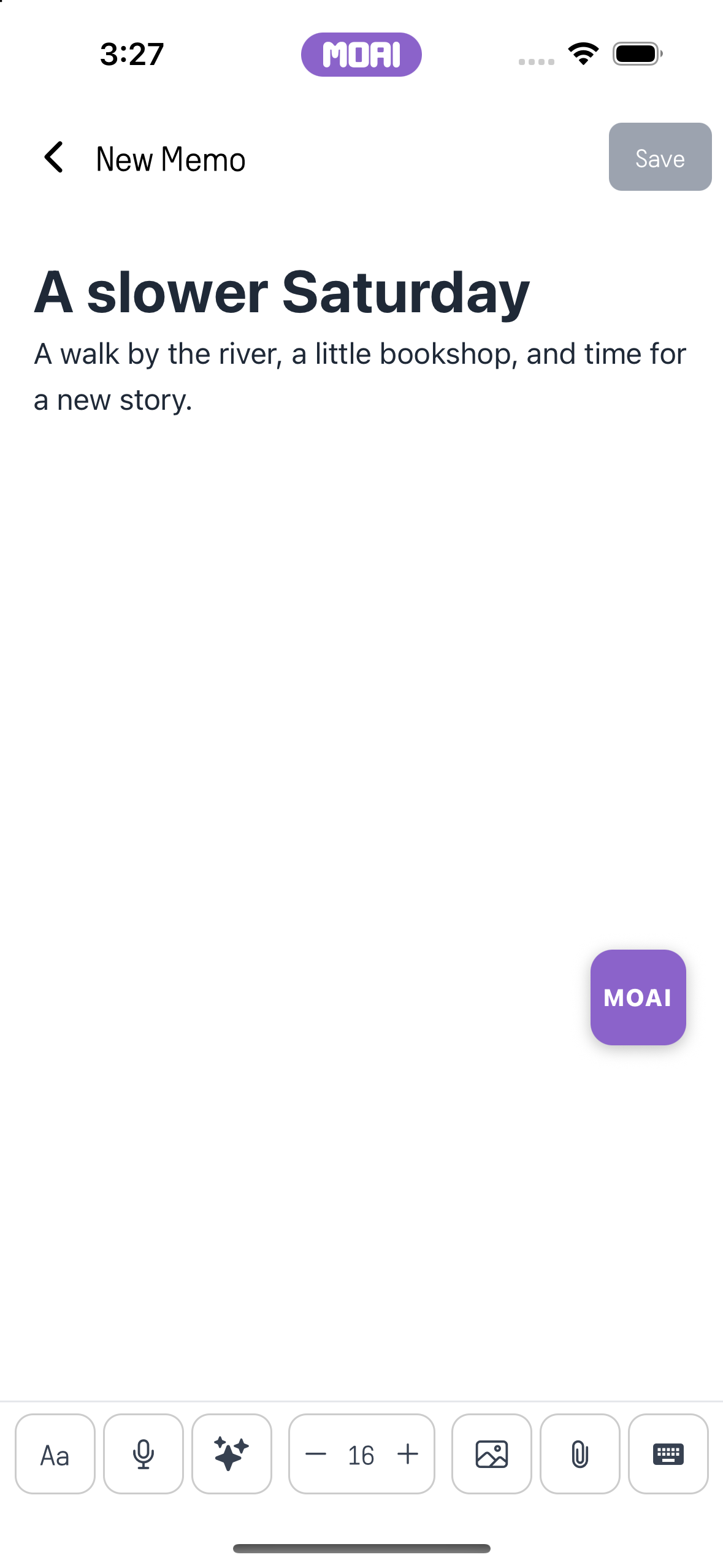
Write and edit a note, add images and attach the material you want to keep with it.
Apply a bulleted list, then undo the change.
MOAI Assistant
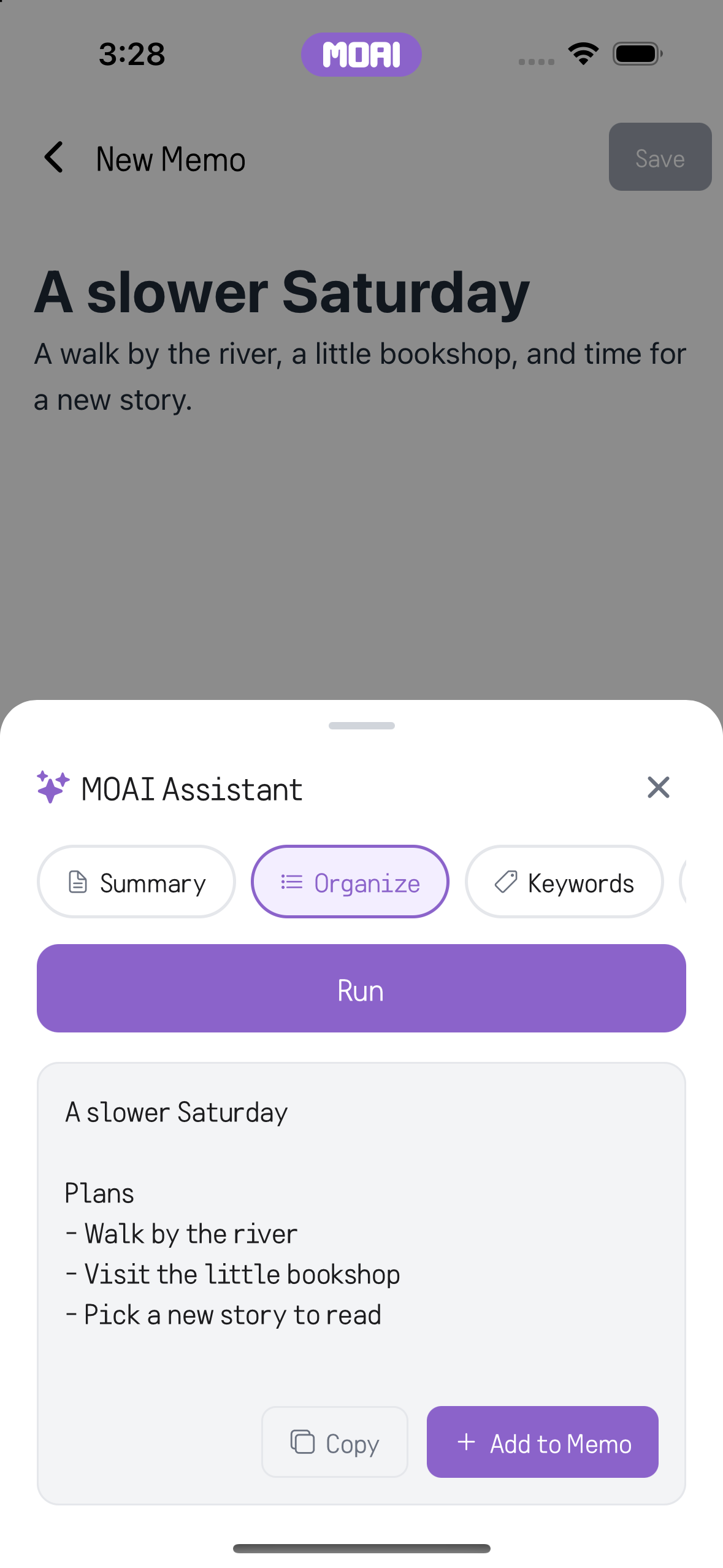
Ask AI to organise your notes, then review the result alongside the original.
Screen recording of running MOAI Organize on a memo and receiving a tidy plan list. Sample result shown.
Original memo text in the editor before any MOAI organizing. Sample content shown.
MOAI Assistant showing the organized memo as a short plan list with Copy and Add to Memo buttons. Sample result shown.
Memo
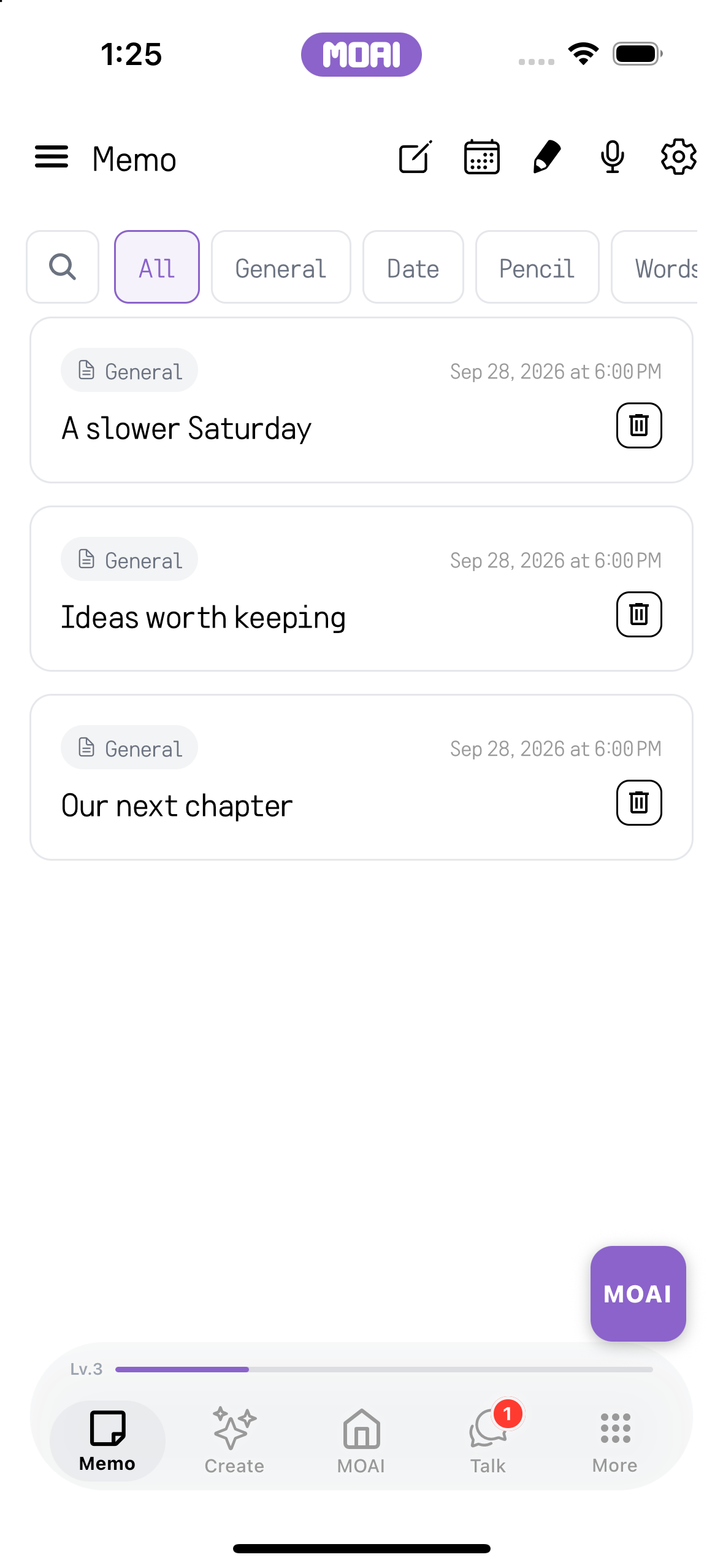
Find a note with search and filters for different kinds of content.
Search your note library to find a matching note.
Calendar
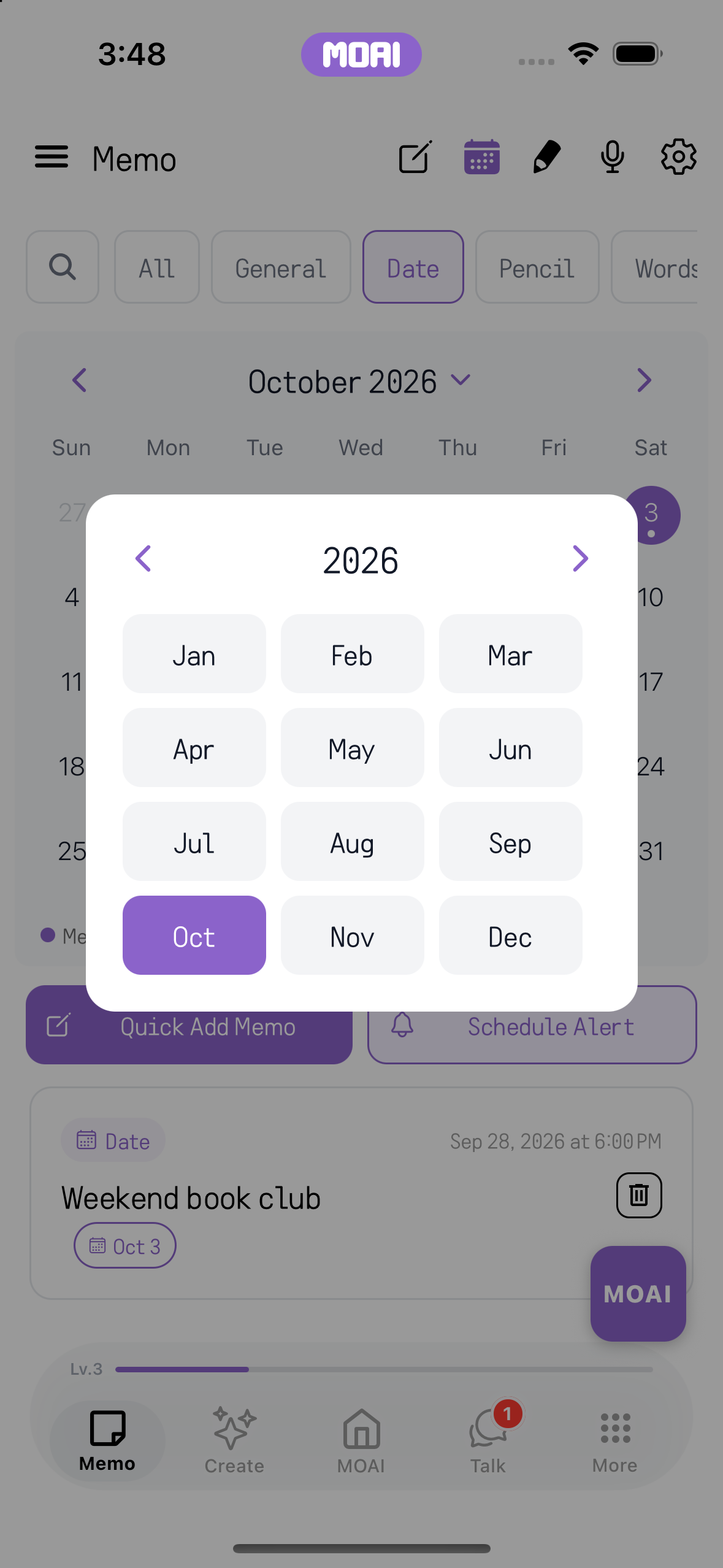
Move between month and year views, open a date and add a note to that day.
Select a date to see its scheduled notes.
Choose a year and month from the calendar picker.
Memo Reminders
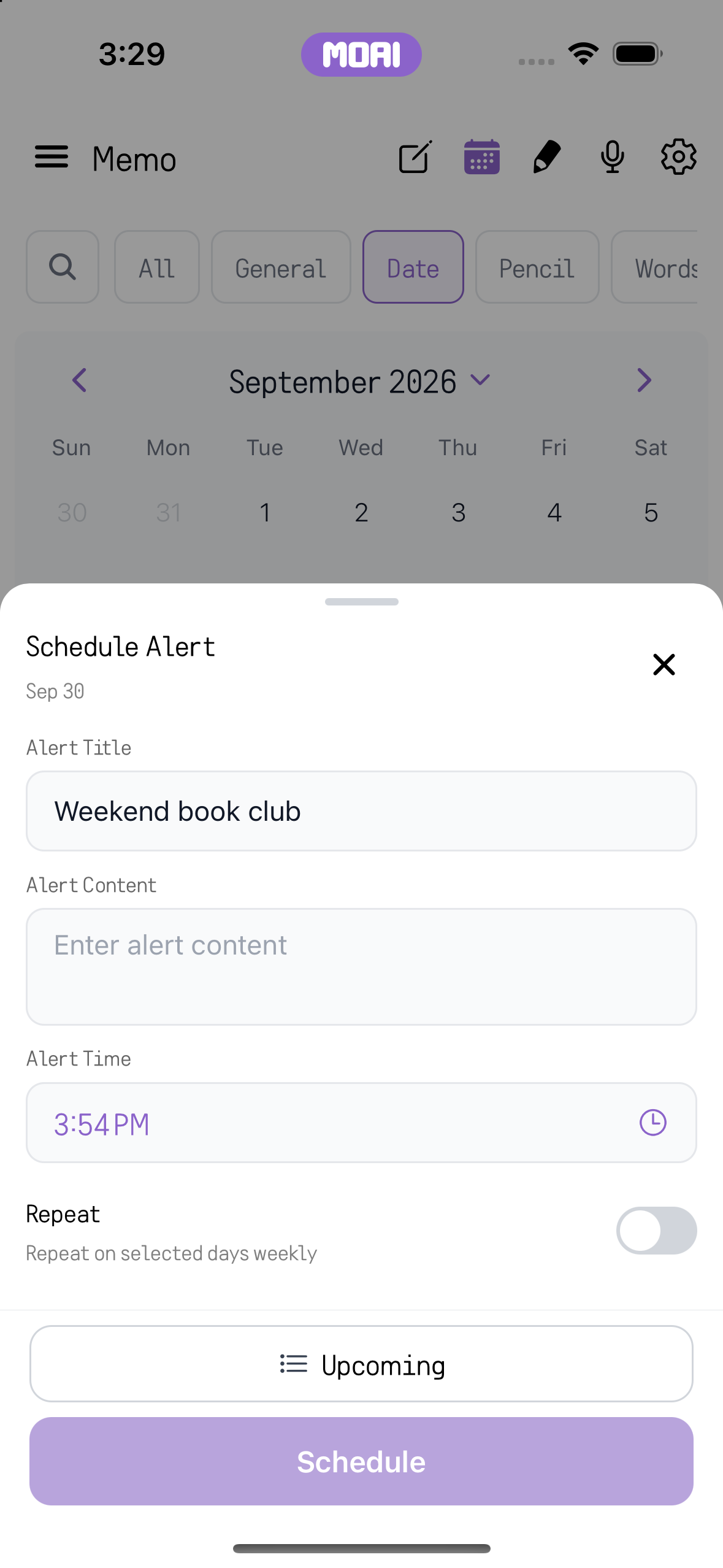
Set a time for a note so its notification can bring you back to it.
Schedule Alert sheet in the Memo calendar with a title, alert time and repeat option for a chosen date. Sample content shown.
Voice Recording
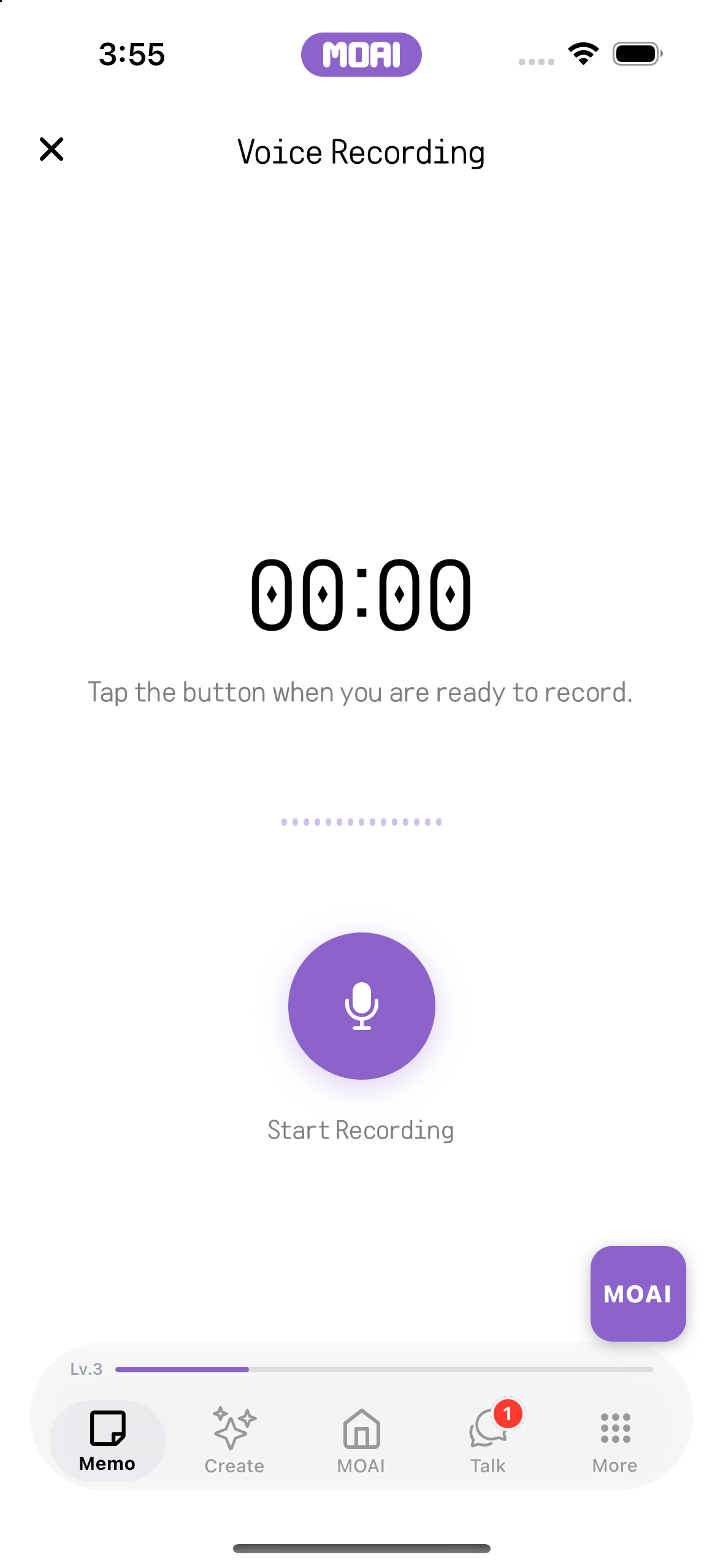
Record a thought, transcribe the audio and organise the text. Return to the recording for playback.
The voice recording screen, ready to begin when you tap Start Recording.
Meeting Recording
Record a meeting and review its transcript, speakers, summary and action items.
Set the participant count before recording.
Moai Pencil
Choose a brush, draw on the canvas and save your work in the gallery.
Color over the line drawing while keeping the completed reference beside it.
Vocabulary
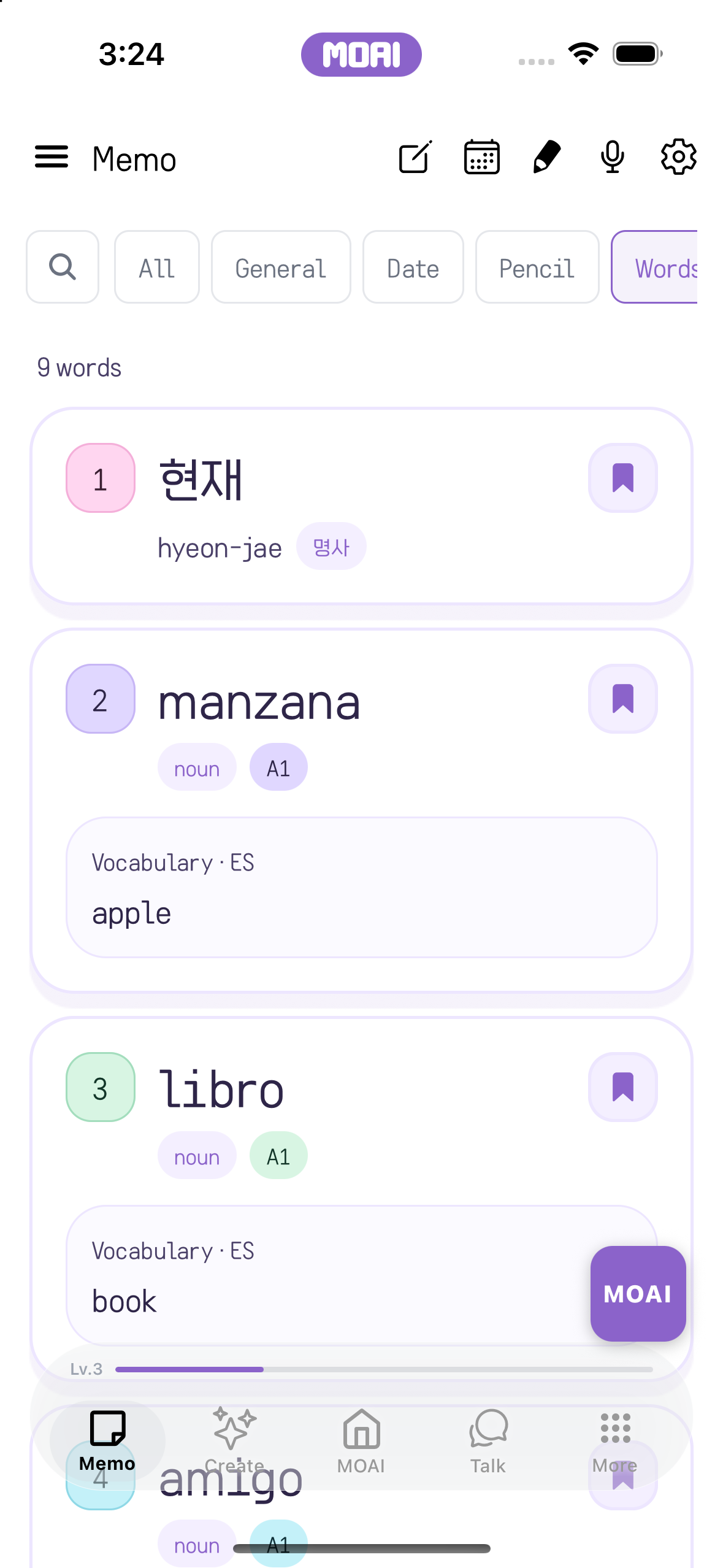
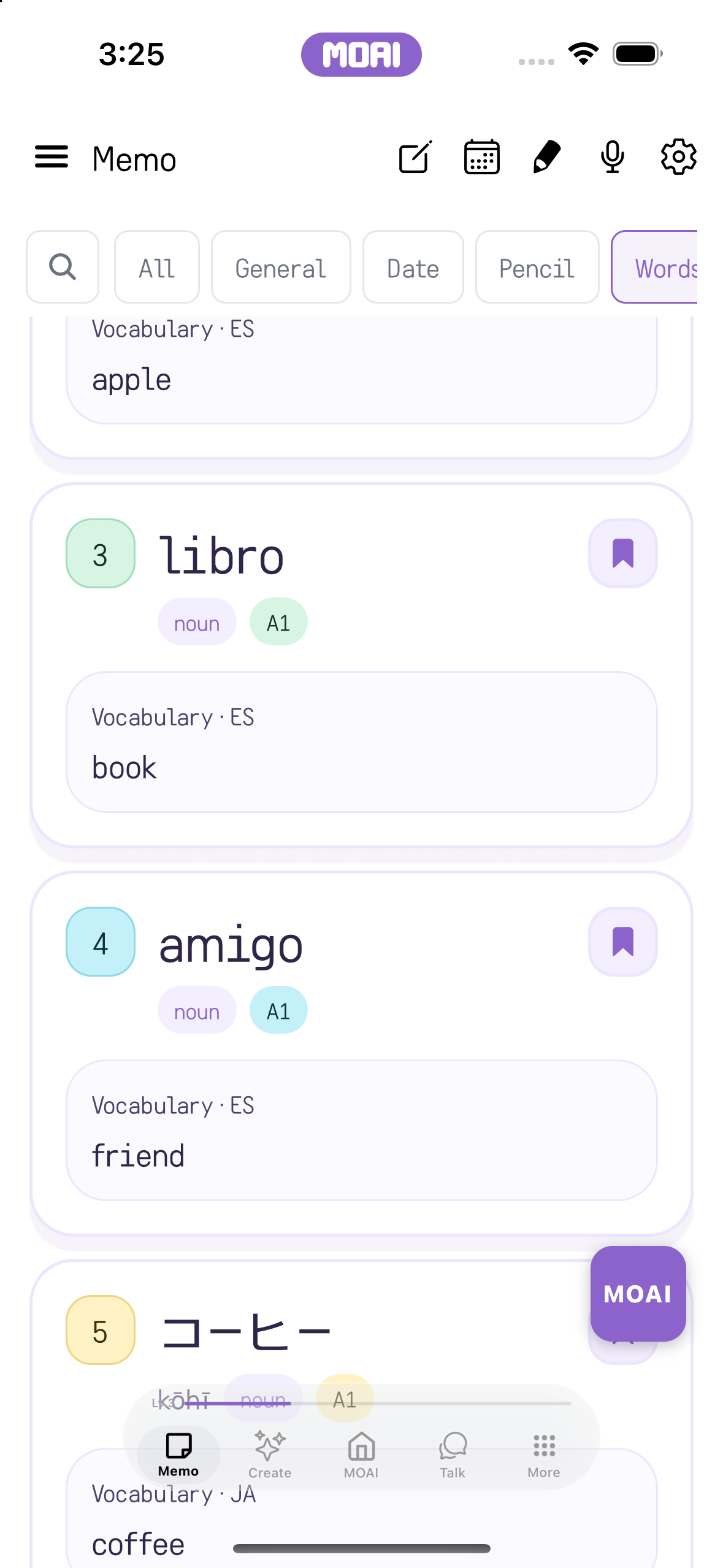
Find bookmarked words through the vocabulary filter and continue studying from your notes.
Memo list with the Words filter chip selected, showing nine saved words with bookmark buttons. Sample content shown.
Memo Words list scrolled to show bookmarked Spanish and Japanese words with their meanings. Sample content shown.
Export PDF
Bring material into your notes, export a PDF or share a note with another app.
Opening a memo and exporting it to a PDF preview. Sample content shown.
Deleted Memos
Open the trash and restore a note you want to keep.
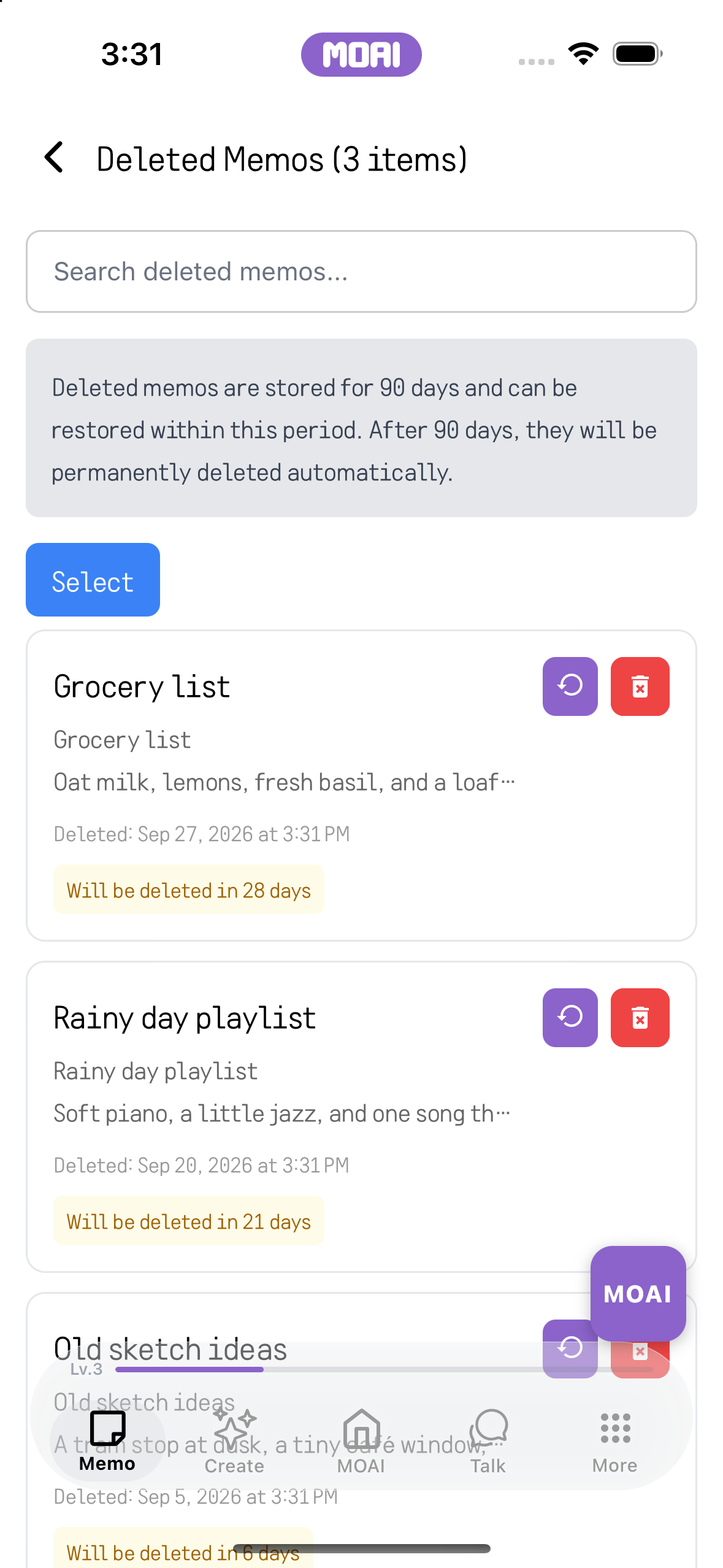
Deleted Memos list showing trashed memos with restore and delete buttons and the days remaining before automatic removal. Sample content shown.
Create
Start with an idea.
Music Studio, Beat Maker, Image Studio, Video Studio and Keywords. Start from one idea and turn it into music, images and video.
Create Studio
Explore creative tools and agents, then return to the works you have made.
Create Studio home with studio shortcuts and works in progress, opening Music Studio and returning to the Create home. Sample content shown.
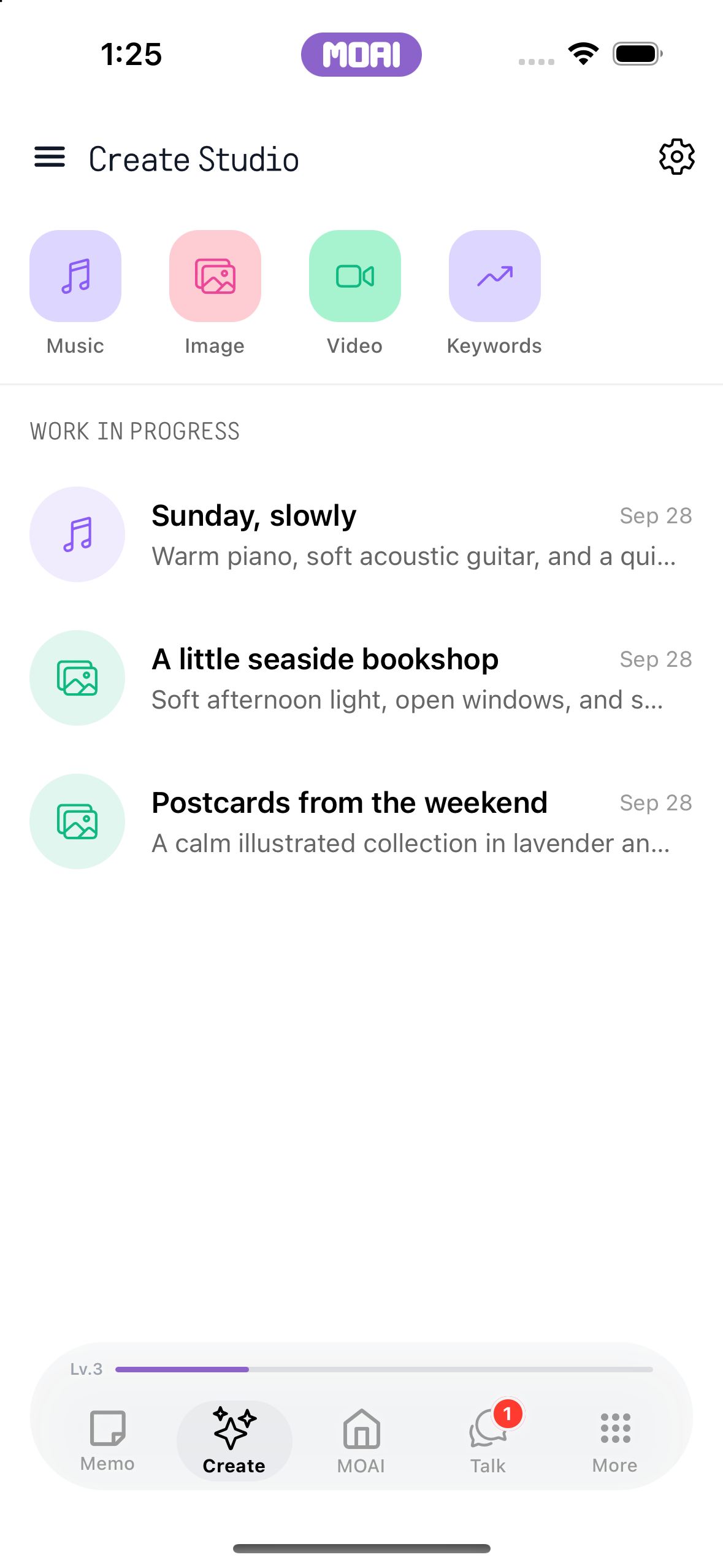
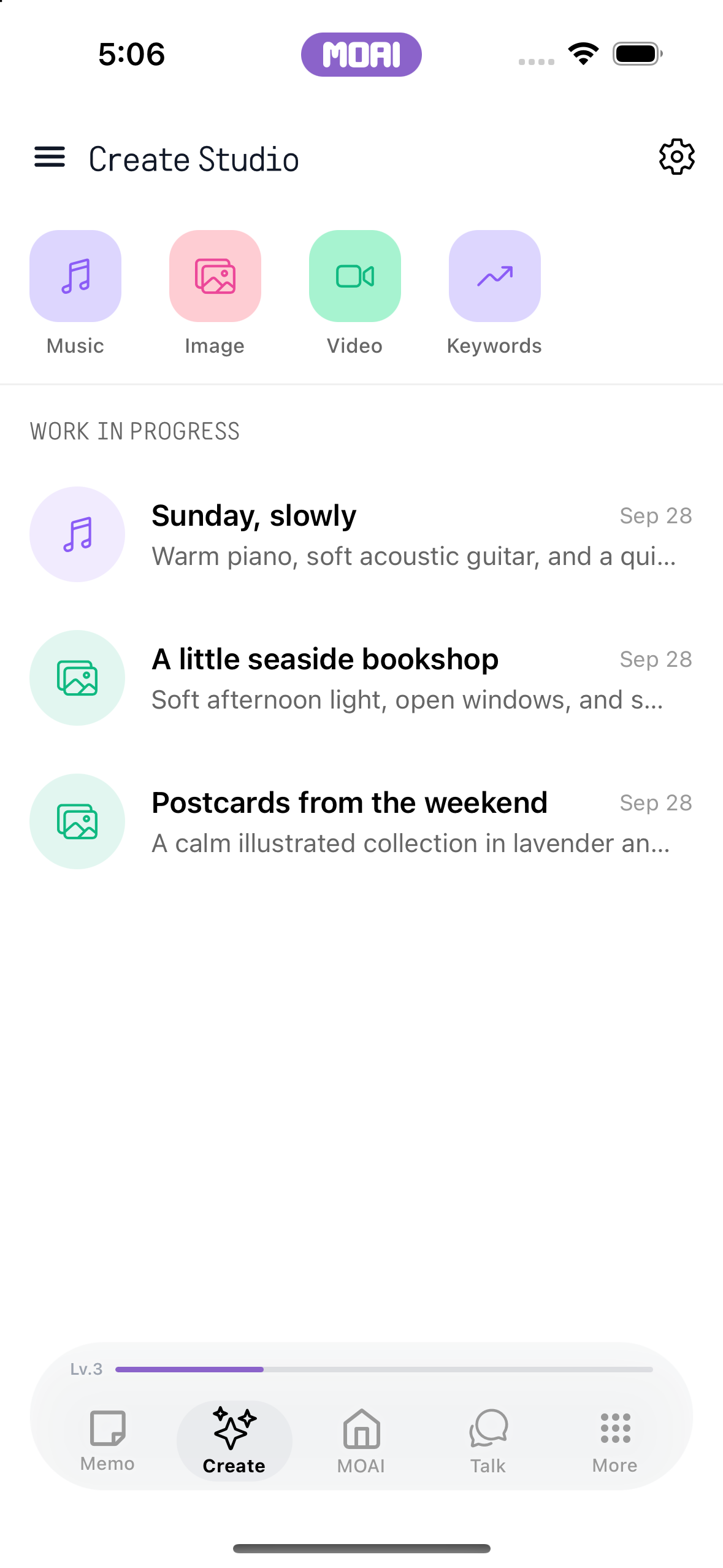
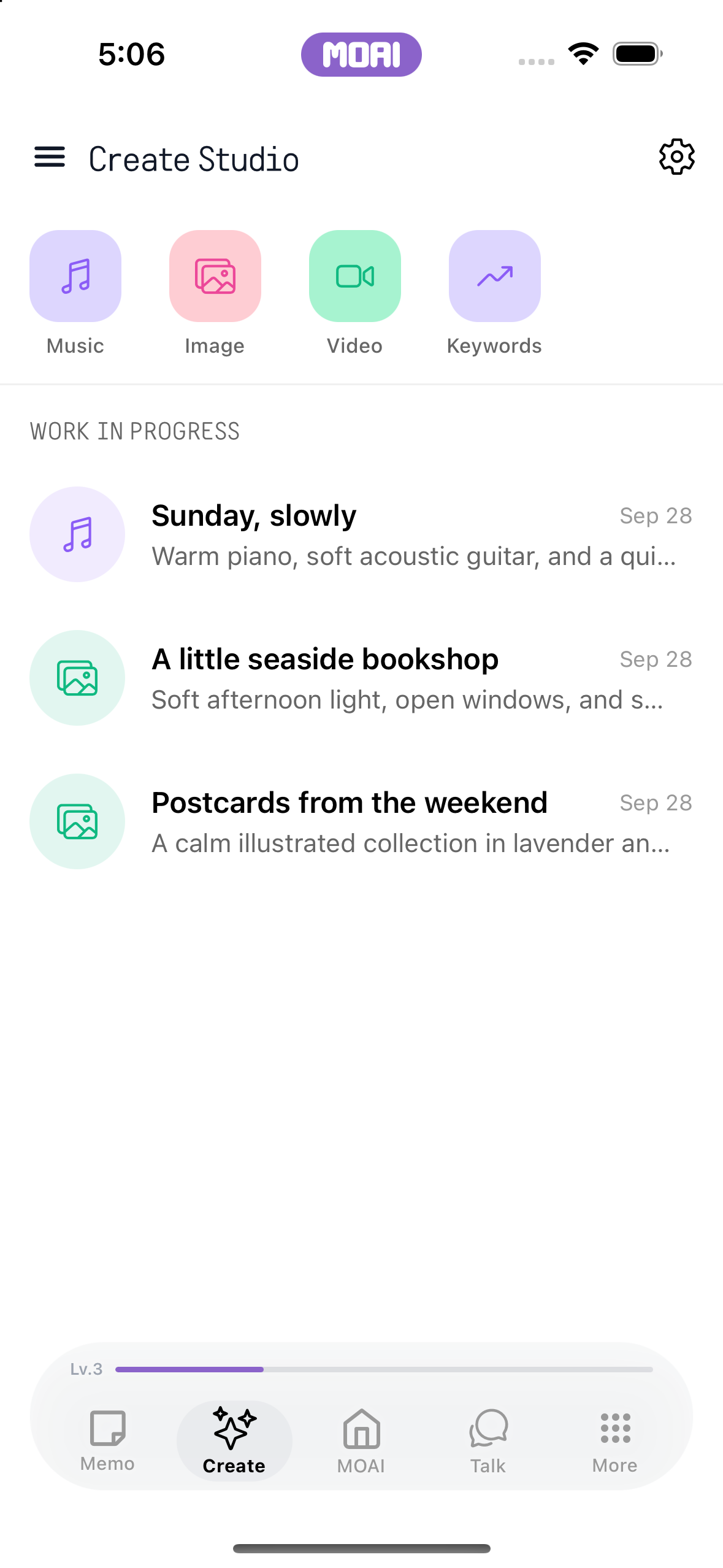
The Create Studio home with Music, Image, Video and Keywords studios along the top. Sample content shown.
The Create Studio work-in-progress list with a music project and two image projects. Sample content shown.
Music Studio
Describe a musical idea, generate a track and organise your music into albums.
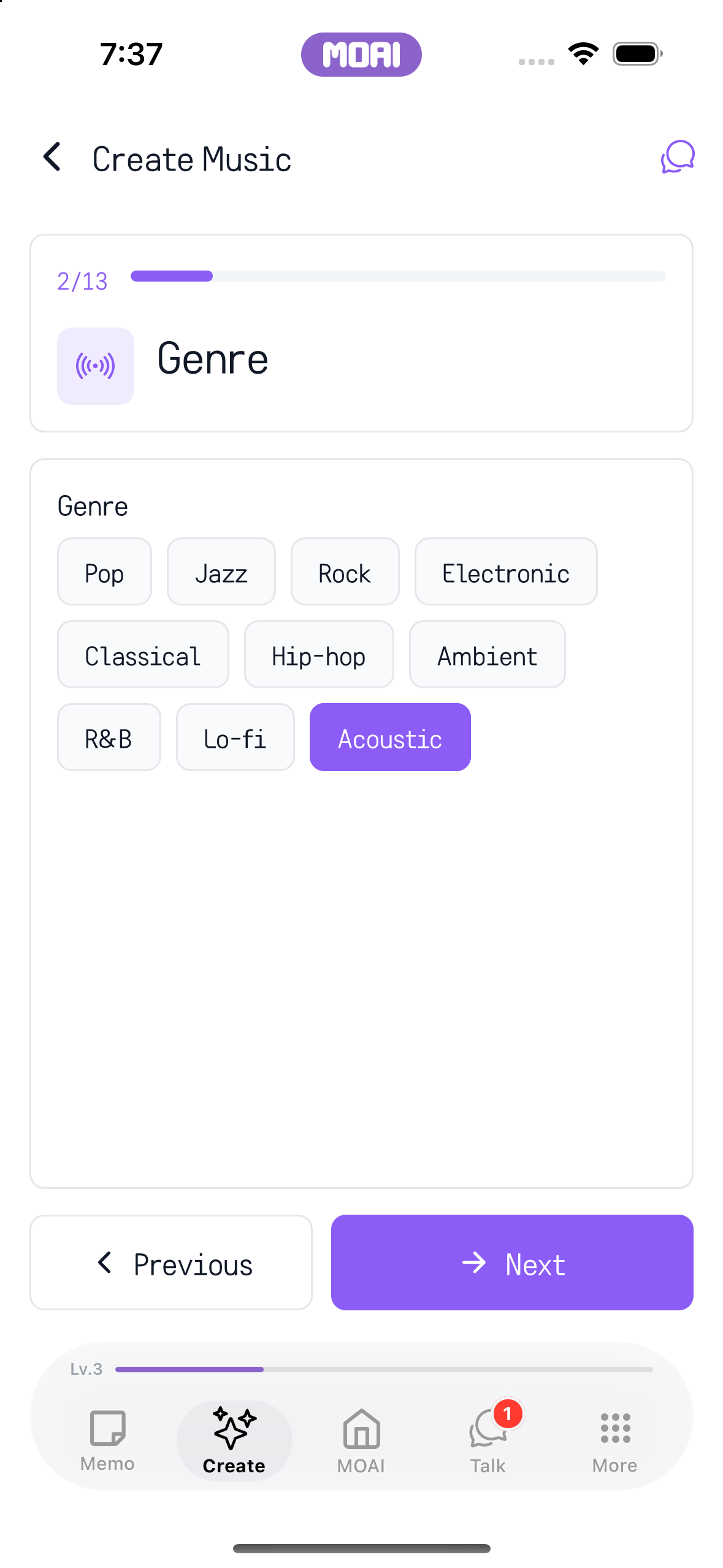
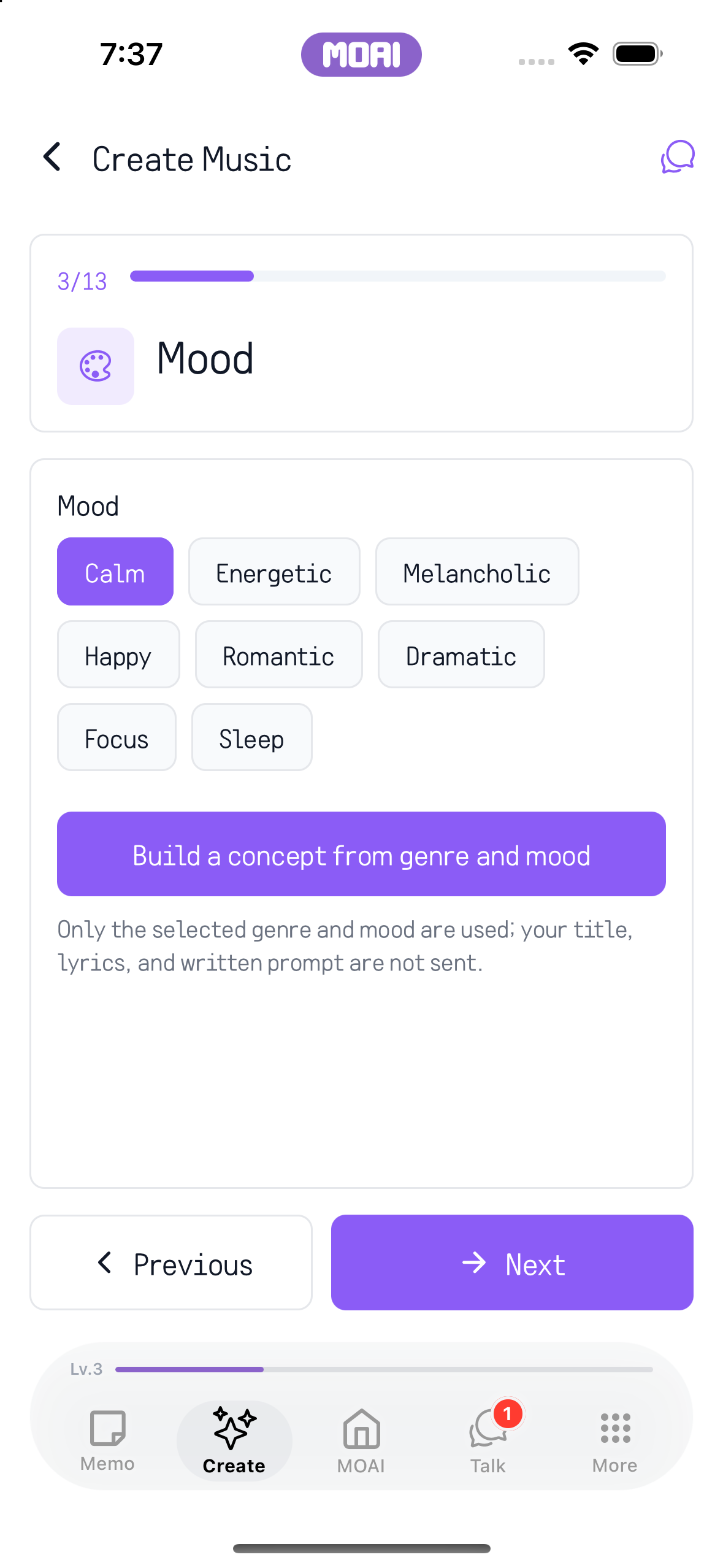
Explore music setup with an example prompt, an Acoustic genre choice and mood options.
Choose Acoustic from the music genre options. Actual iPhone 16 setup screen.
Choose Calm to shape the music mood. Concept and music generation are not demonstrated.
Beat Maker
Build a beat, work on the composition and play it back.
Tapping colorful pads to enter notes in Beat Maker and pressing Play to loop the pattern. Sample content shown.
Image Studio
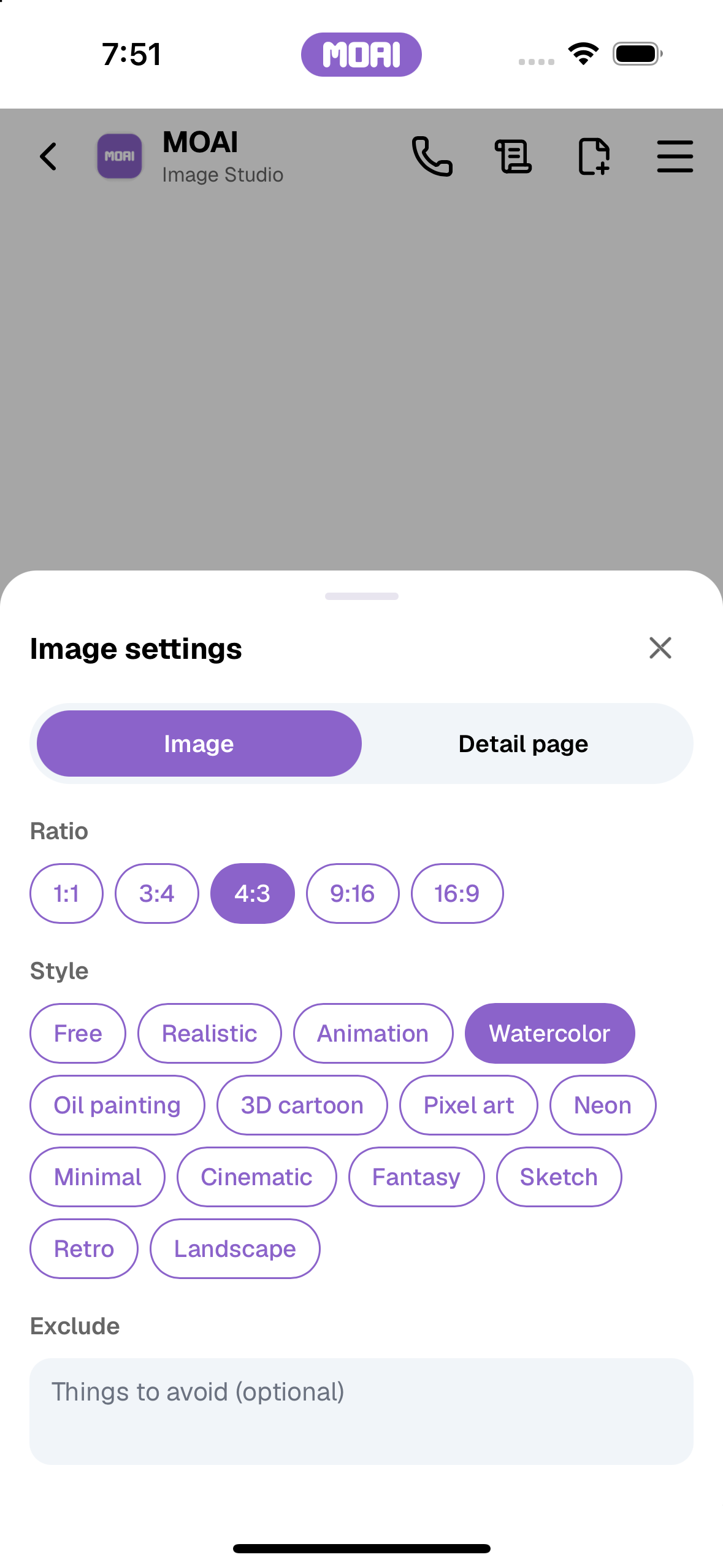
Describe an image in chat, choose its ratio and style, and manage your creations in Image Studio.
Choose an image ratio and Watercolor style. Settings only; no image is generated.
Select a 4:3 image ratio and Watercolor style. Actual setup only; no generated result or save is shown.
Video Studio
Generate a video or work on a clip with AI editing, the studio and the video editor.
Screen recording of the Video Studio editor playing an imported clip and splitting it into two clips on the timeline.
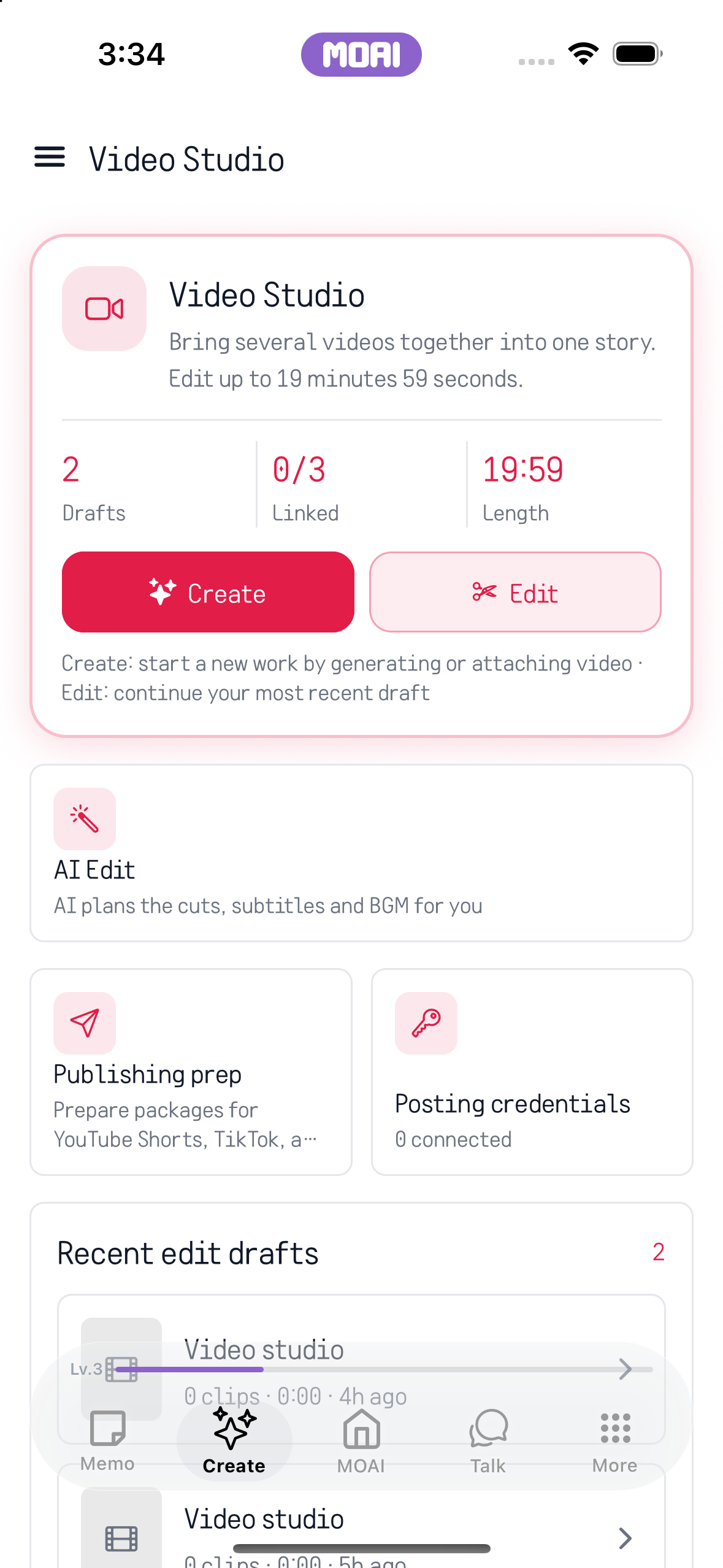
Video Studio home with Create and Edit buttons, AI Edit, publishing prep and recent edit drafts. Sample content shown.
Keywords
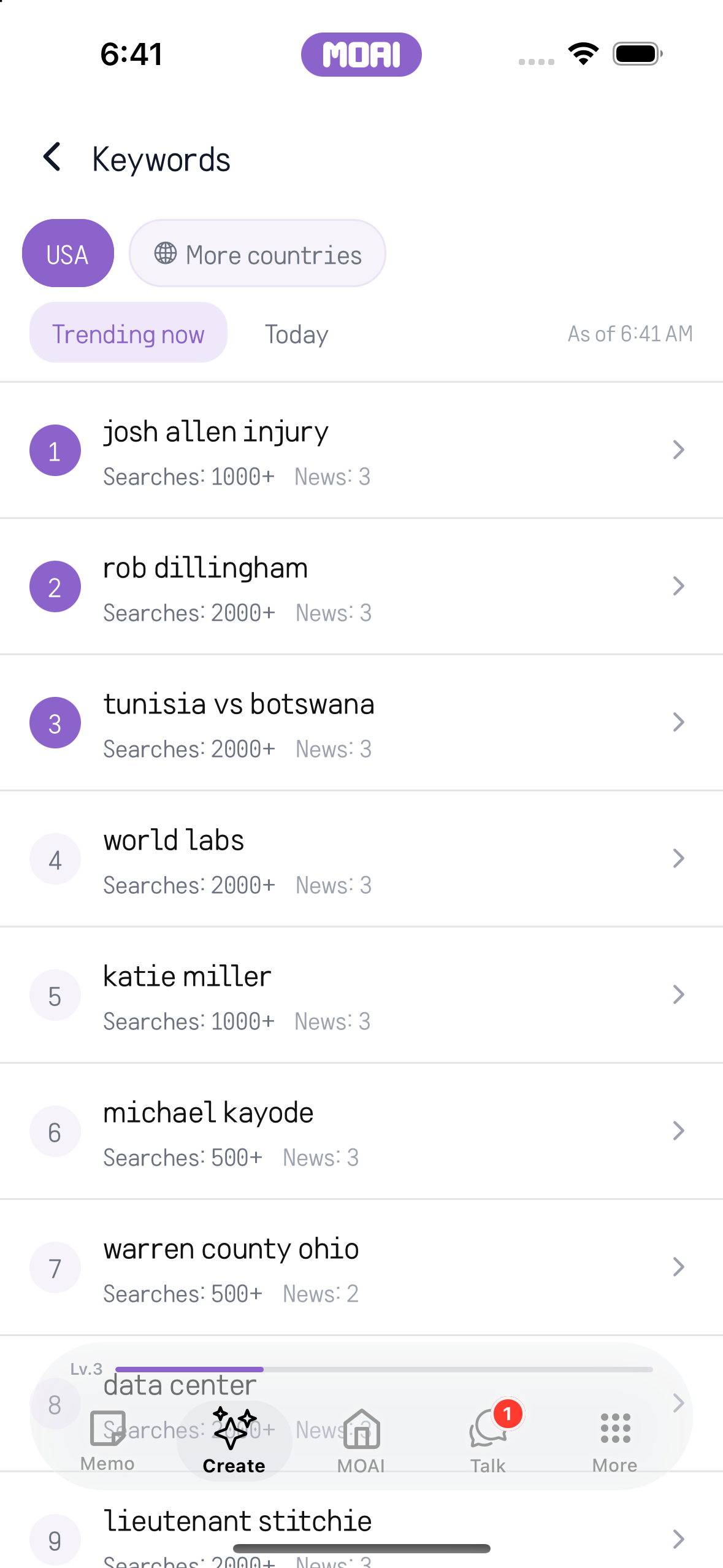
Choose a country, browse trending keywords and open a keyword to learn more.
Explore countries for trending keywords. Return to the keyword rankings.
Browse trending keywords with search counts and related news counts.
MOAI
Follow your curiosity.
MOAI Lens, Beauty Camera, a real-time conversation translator, Study, Music, Fortune and Love, all in one place.
Home
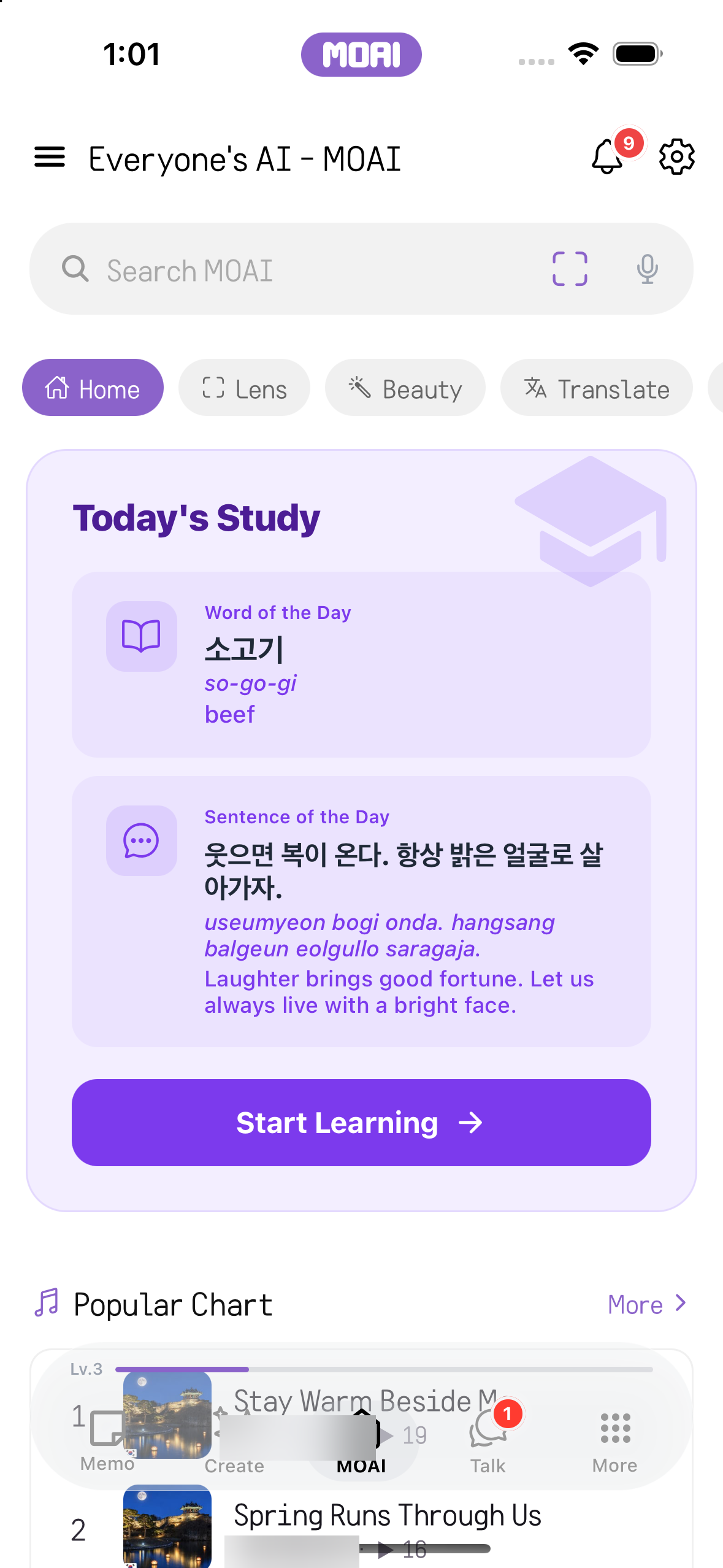
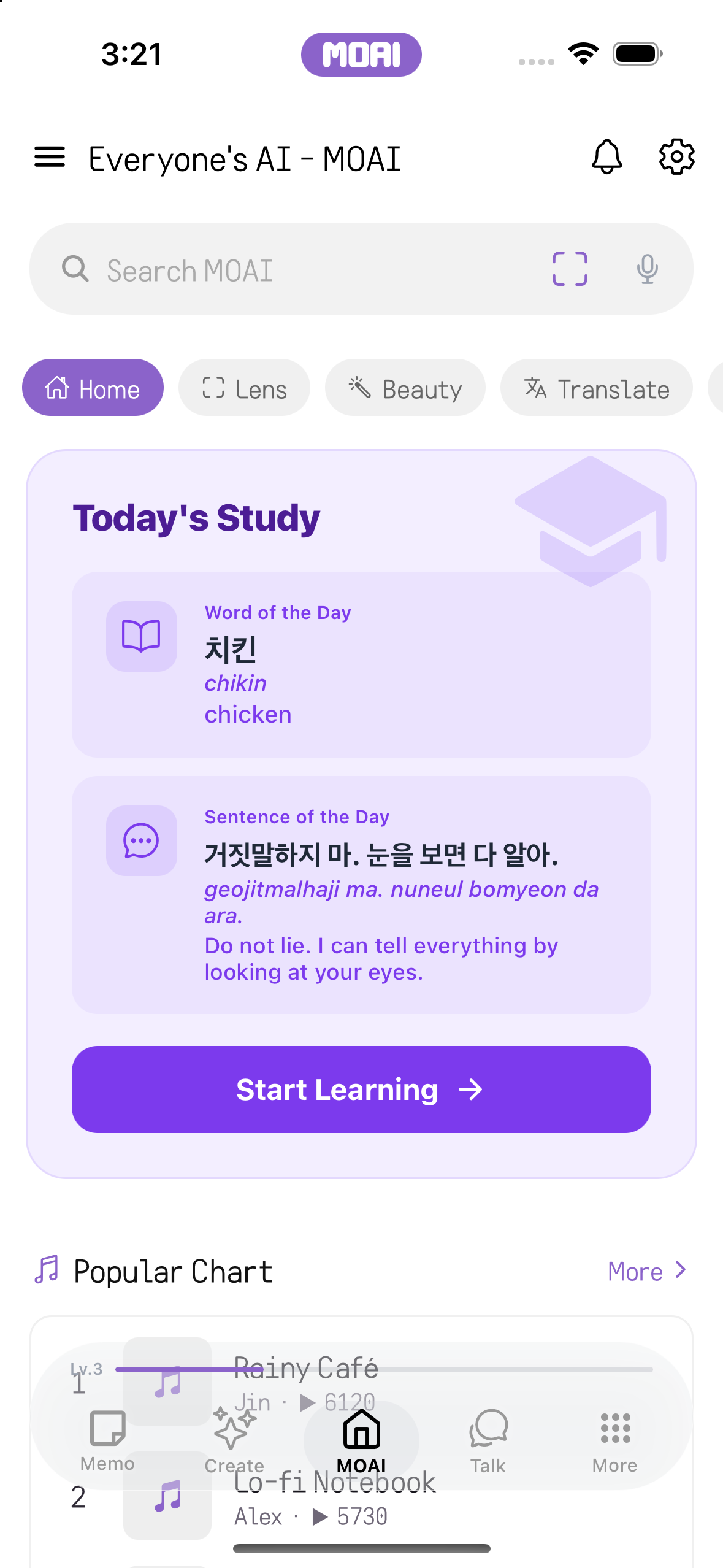
Use the quick menu to open a tool or explore the daily content.
Scrolling the MOAI home with the Today's Study card and daily cards, then tapping the Translate quick-menu chip to open the translator. Sample content shown.
MOAI tab home with the Today's Study card showing the word and sentence of the day. Sample content shown.
MOAI Lens
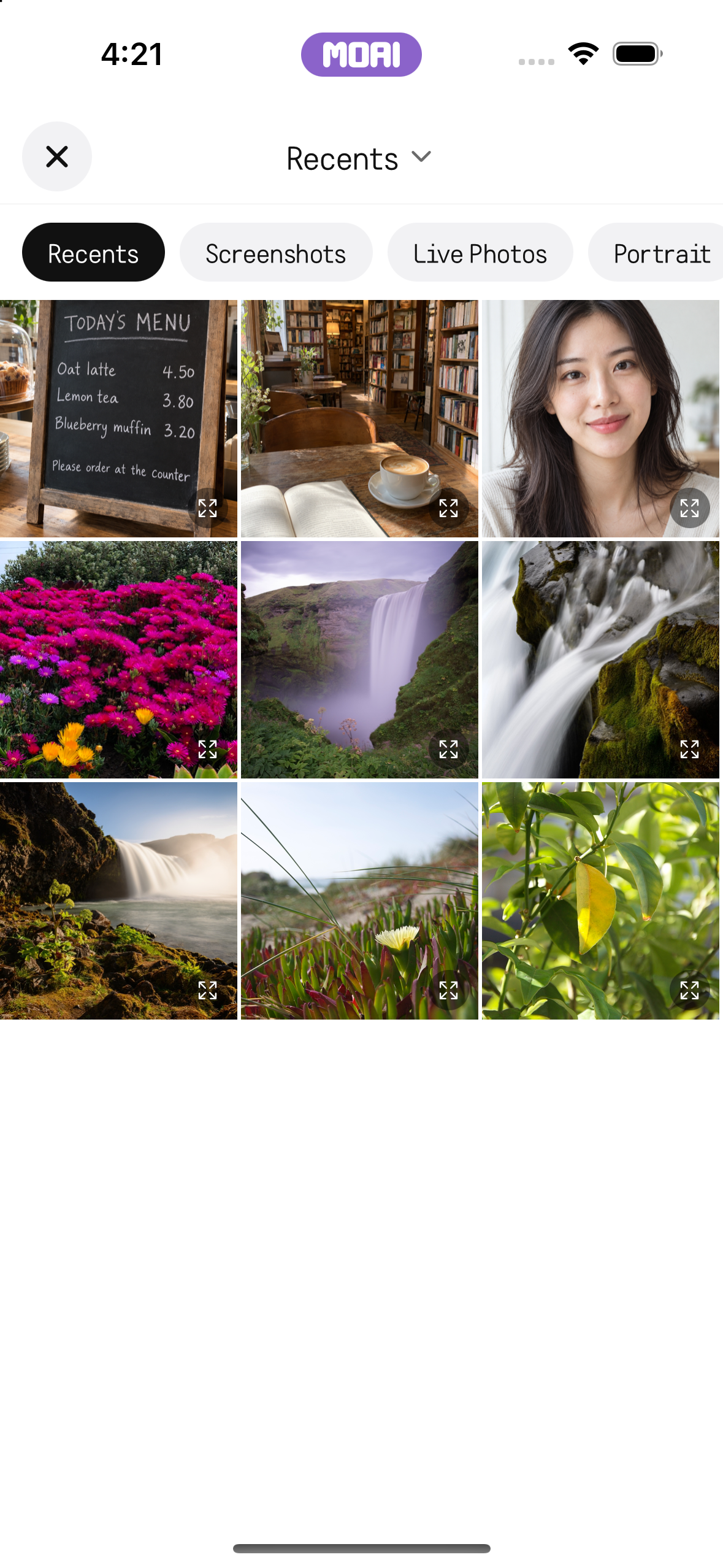
Take a photo or choose an image from your album, then ask the lens to analyse it.
A bookshop cafe photo is picked from the album, analyzed, and Lens opens search results with a briefing. Sample result shown.
The MOAI album picker showing sample photos, including a bookshop cafe photo, to analyze with Lens. Sample content shown.
Beauty Camera
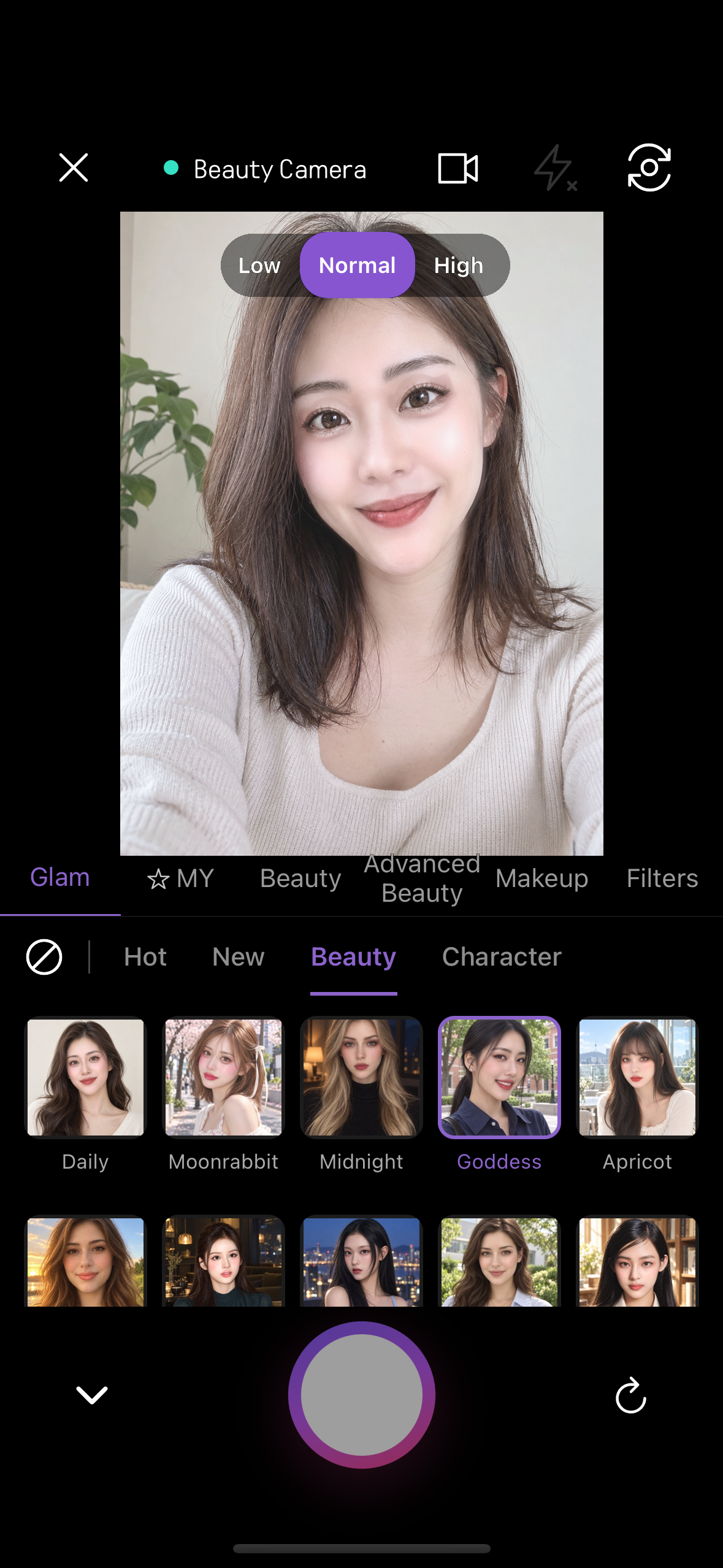
Shoot with live beauty effects, switch between the Glam, MY, Beauty, Advanced Beauty, Makeup and Filters panels, then save or edit the photo.
Trying Glam looks on an album photo of a fictional model: Goddess, Apricot, Moonrabbit, Sunset and Clean, comparing with the original and saving.
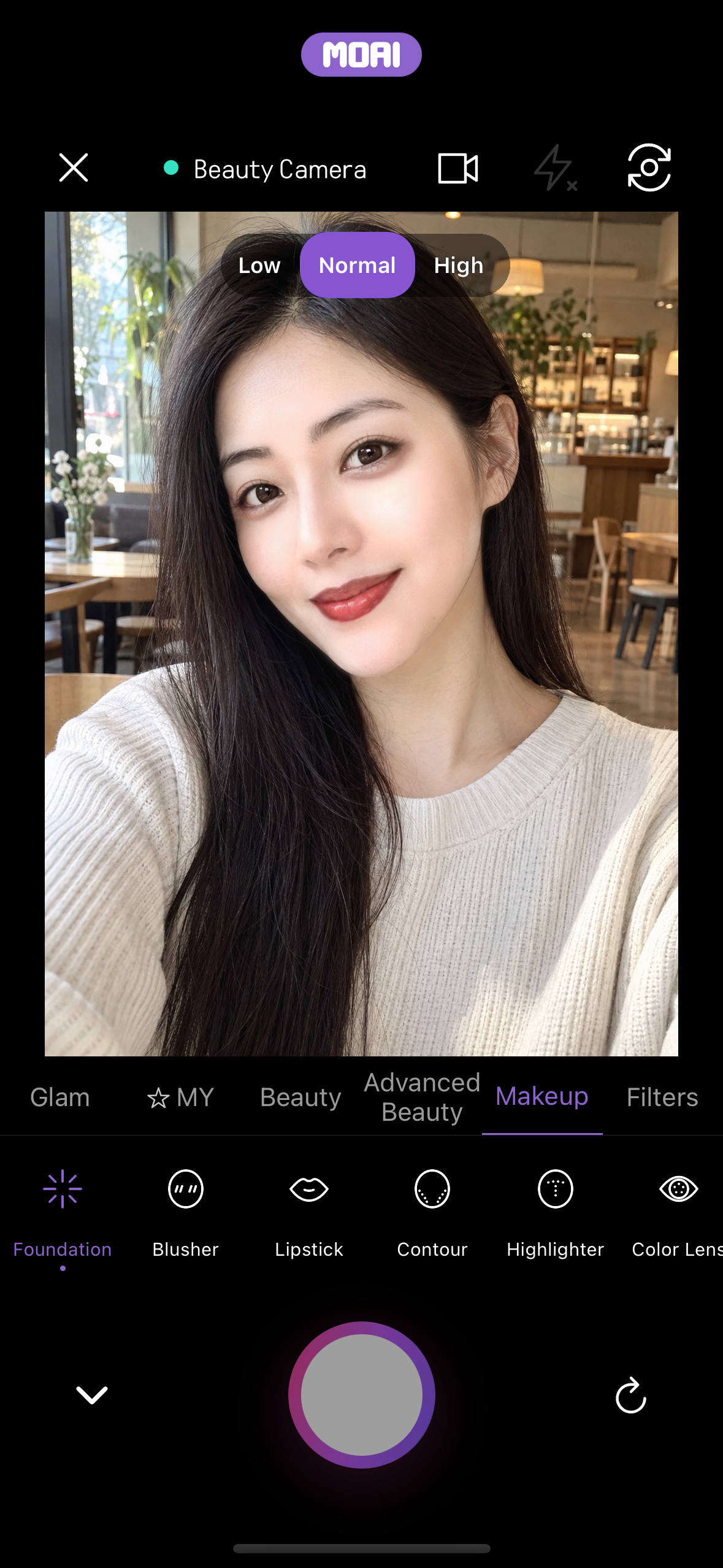
Live beauty camera with the Makeup panel open: Foundation, Blusher, Lipstick, Contour, Highlighter and Color Lens, alongside the Glam, MY, Beauty, Advanced Beauty and Filters tabs. MOAI offers 597 adjustable beauty options in total.
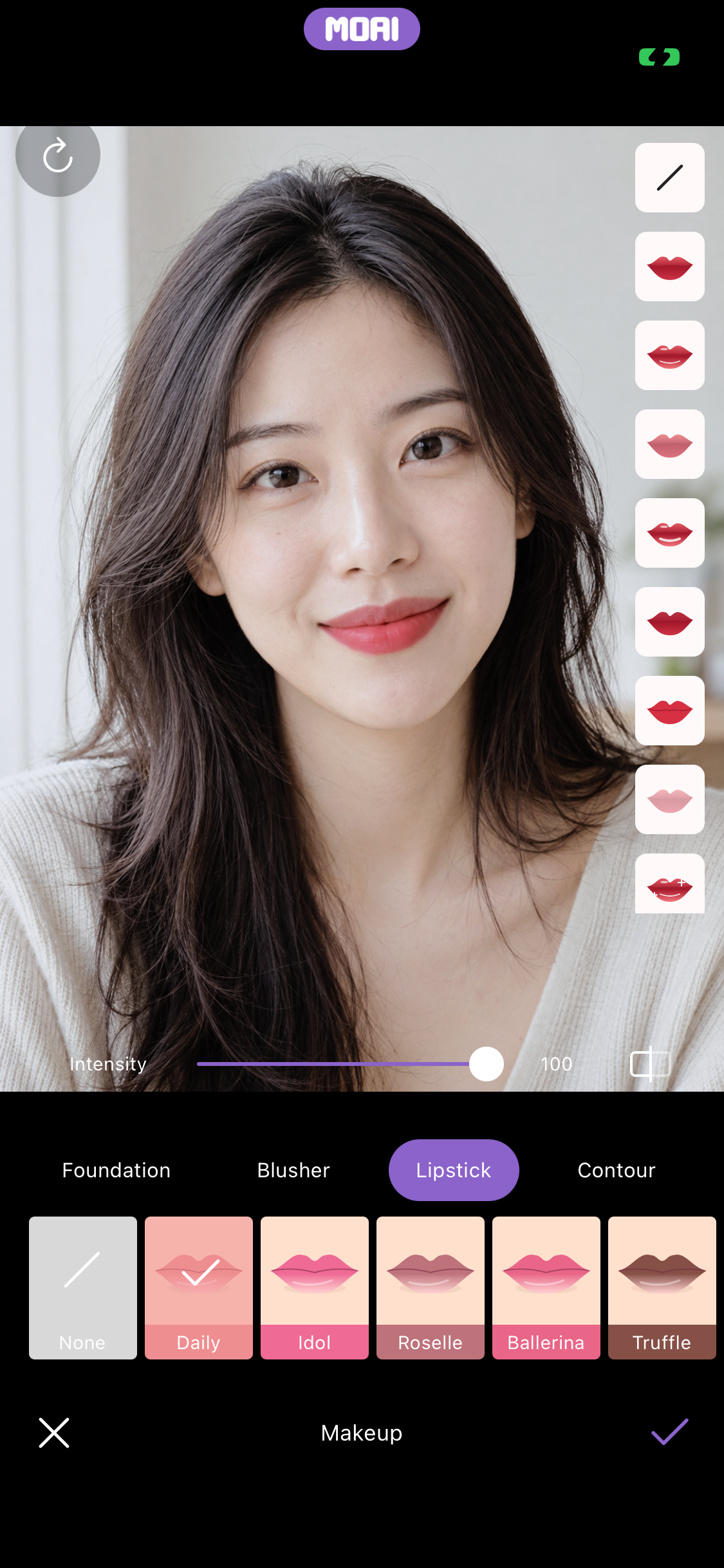
Retouching an album photo: Lipstick applied with style choices and a shade palette on a fictional model. Makeup alone includes 224 of MOAI's 597 beauty options.
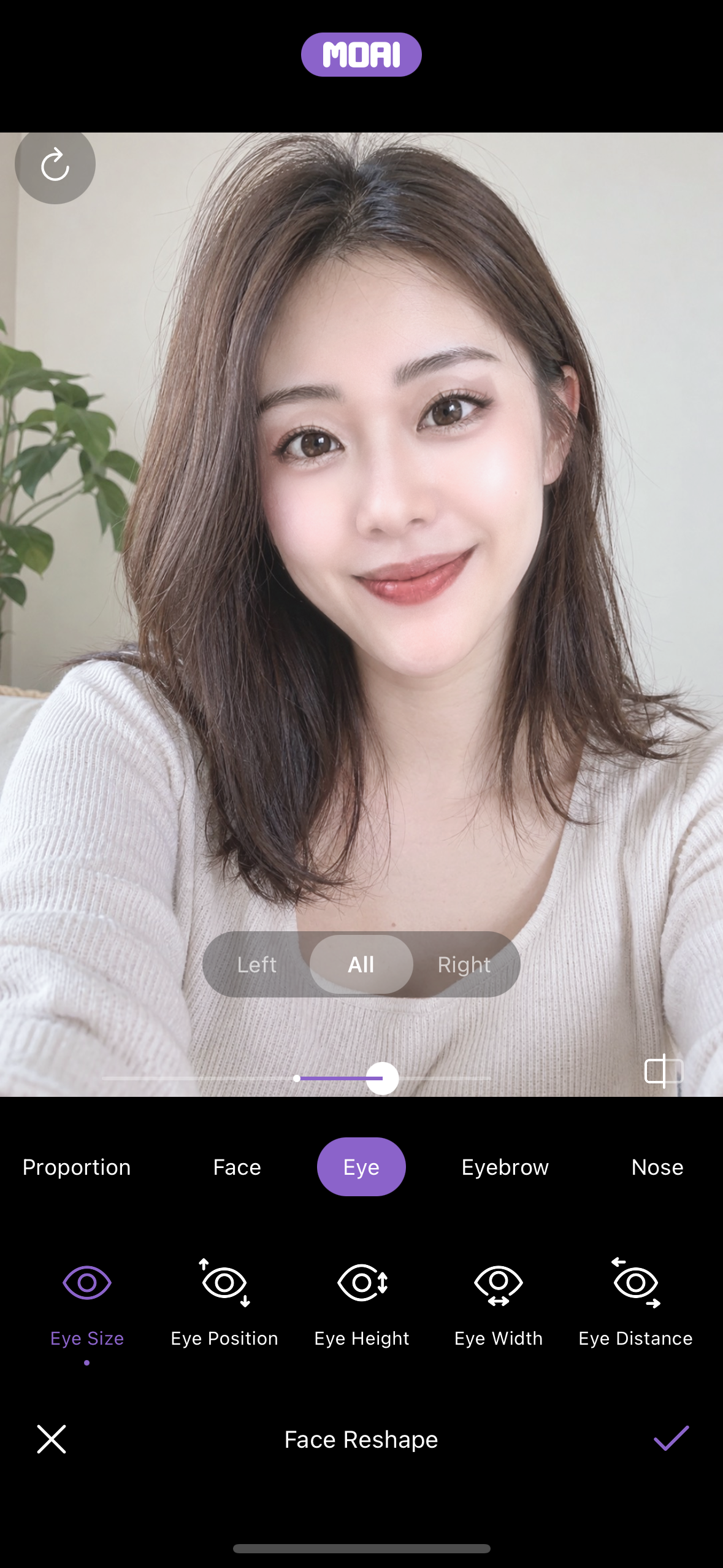
Face Reshape with Proportion, Face, Eye, Eyebrow and Nose groups; Eye Size adjusted for both eyes or each side. Fictional model.
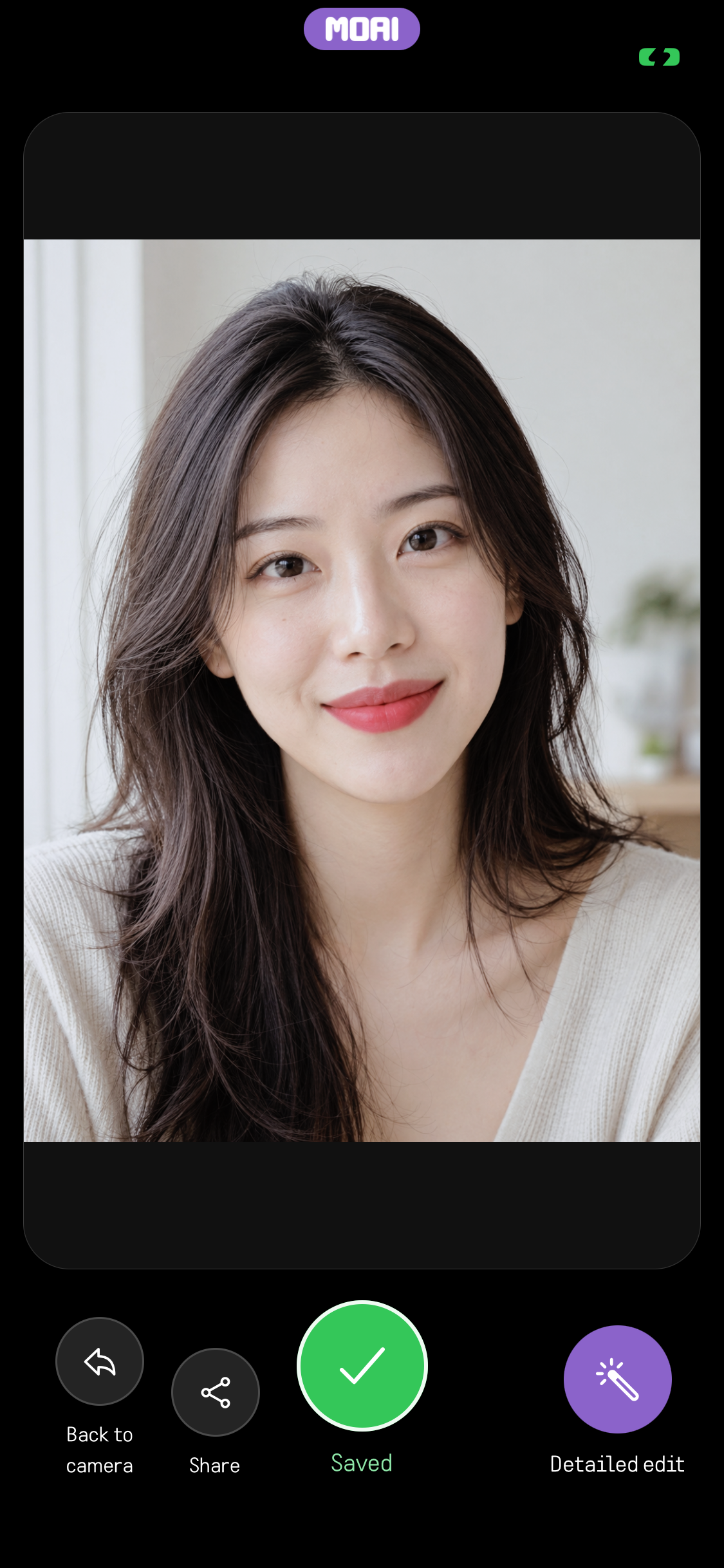
The retouched photo saved to the album, ready to share or edit again. Fictional model.
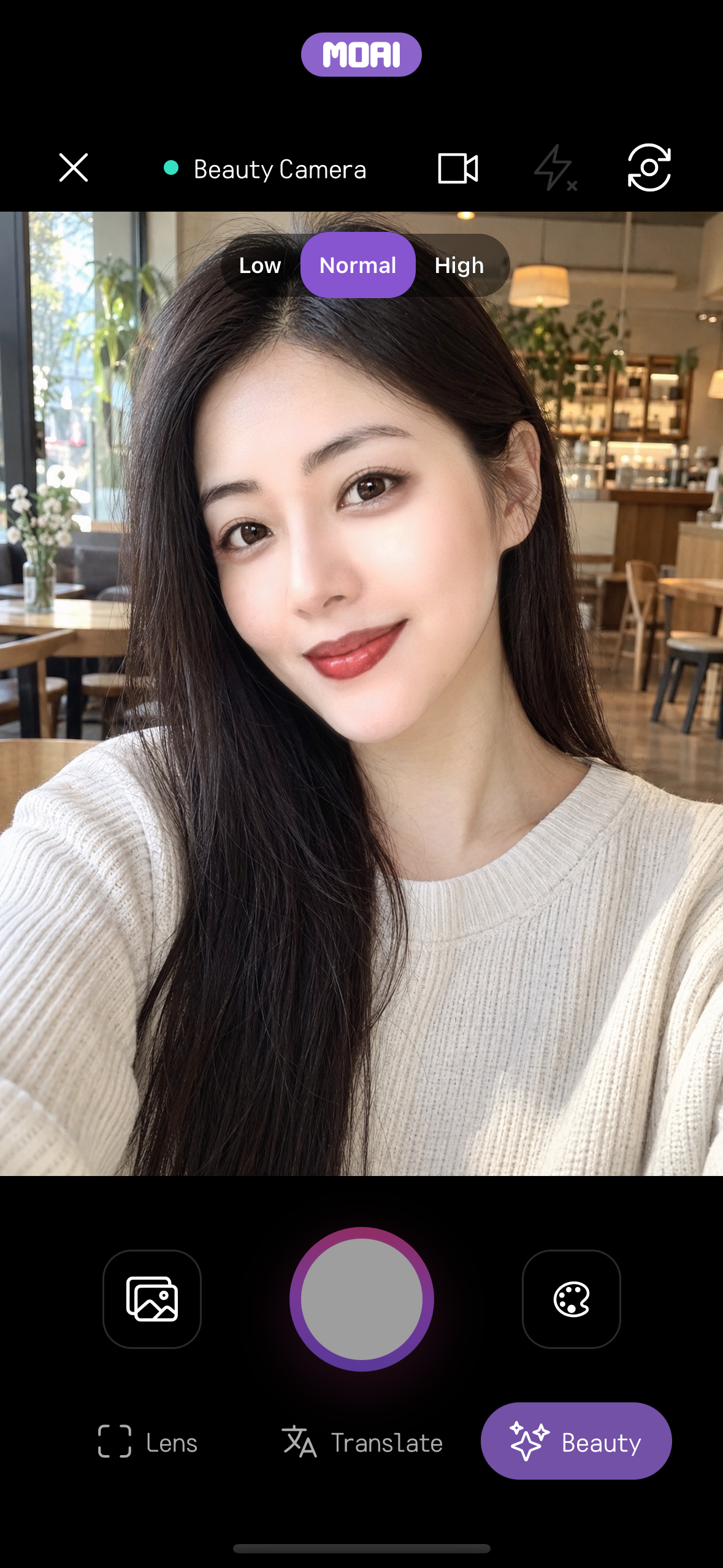
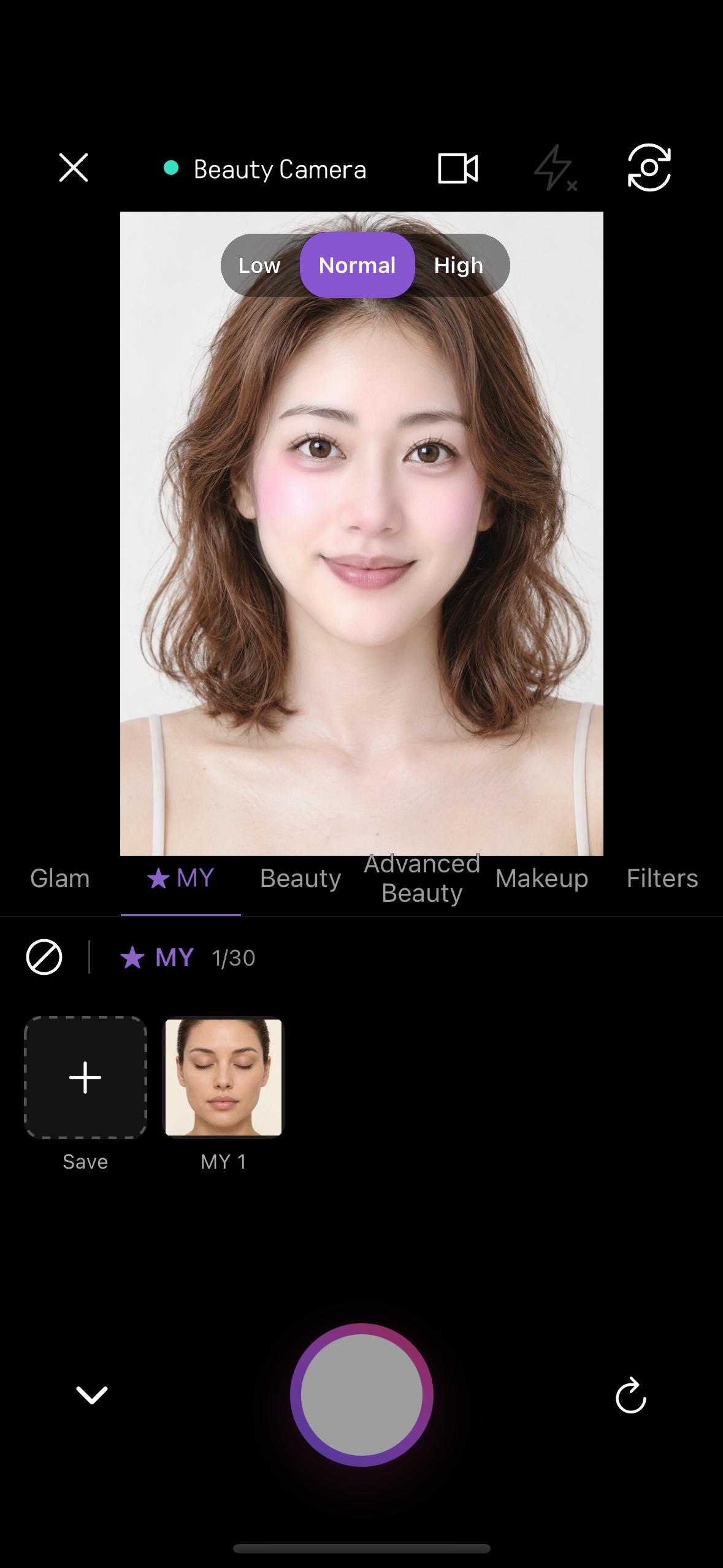
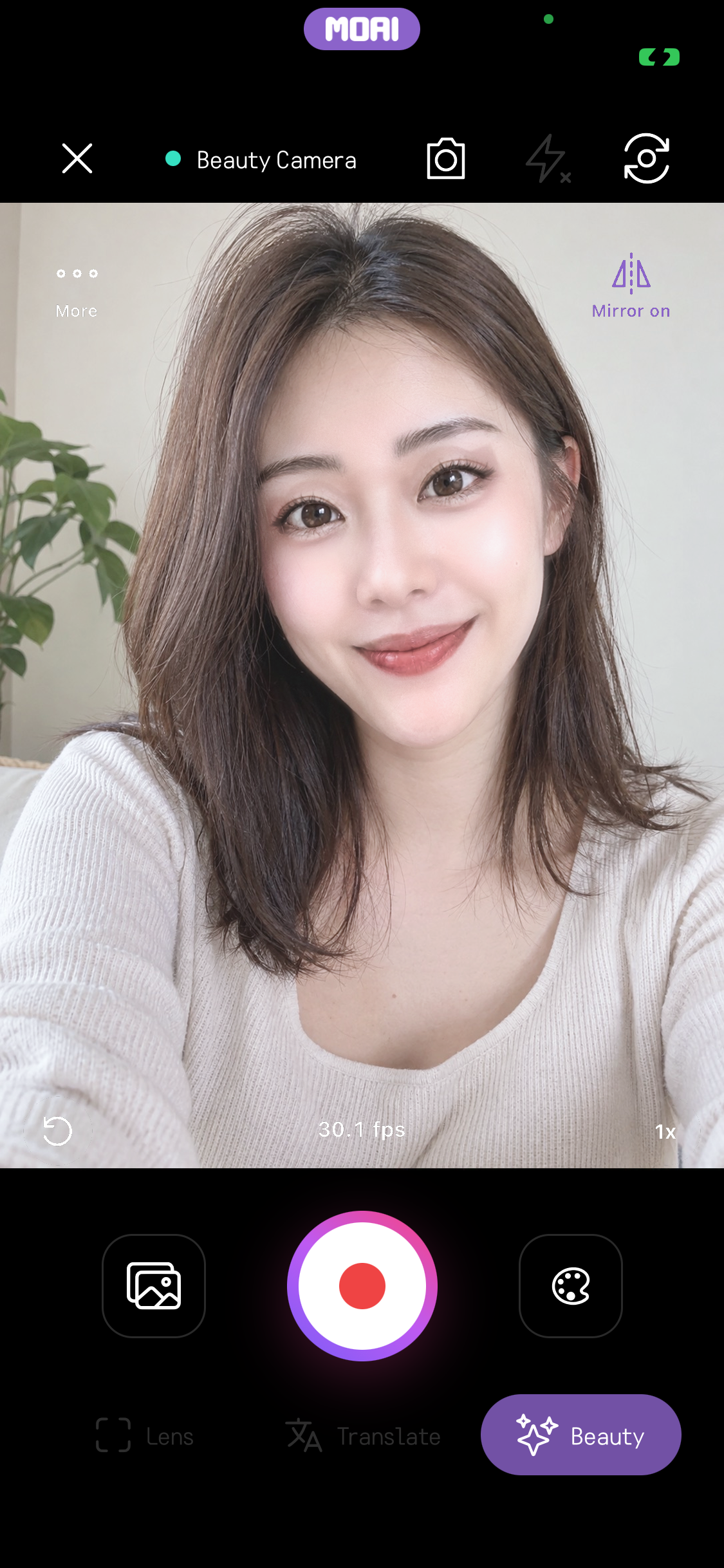
Beauty Camera home screen with the Beauty mode selected next to Lens and Translate, showing the live camera view with Low, Normal and High quality options.
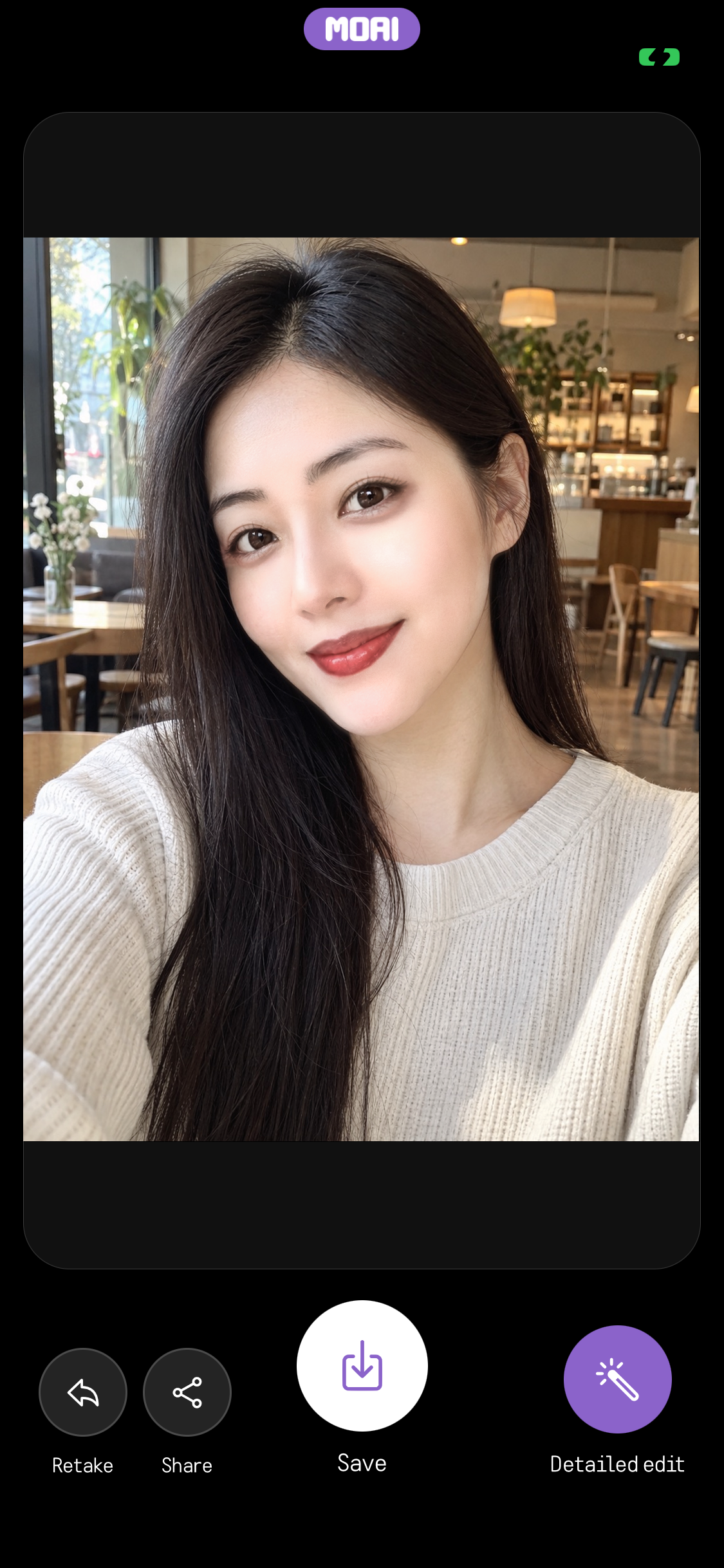
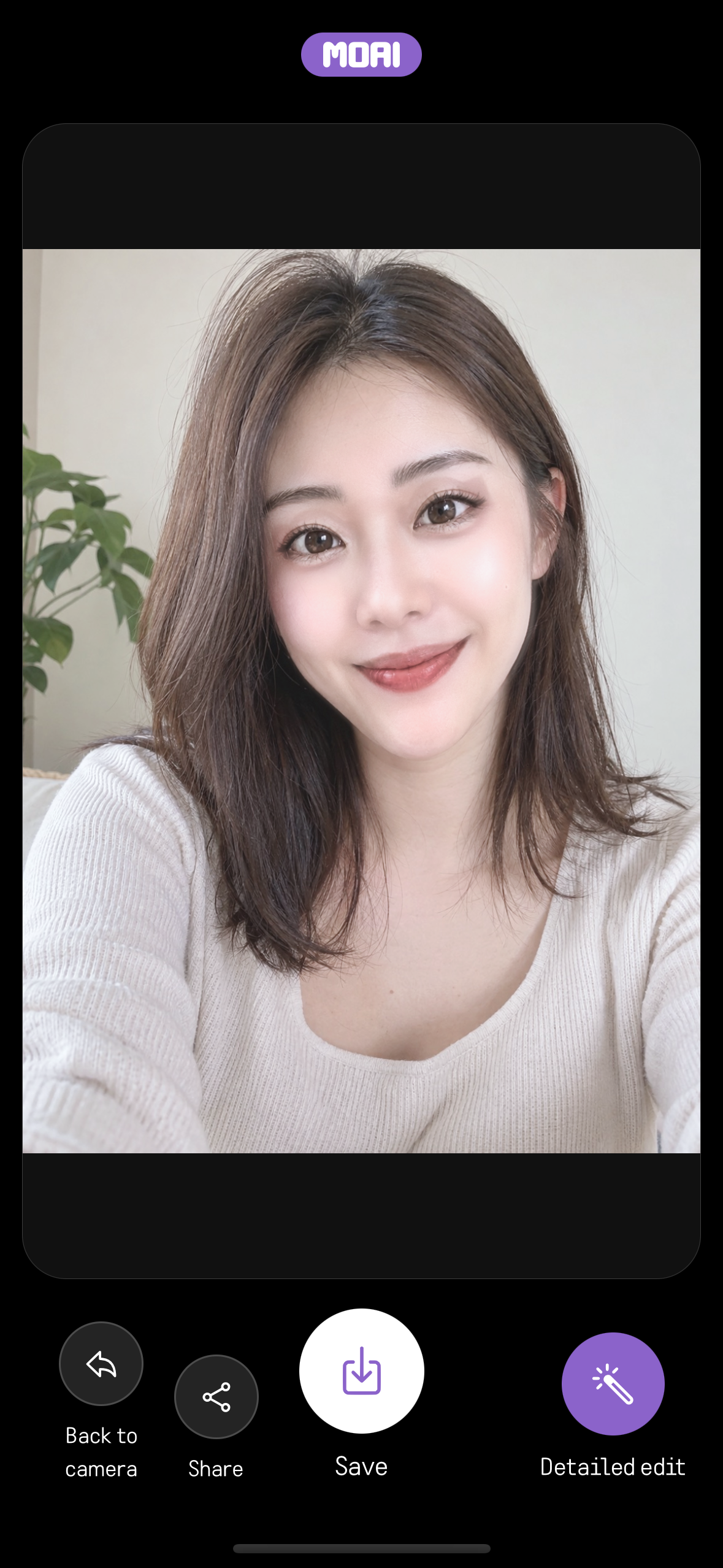
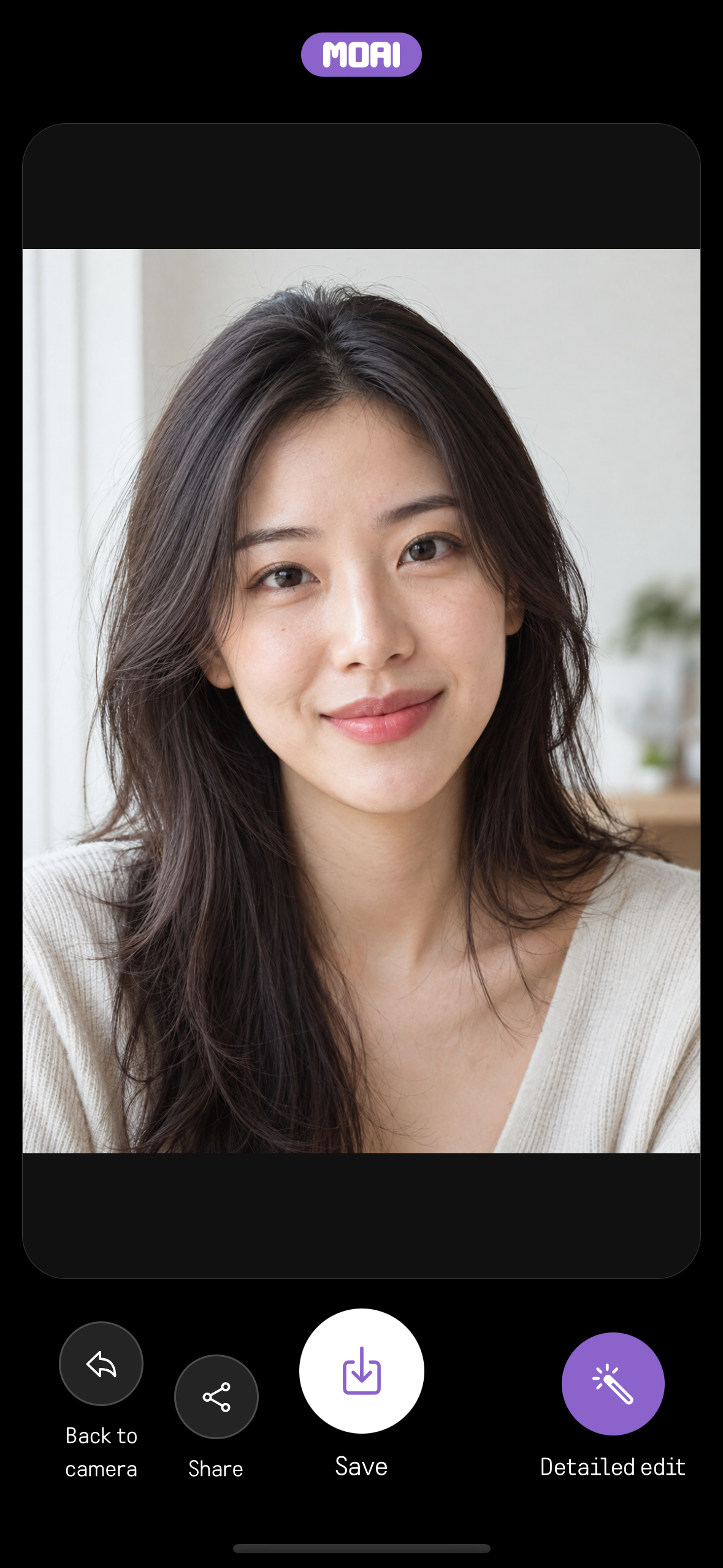
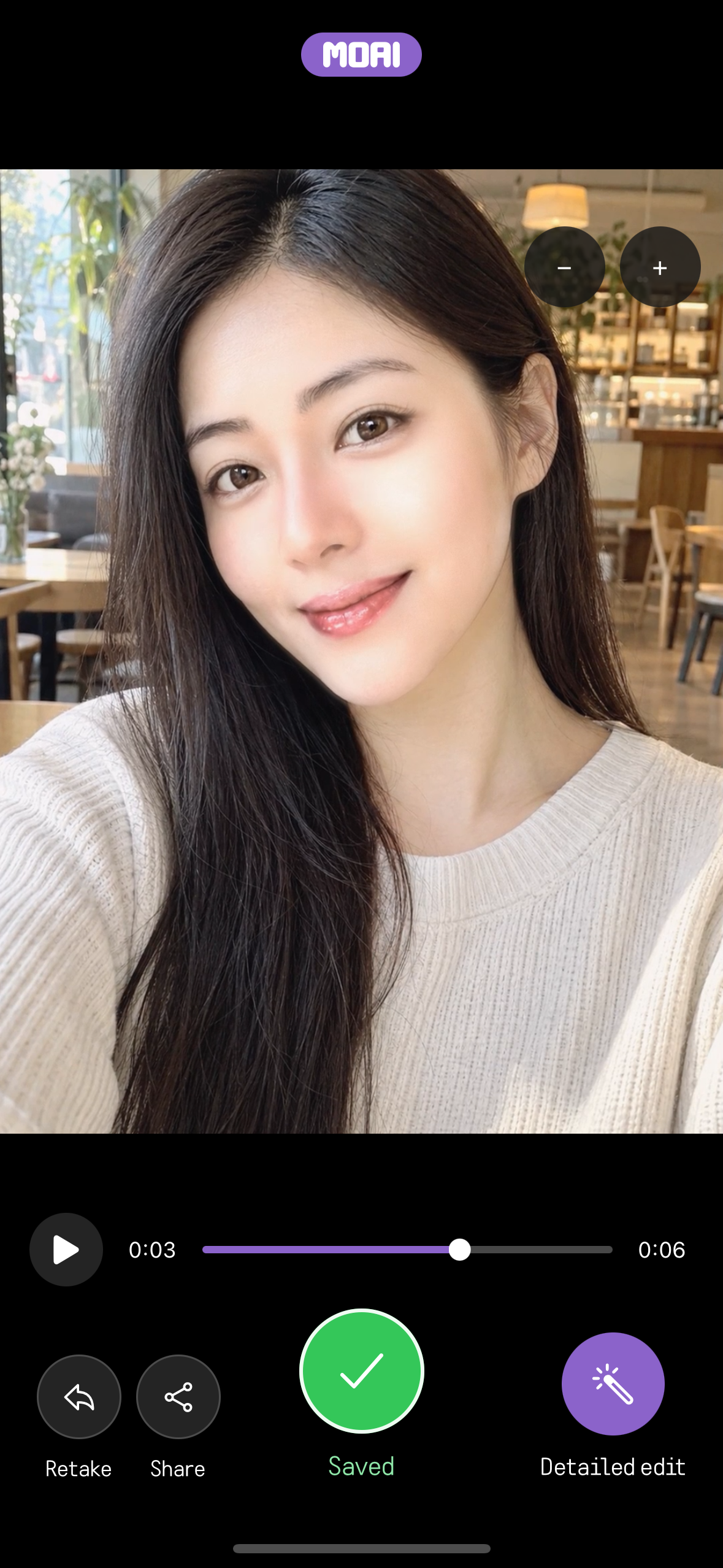
Capture result screen with Retake, Share, Save and Detailed edit buttons under the captured photo.
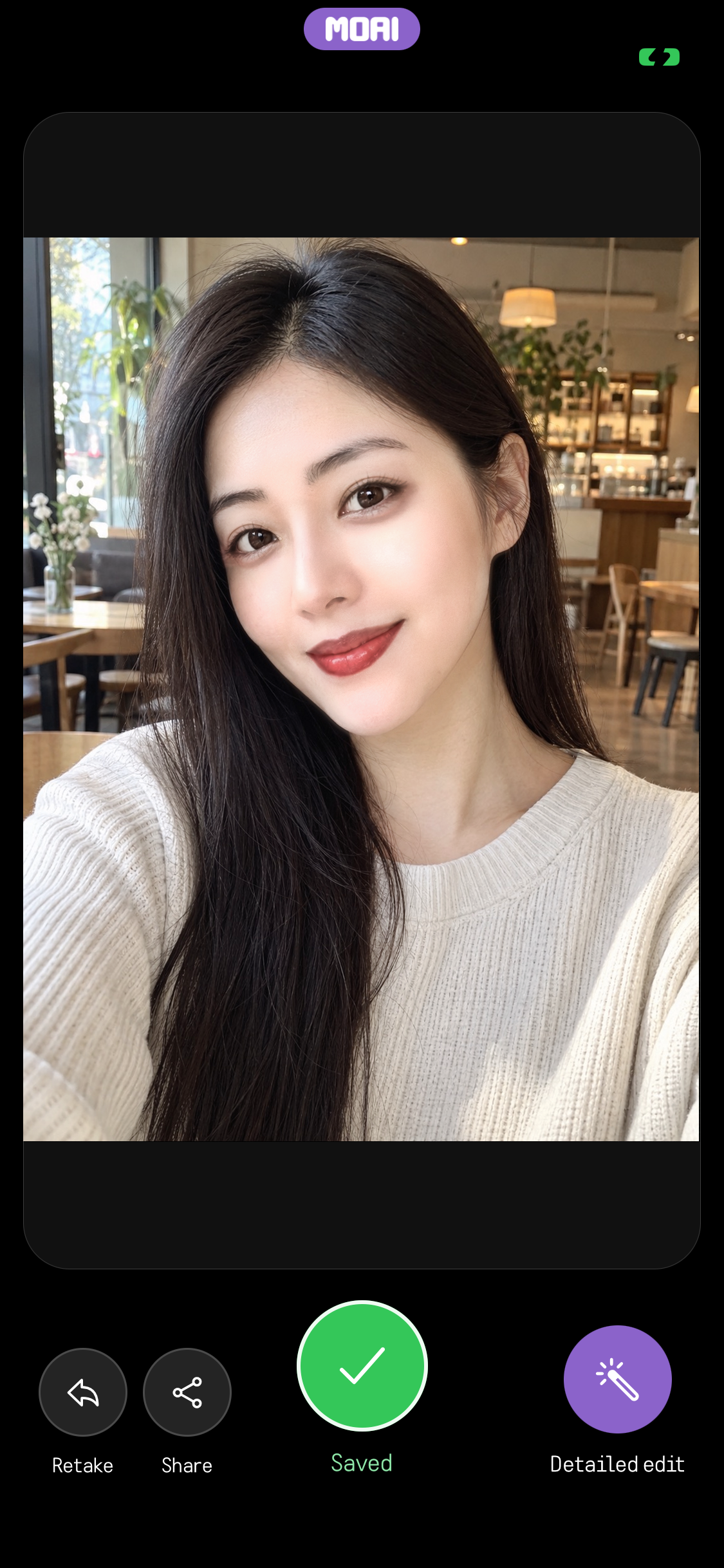
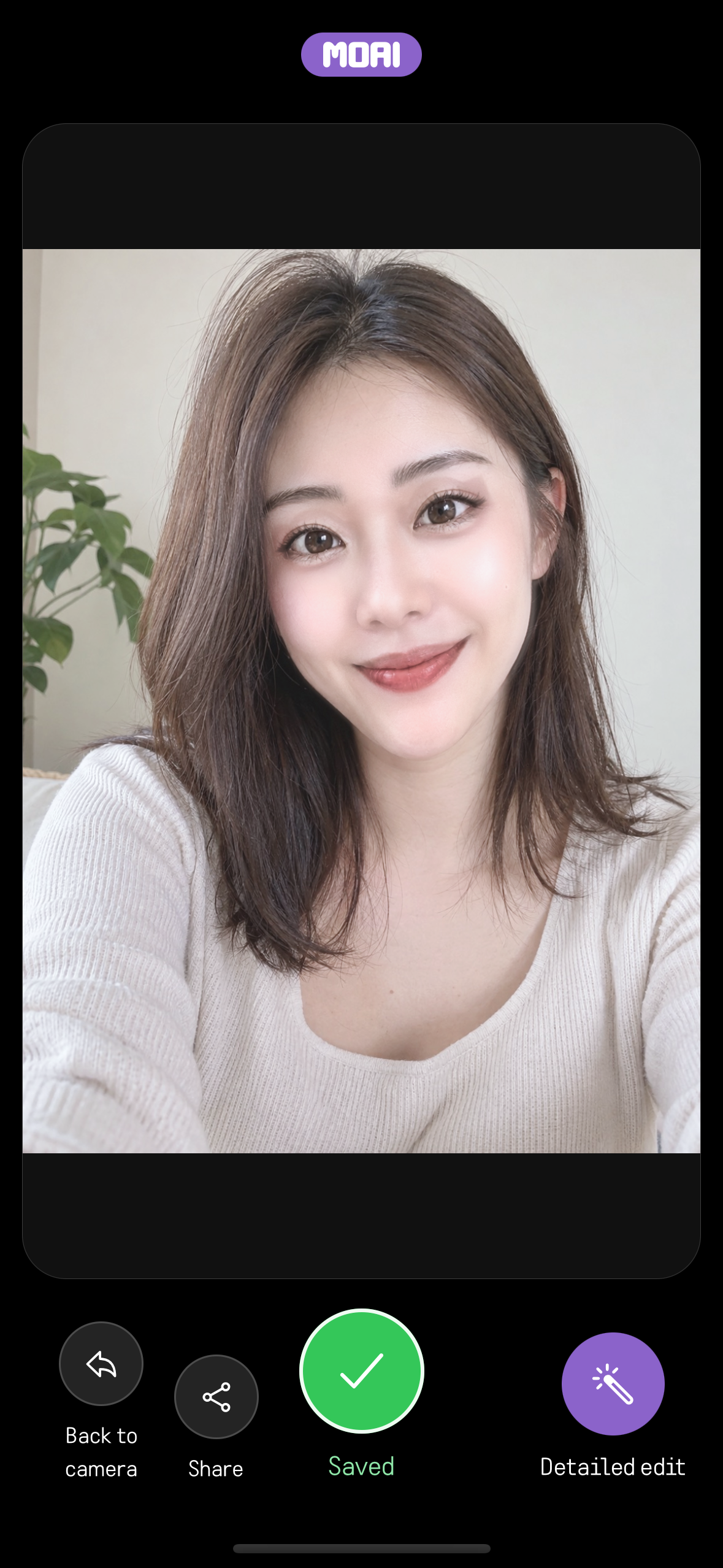
Capture result screen after saving, where the Save button has turned into a green Saved check mark next to Retake, Share and Detailed edit.
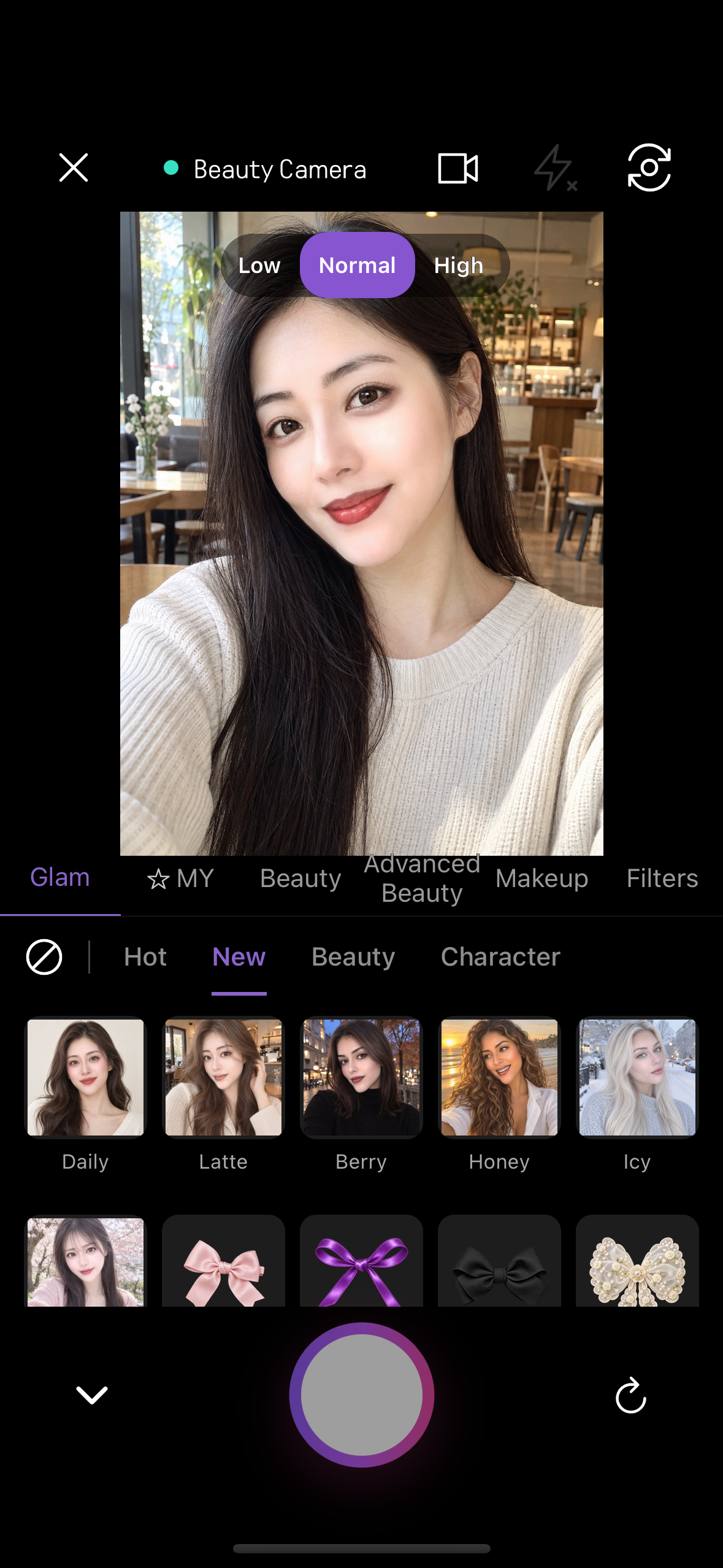
Live beauty camera with the Glam tab on the New category, showing looks such as Latte, Berry, Honey and Icy.
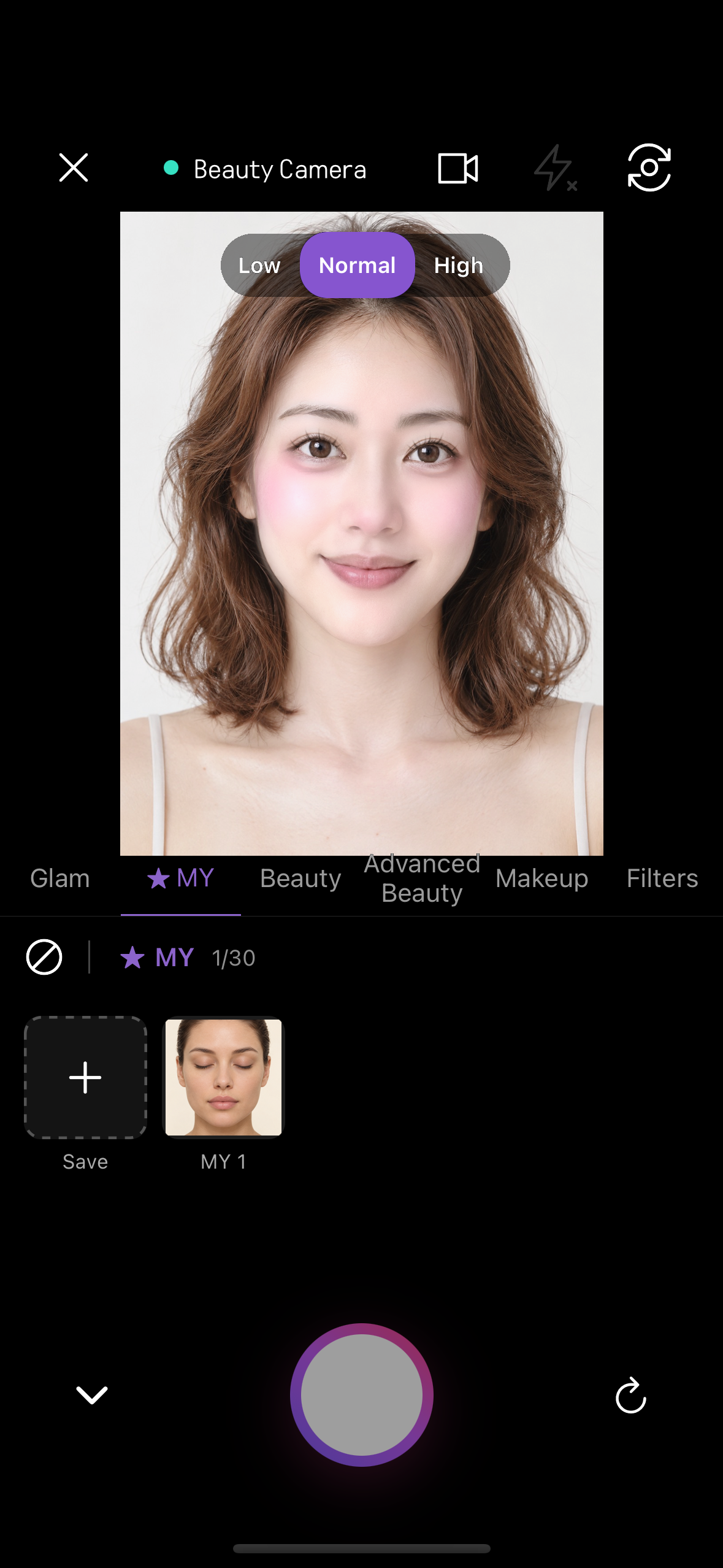
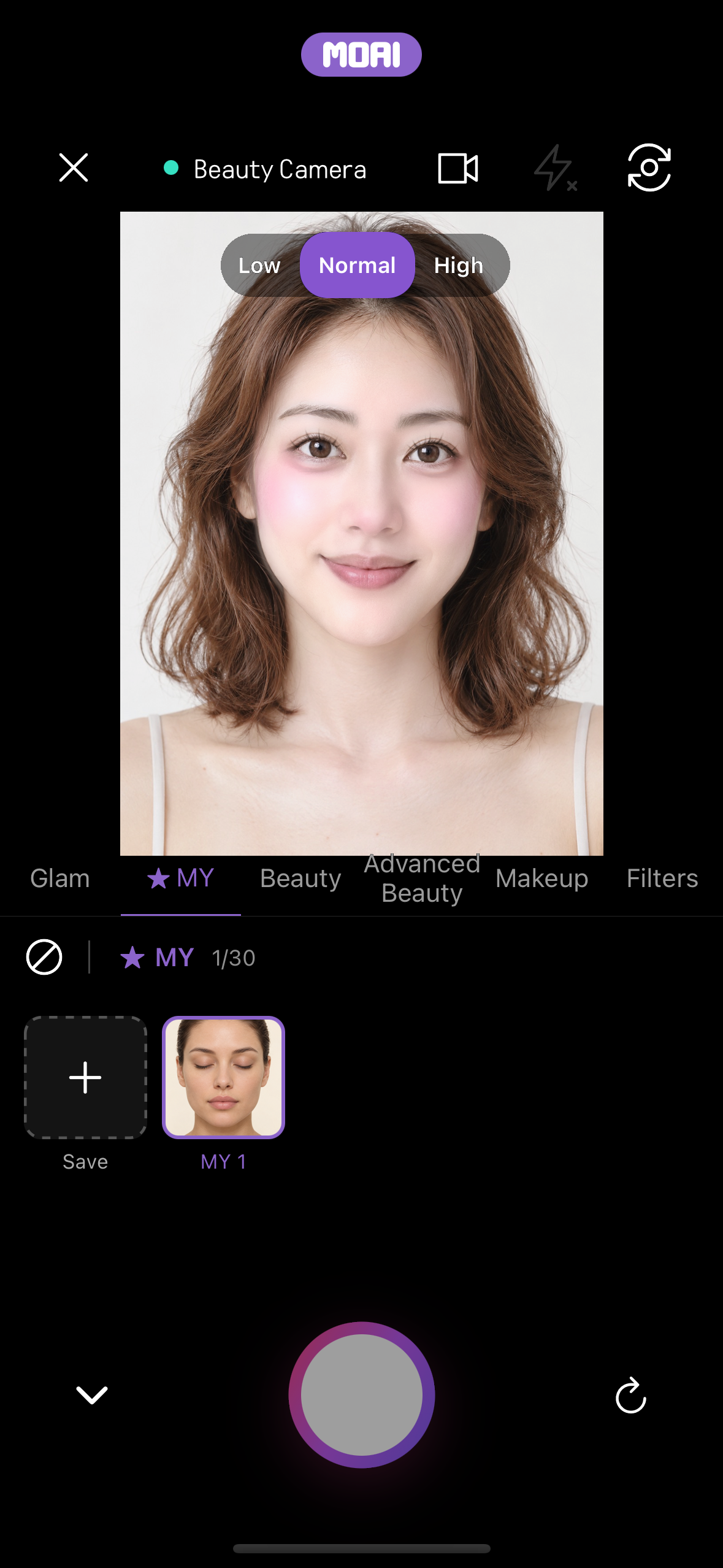
Live beauty camera with the MY tab open, showing a saved look and a Save tile for the current settings (up to 30).
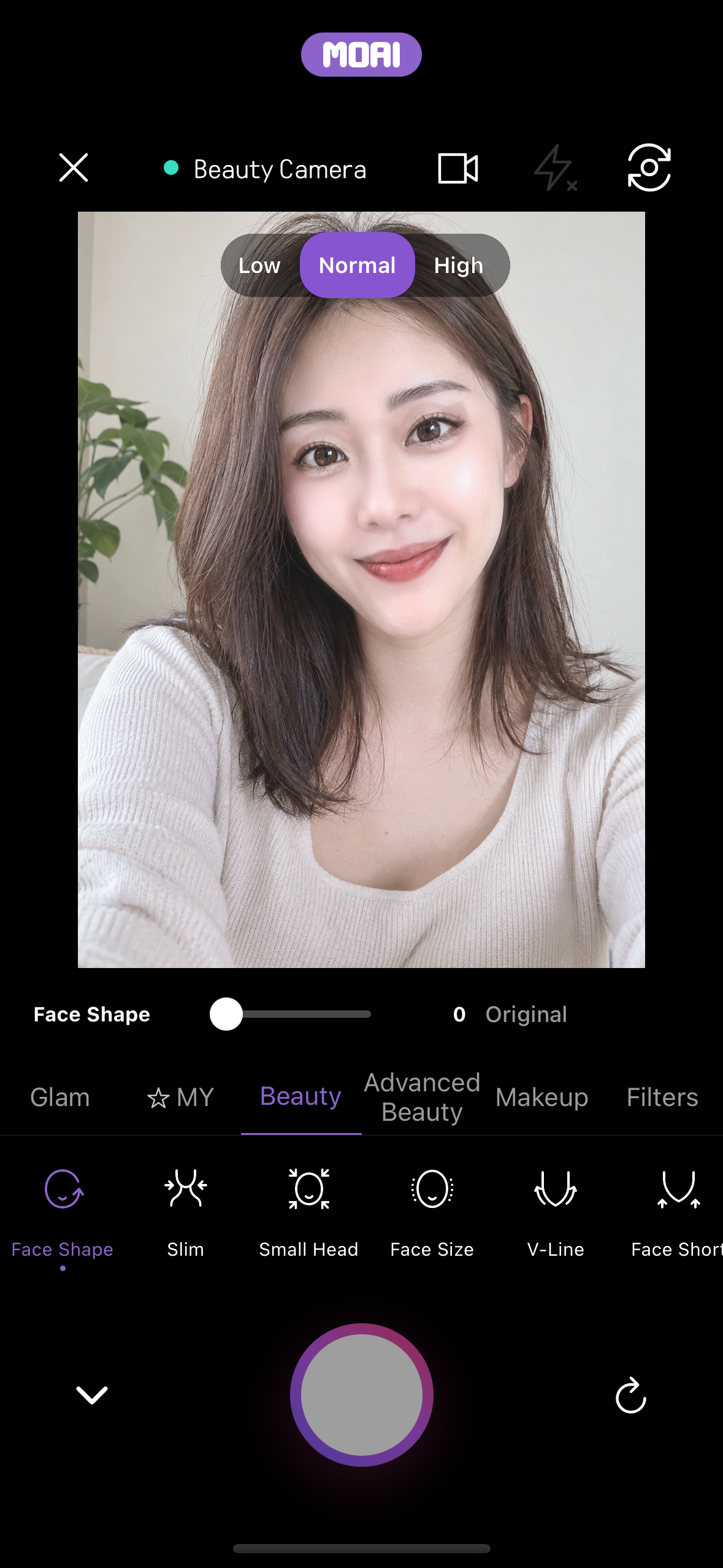
Live beauty camera with the Beauty tab open, showing the Face Shape slider and tools such as Slim, Small Head, Face Size and V-Line.
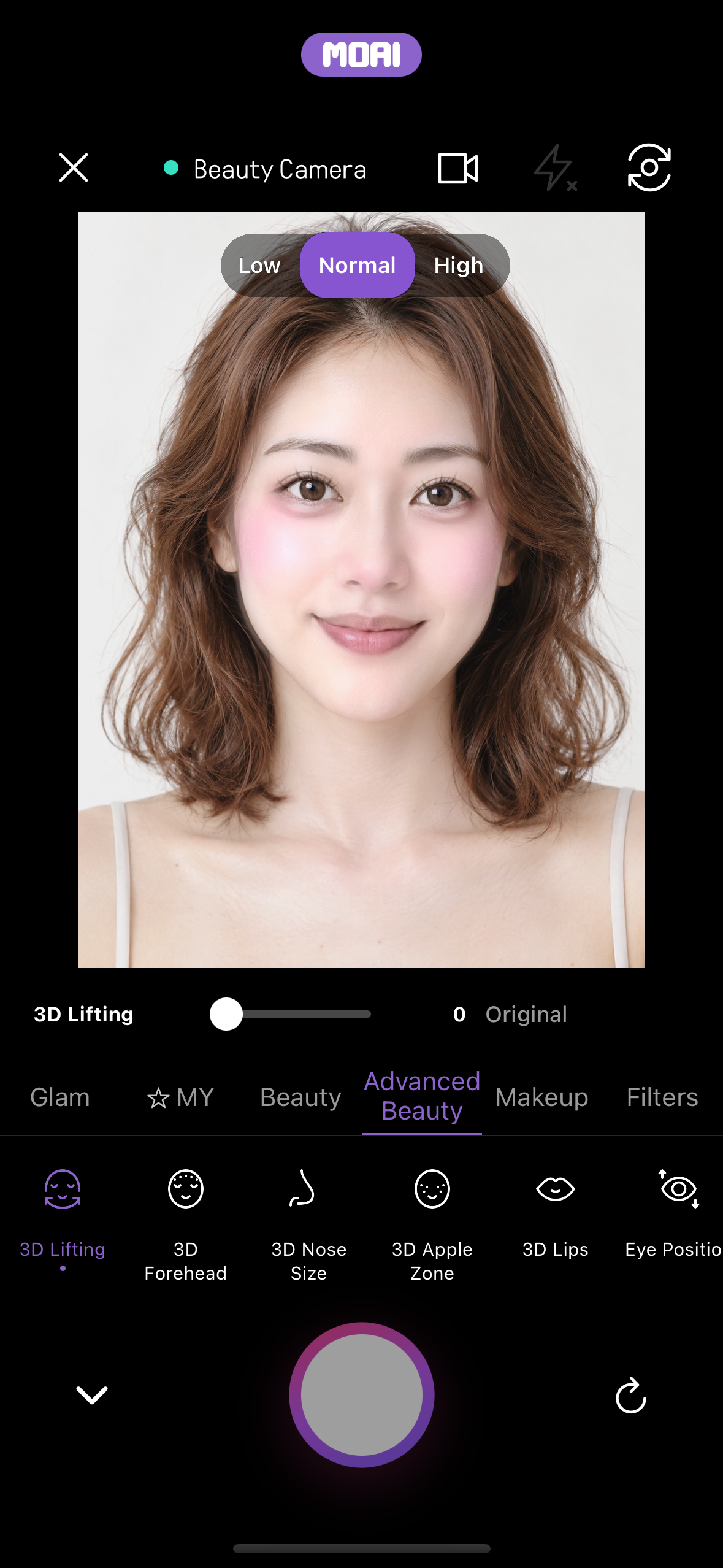
Live beauty camera with the Advanced Beauty tab open, showing the 3D Lifting slider and tools such as 3D Forehead, 3D Nose Size, 3D Apple Zone and 3D Lips.
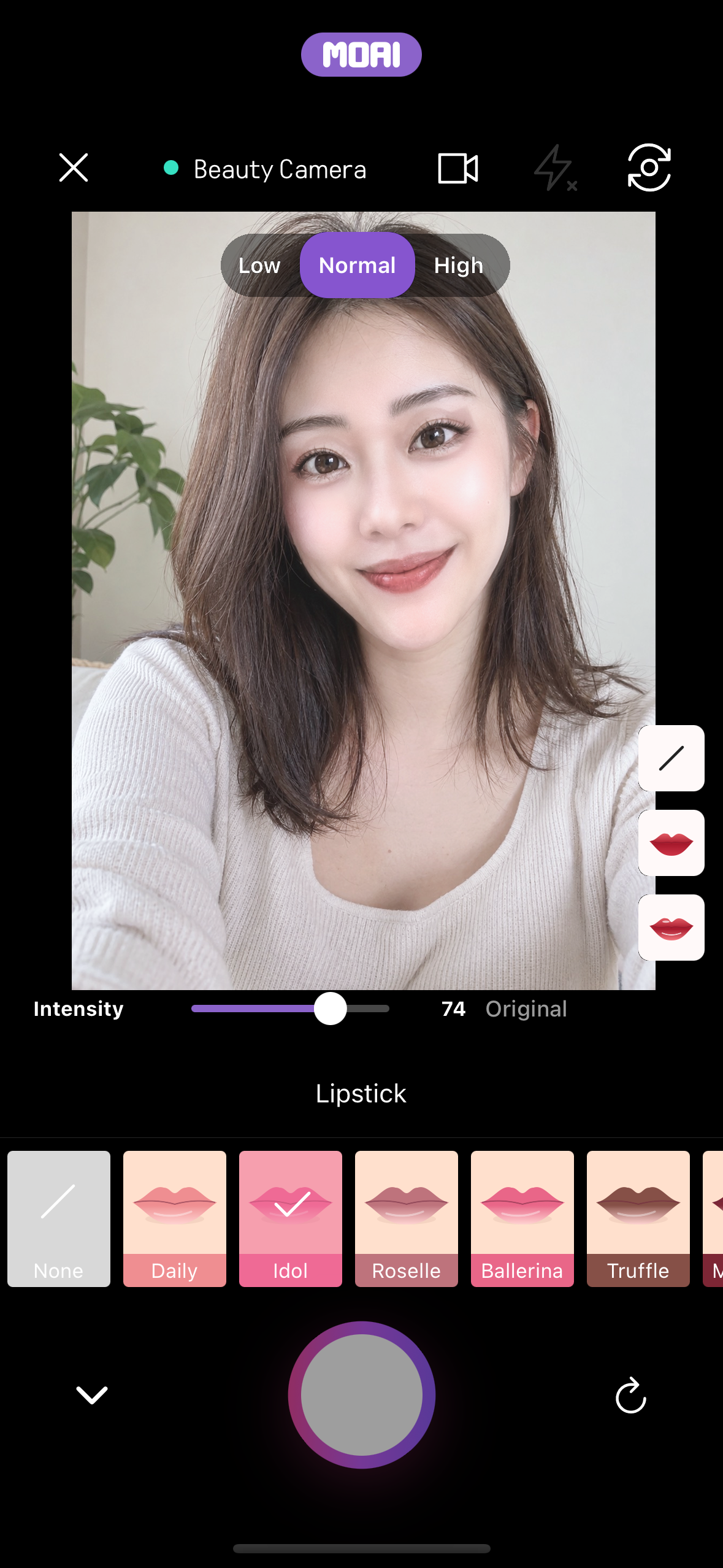
Live beauty camera with the Lipstick styles open under Makeup: None, Daily, Idol, Roselle, Ballerina and Truffle, with an intensity slider and shade buttons.
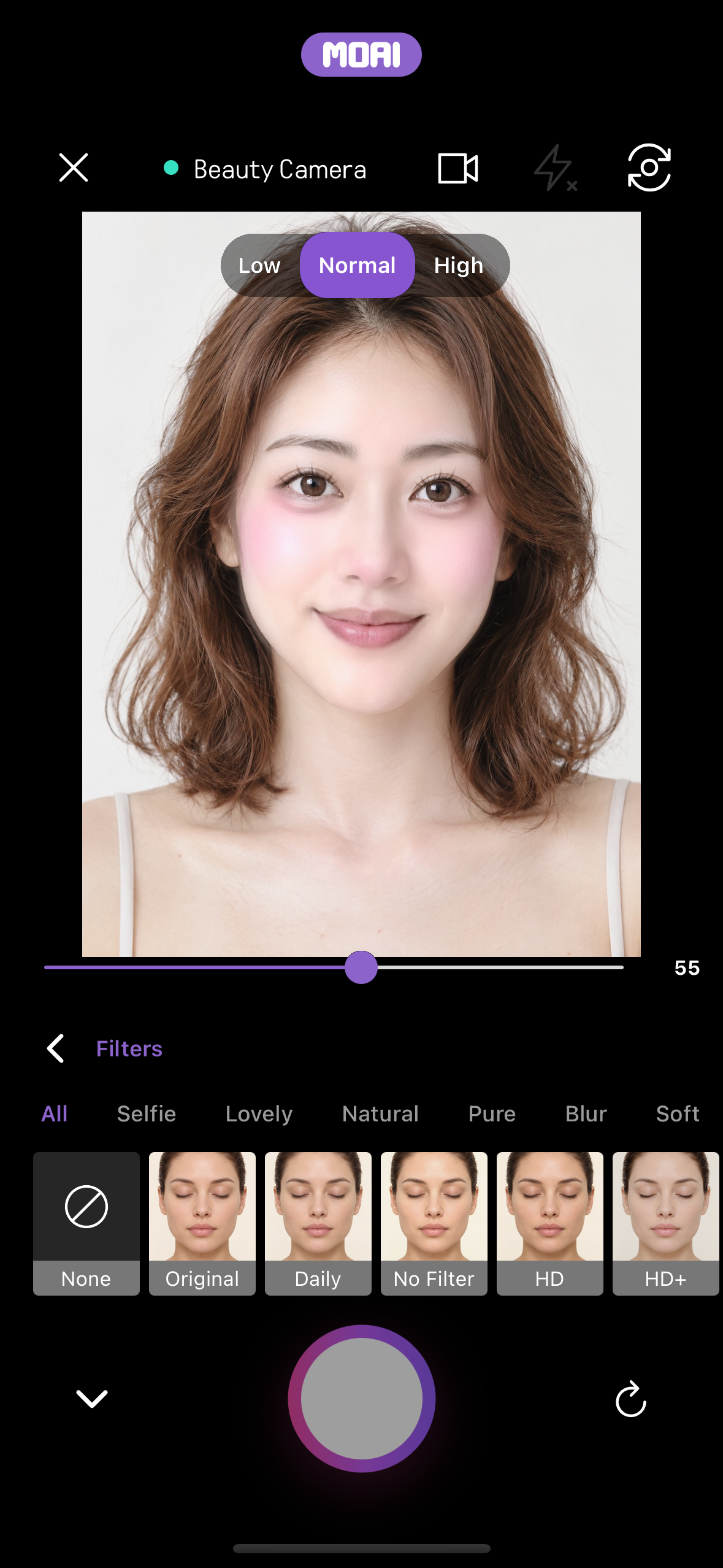
Live beauty camera with the Filters tab open, showing the All, Selfie, Lovely, Natural, Pure, Blur and Soft categories and filters such as None, Original, Daily, No Filter and HD.
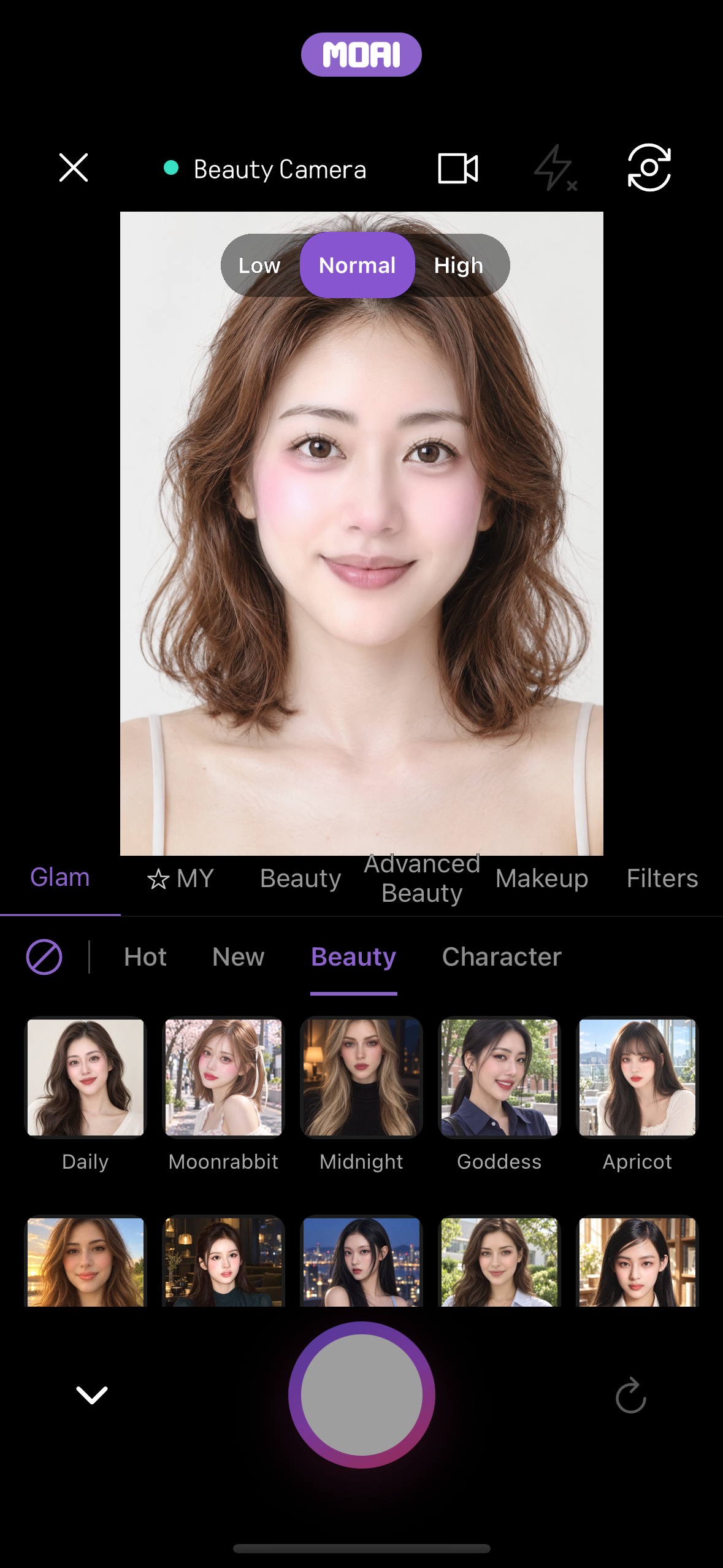
Live beauty camera with the option panel open on the Glam tab, showing 20 looks in the Beauty category next to Hot, New and Character.
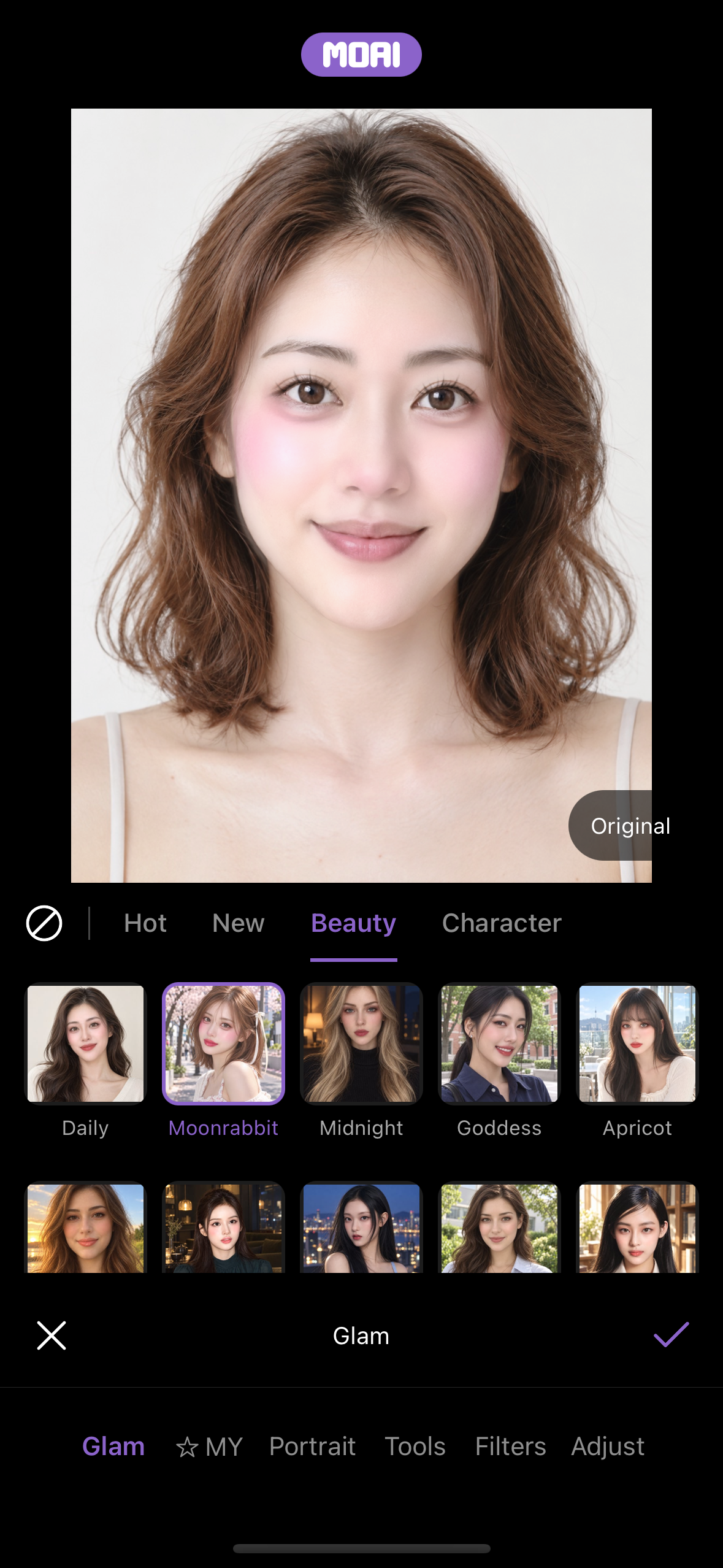
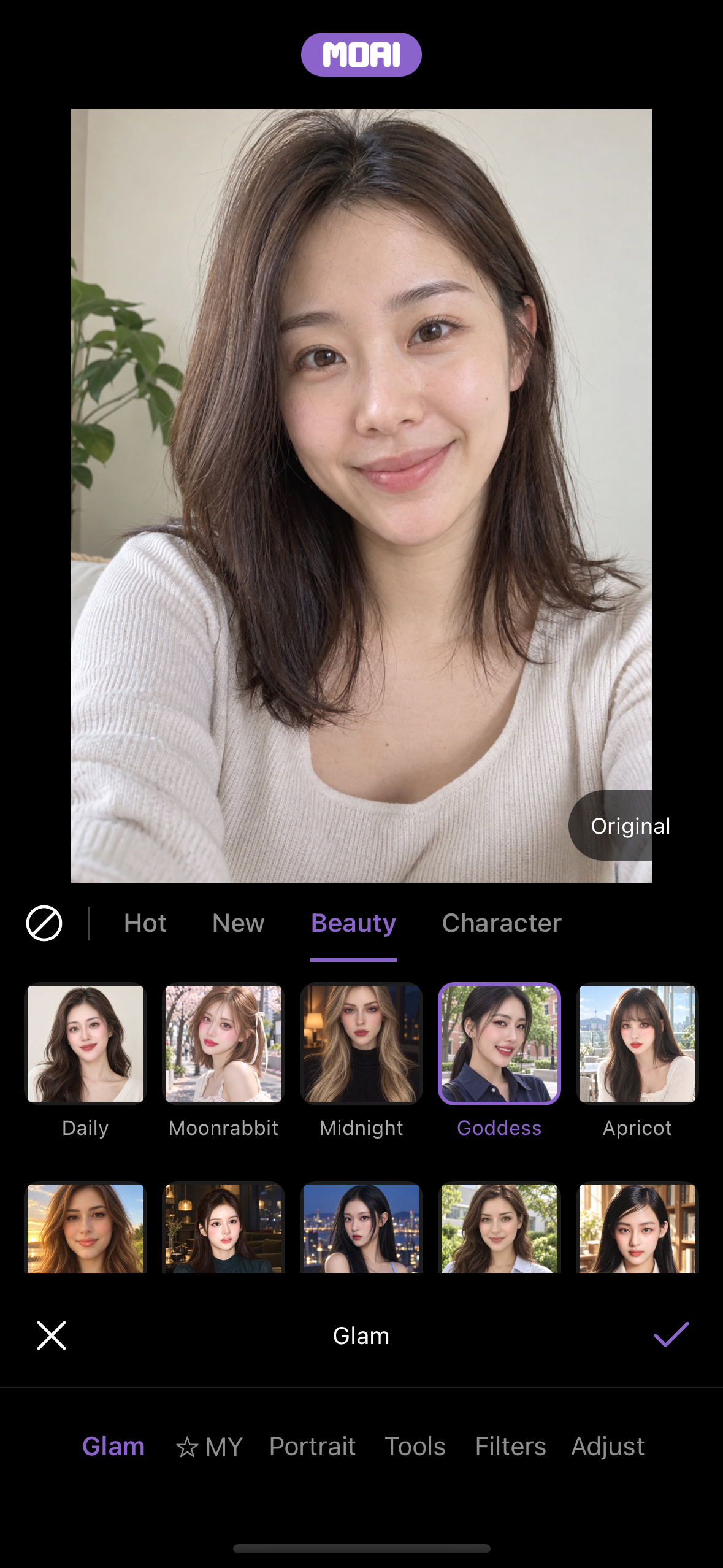
Detailed edit screen on the Glam tab with the Moonrabbit look applied from the Beauty category, an Original comparison button and the Glam, MY, Portrait, Tools, Filters and Adjust tabs. Fictional model.
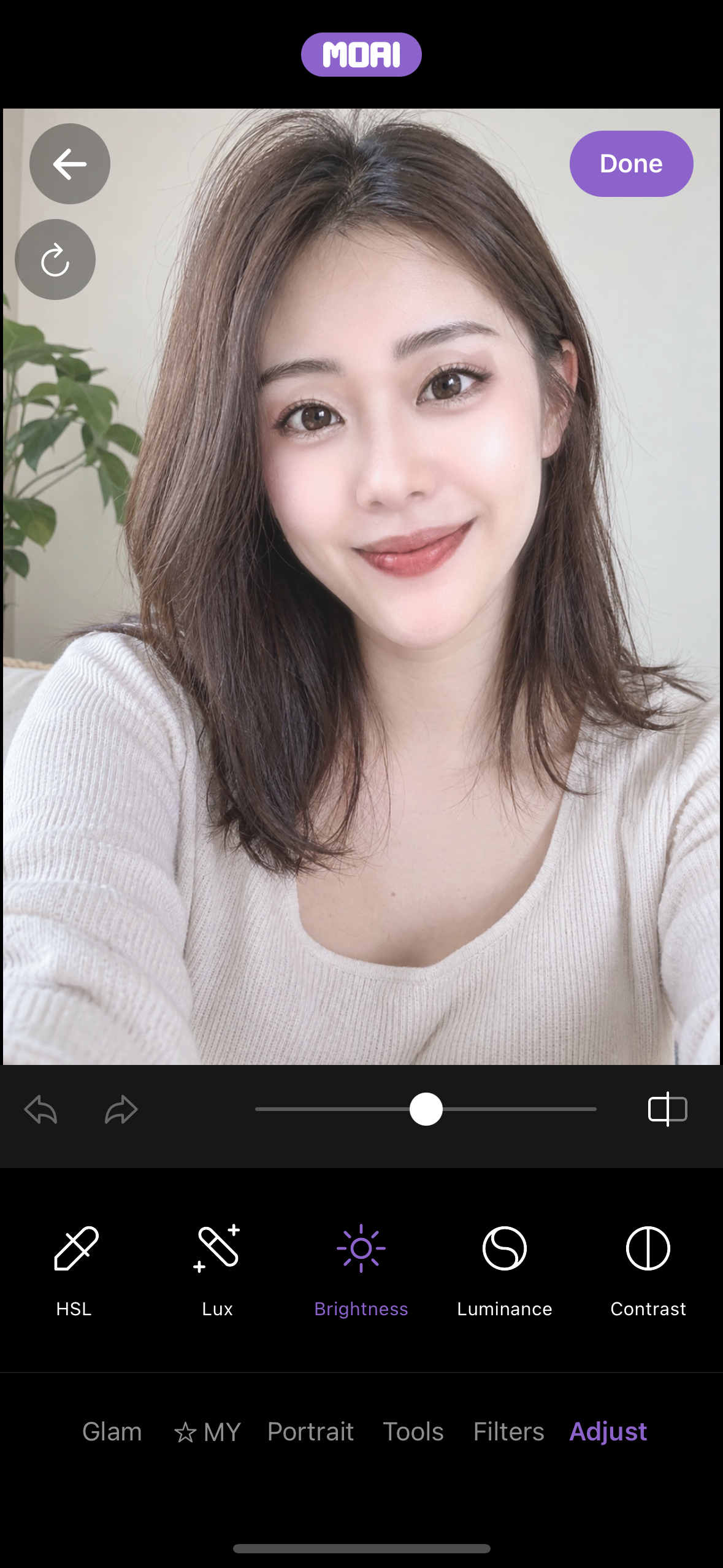
Detailed edit screen on the Adjust tab, showing HSL, Lux, Brightness, Luminance and Contrast tools with a slider and undo and redo buttons.
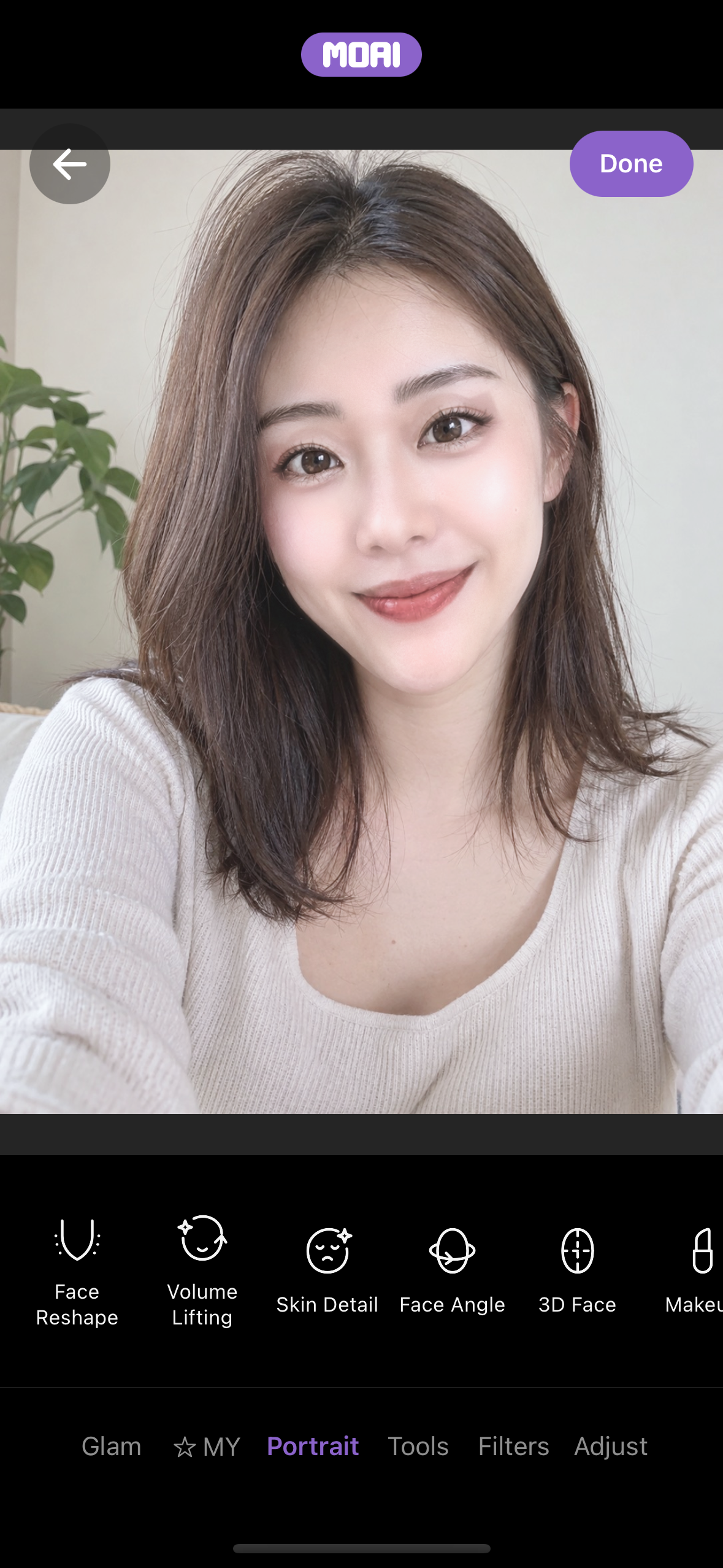
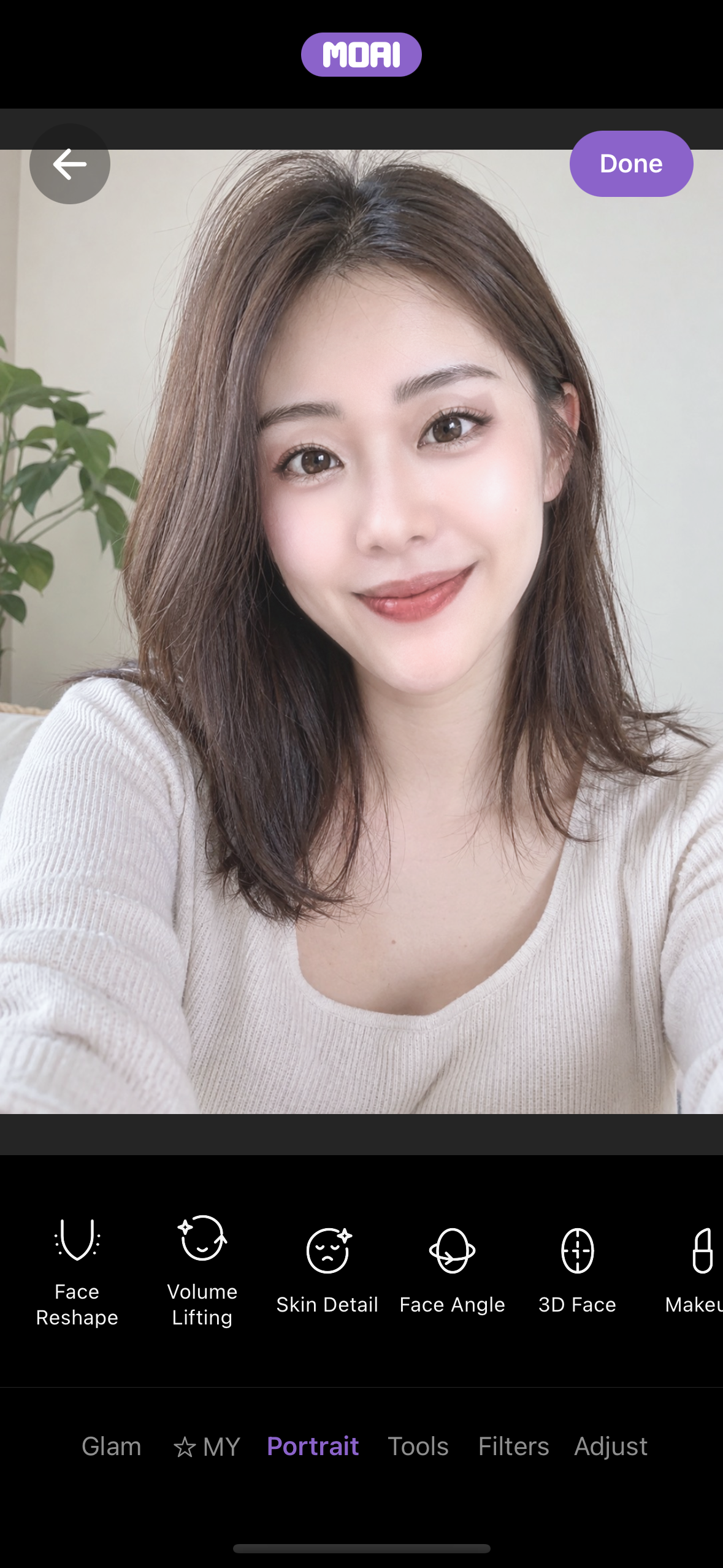
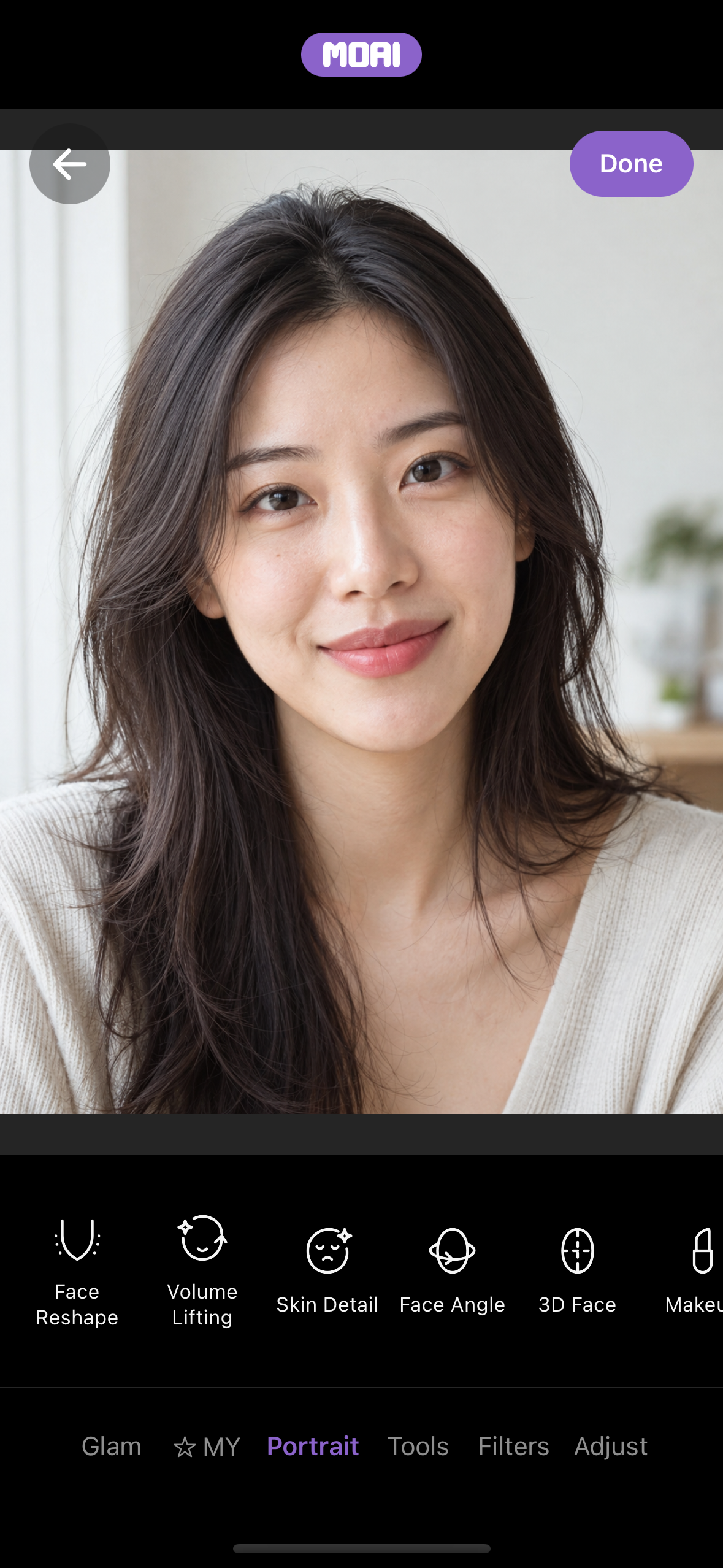
Detailed edit screen on the Portrait tab, showing Face Reshape, Volume Lifting, Skin Detail, Face Angle and 3D Face.
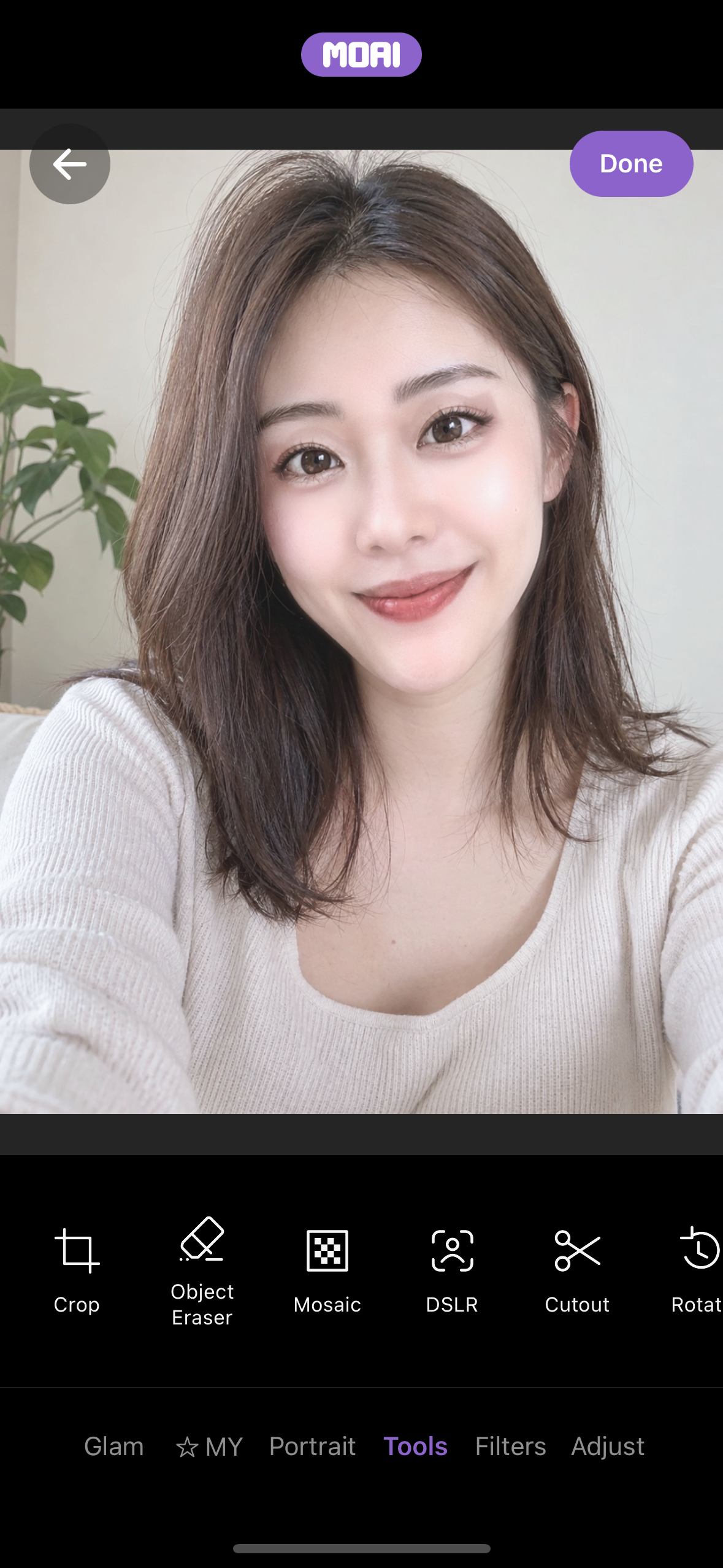
Detailed edit screen on the Tools tab, showing Crop, Object Eraser, Mosaic, DSLR and Cutout.
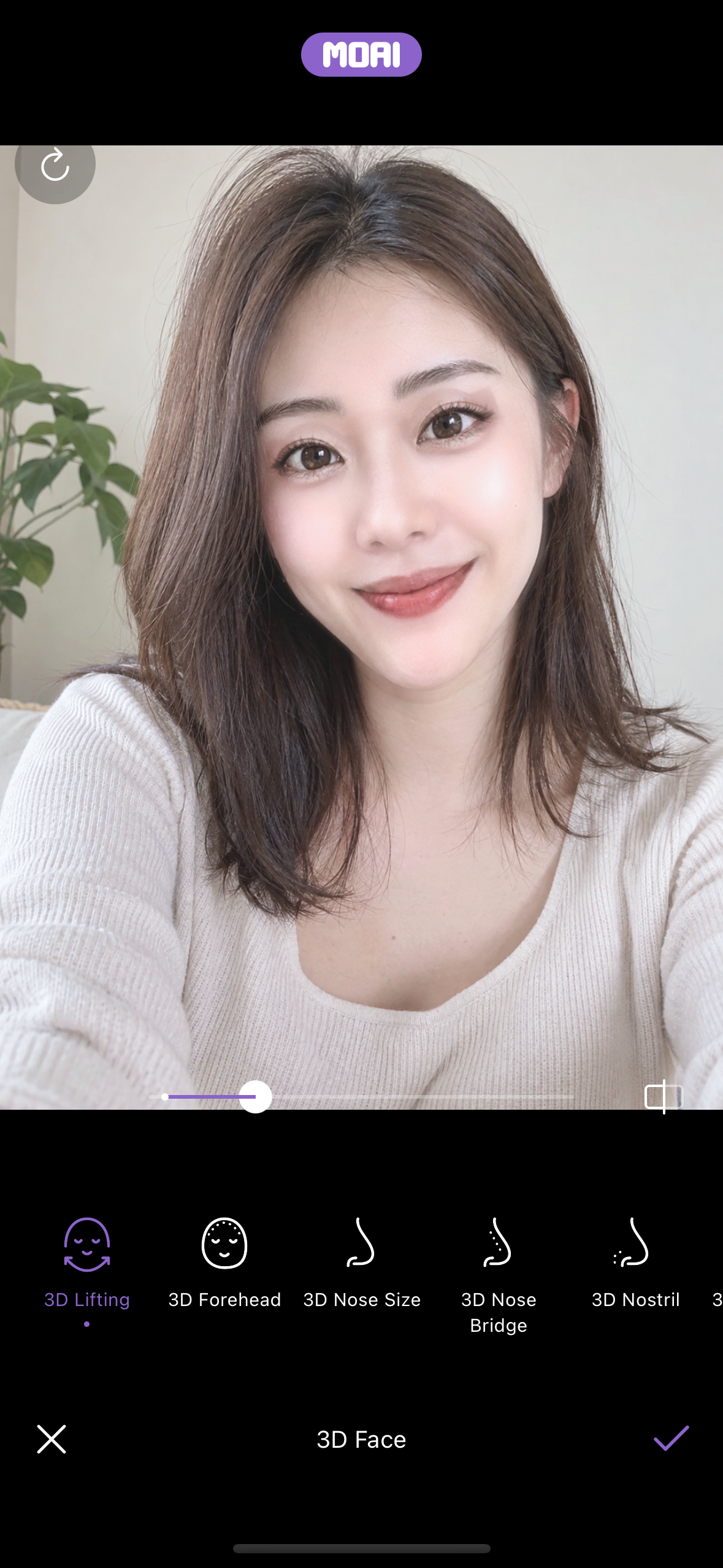
Album photo in the detailed editor on the 3D Face panel, showing 3D Lifting, 3D Forehead, 3D Nose Size, 3D Nose Bridge and 3D Nostril with a slider. Fictional model.
Album photo in the detailed editor on the Portrait tab, showing Face Reshape, Volume Lifting, Skin Detail, Face Angle and 3D Face.
Album photo result screen with Back to camera, Share, Save and Detailed edit buttons.
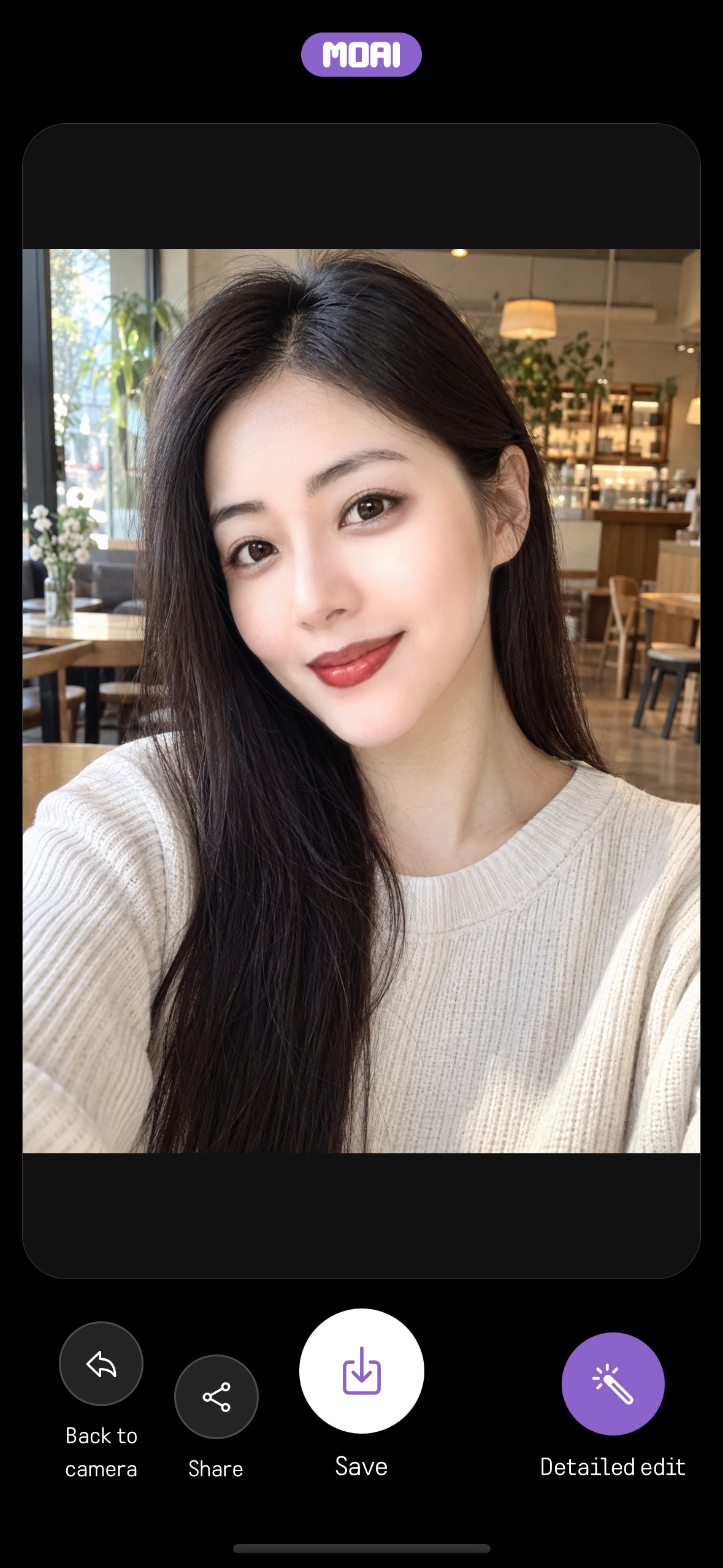
Album photo result after editing, with Back to camera, Share, Save and Detailed edit buttons.
Album photo result after saving, where the Save button shows a green Saved check mark next to Back to camera, Share and Detailed edit.
Glam
Browse a look, apply it to the camera and compare the result.
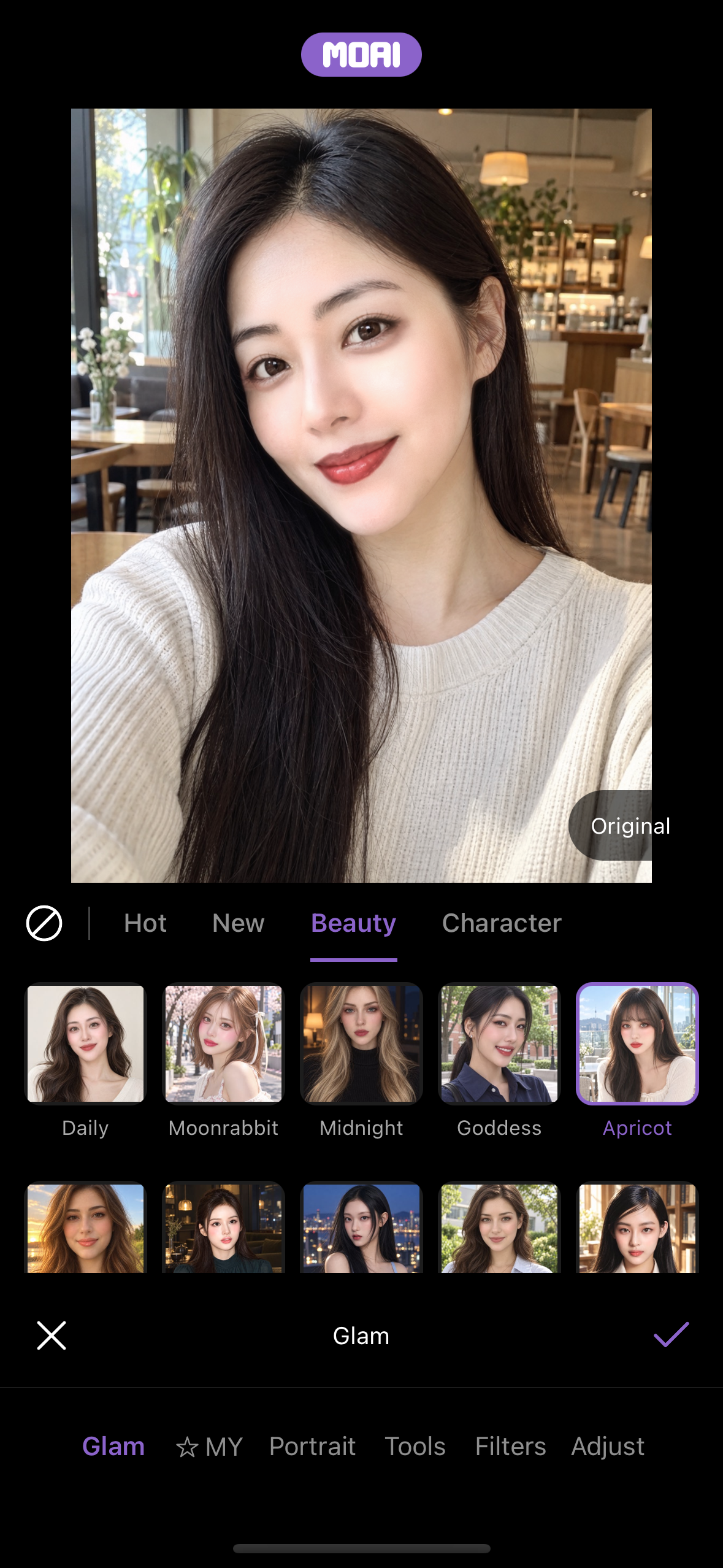
The Glam tab of the MOAI Beauty editor: the Beauty category lists 20 looks, here with Apricot applied to a fictional adult portrait. Sample content shown.
Live beauty camera on the Glam tab with the Goddess look selected and highlighted.
Holding Original in the Glam editor shows the portrait before the Goddess look was applied. Sample content shown.
Beauty
Fine-tune your look with 597 beauty options across makeup, face shape, skin, filters and editing tools.
Dragging the Slim slider in the MOAI Beauty editor to adjust a portrait option on a fictional adult portrait. Sample content shown.
The MOAI Beauty editor Portrait tab listing portrait options such as Face Reshape, Volume Lifting, Skin Detail and 3D Face on a fictional adult portrait. Sample content shown.
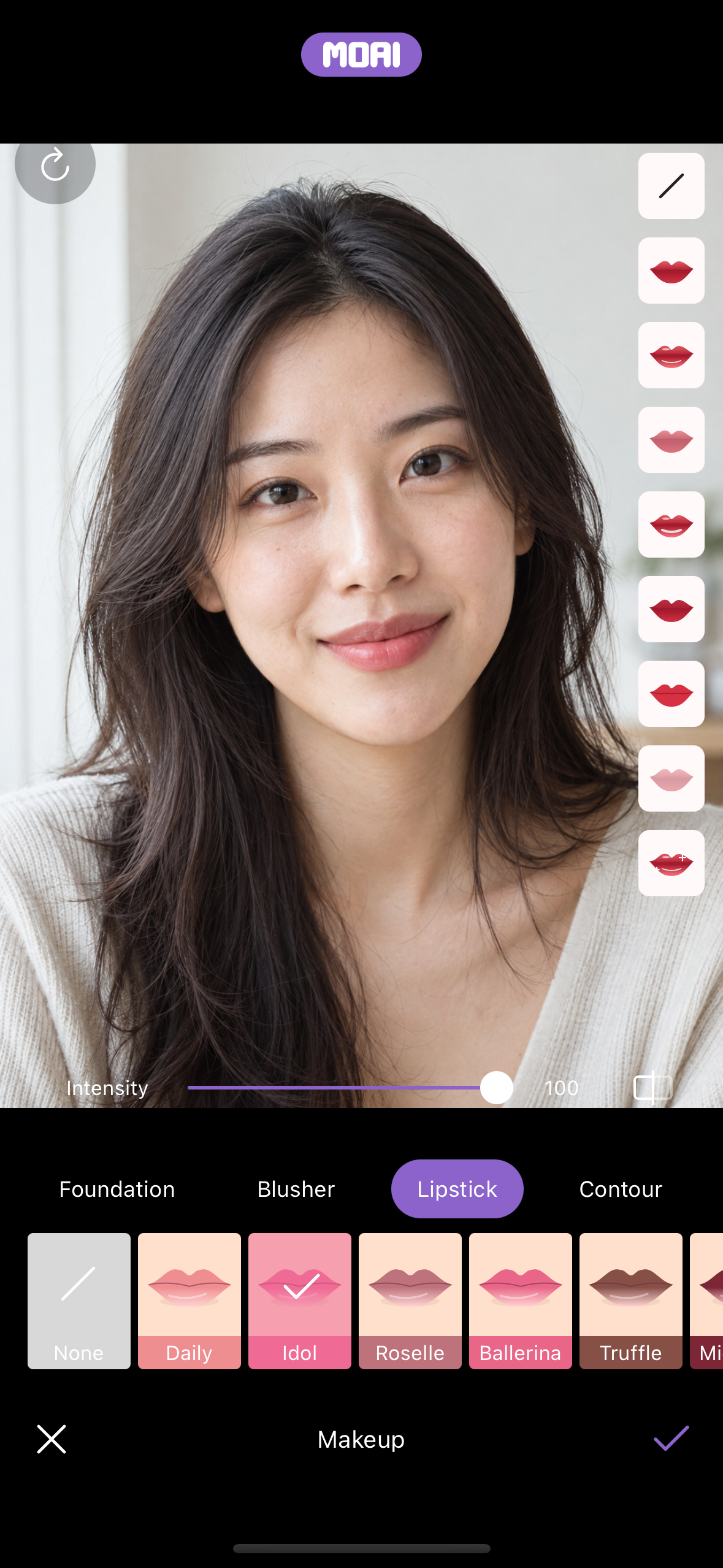
Holding the compare button in the MOAI Beauty editor shows the original lips beside the lipstick option list on a fictional adult portrait. Sample content shown.
MY
Save a combination of adjustments and apply it again from your collection.
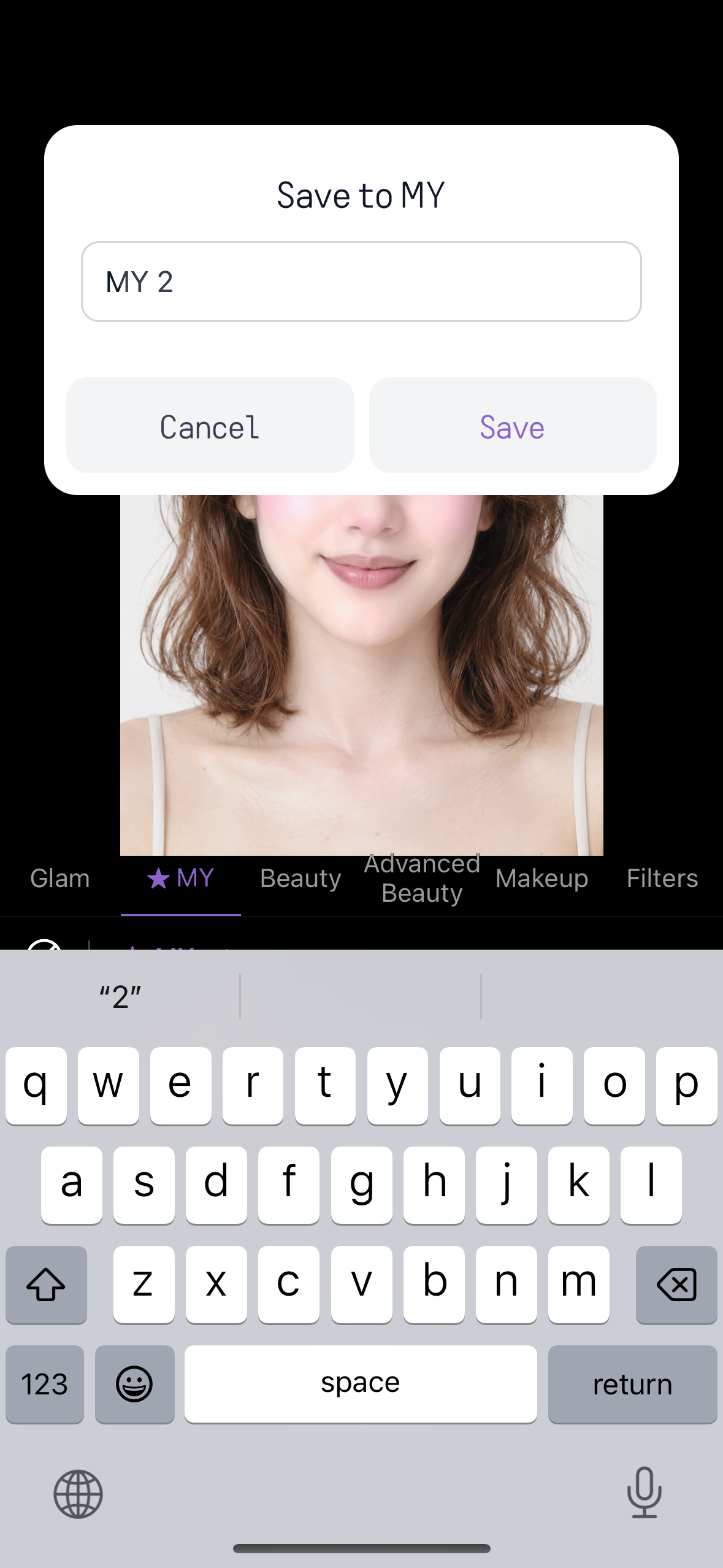
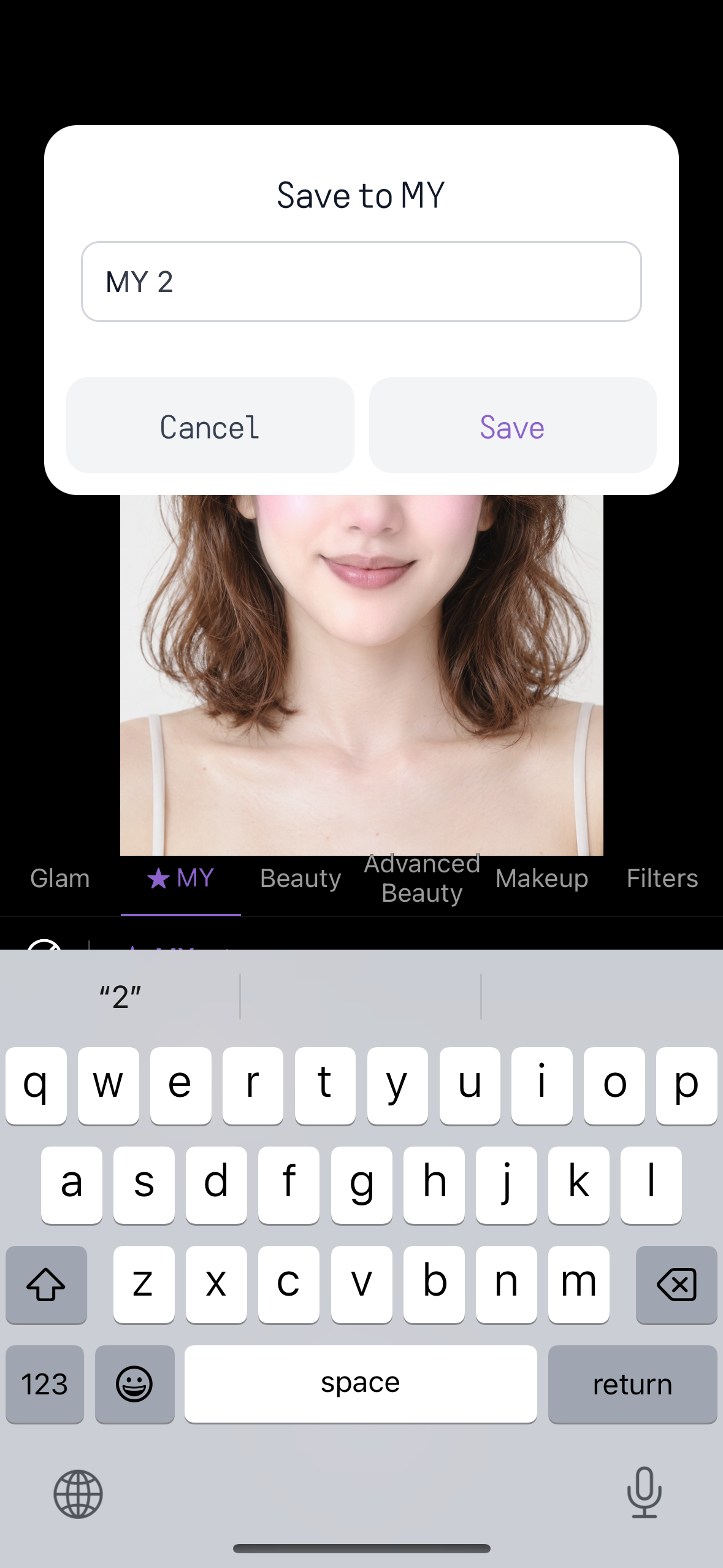
Saving the current combination of beauty settings to MY with a name.
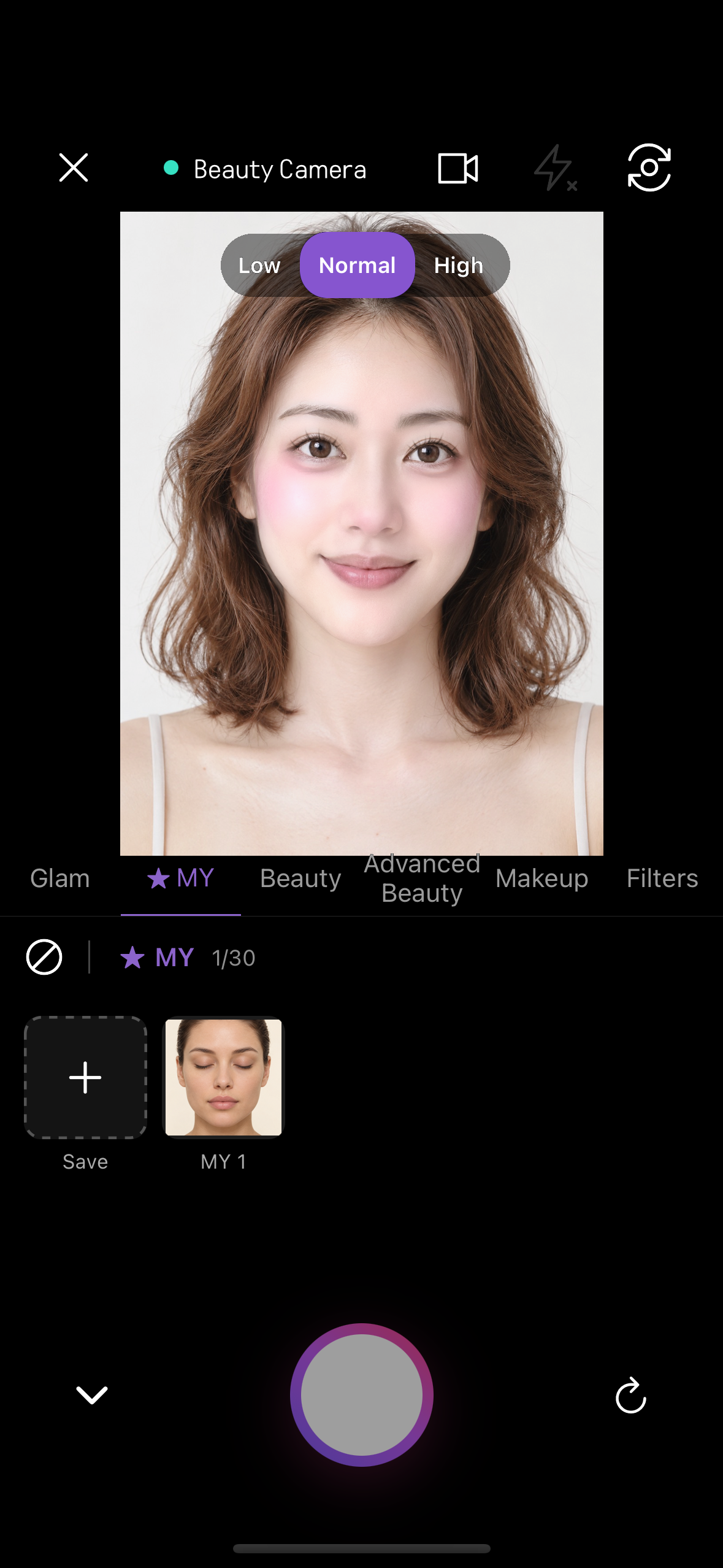
The MY list in the beauty camera, holding up to 30 saved combinations.
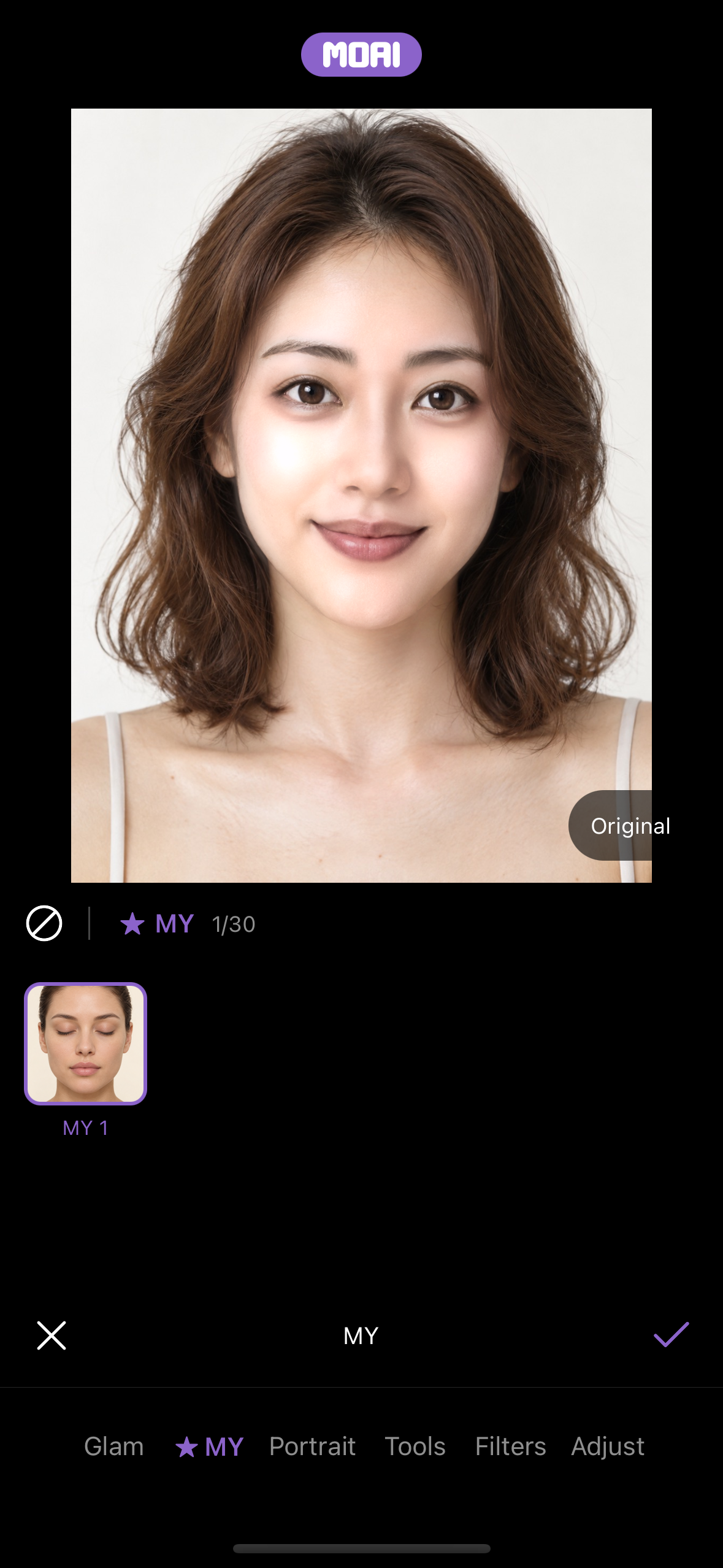
Applying a saved MY combination to an album photo of a fictional model in one tap.
Save to MY dialog with the name MY 2 entered and Cancel and Save buttons above the keyboard.
MY tab in the live beauty camera showing 1/30 saved looks with the Save tile and a saved look named MY 1.
MY tab in the live beauty camera with the saved look MY 1 selected and highlighted.
Album photo retouch
Open a photo from your album, reshape features, add makeup or a filter and save the edited image.
Choosing the Idol lipstick in the Beauty editor and holding the compare button to see the original lips on a fictional adult portrait. Sample content shown.
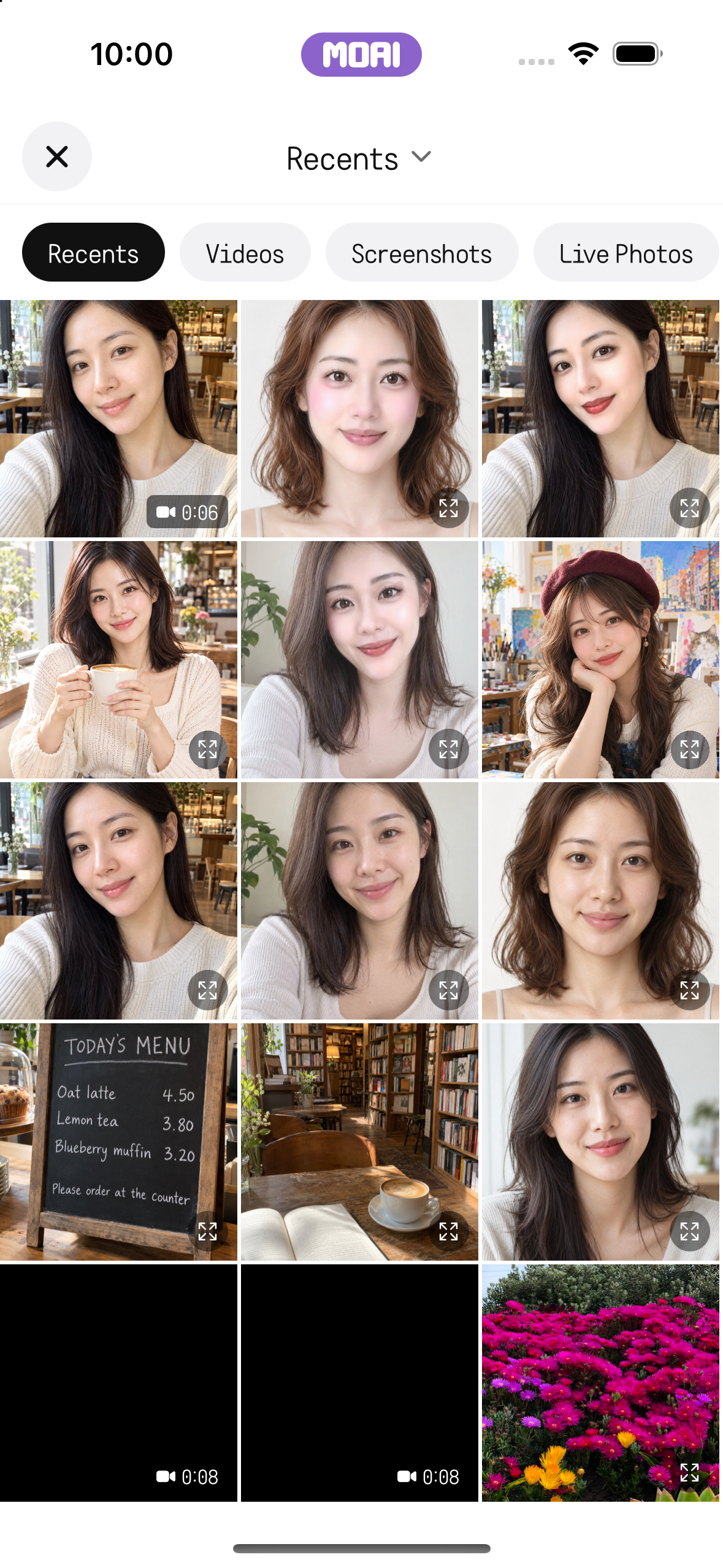
The MOAI album picker opened from the Beauty camera, with sample photos of fictional adults and a sample clip. Sample content shown.
A fictional adult portrait opened from the album in the MOAI Beauty screen with Save and Detailed edit actions. Sample content shown.
Beauty camera video
Record a clip, play it back, edit it and save or share the result.
Applying the Sunset Glam look to a sample clip in the video beauty editor, previewing the result and saving the video.
Recording a beauty video with the timer running.
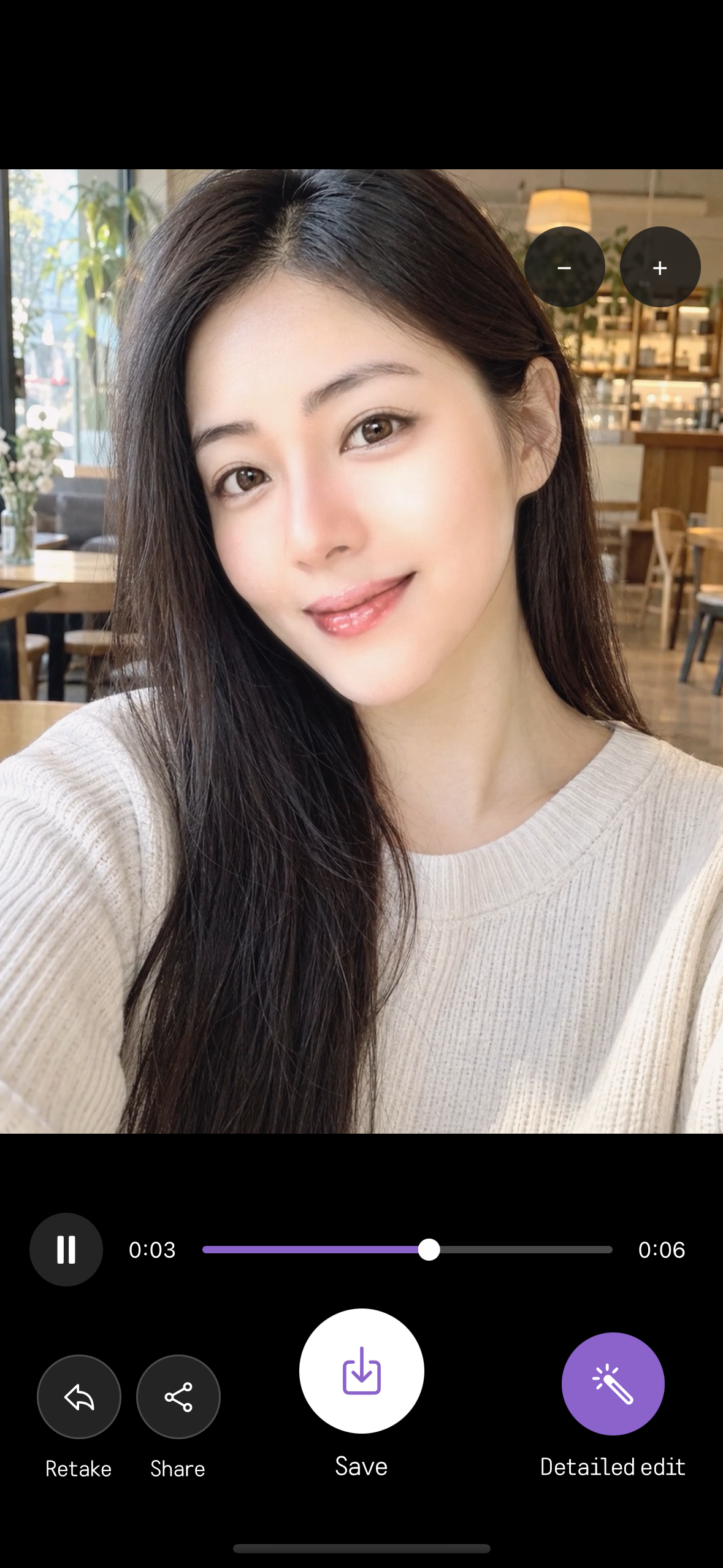
Playing back the recorded clip with a seek bar, then Save, Share, Retake or Detailed edit.
The beauty video saved to the album.
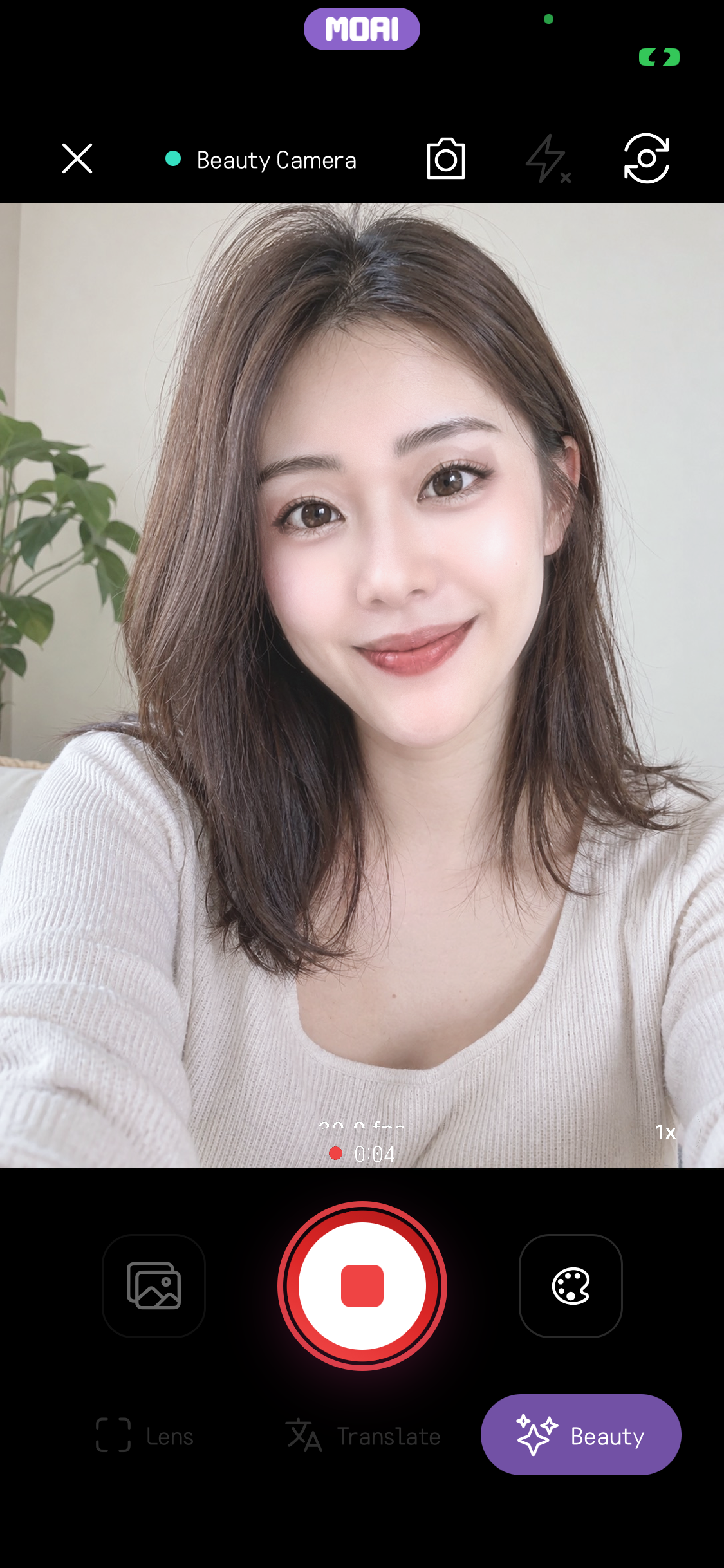
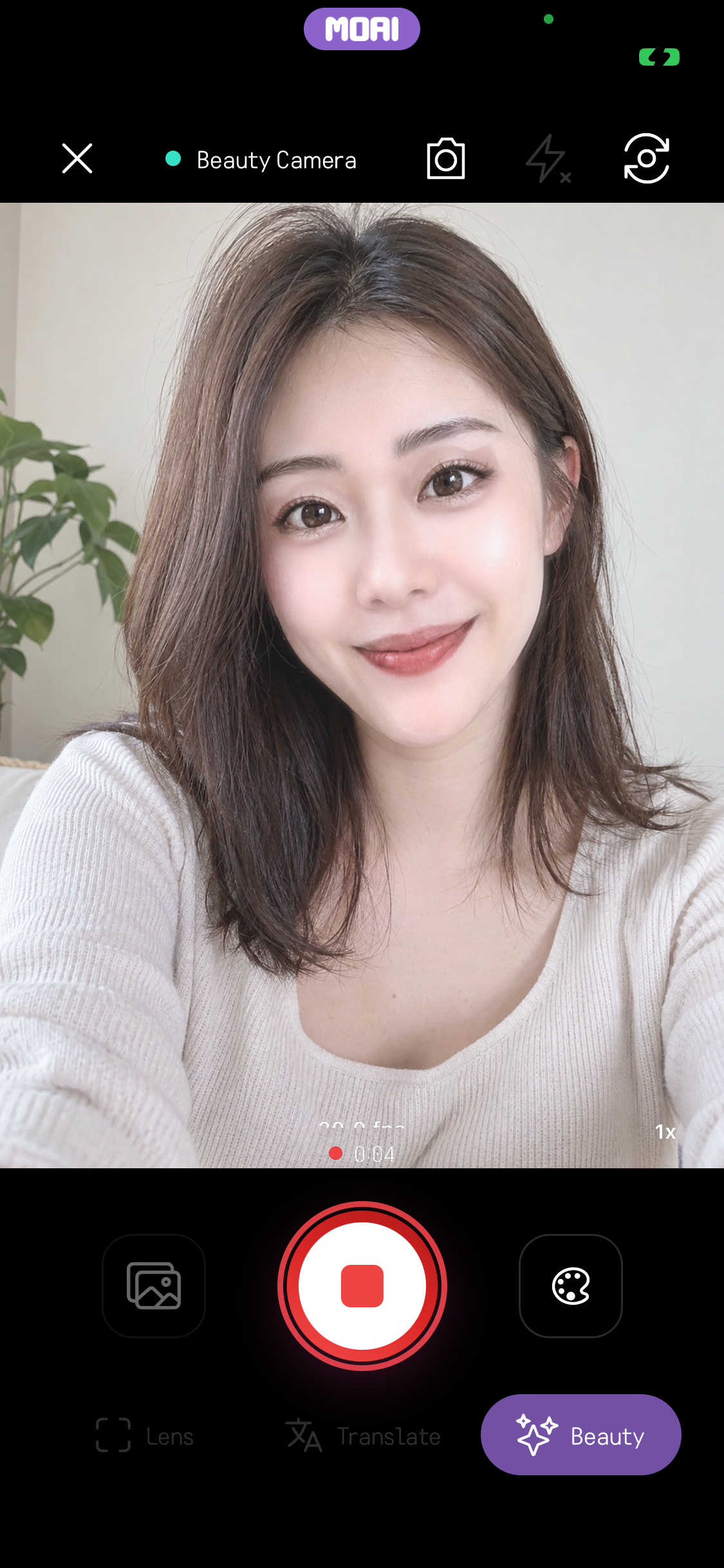
Beauty Camera recording a video, showing a red stop button, a 0:04 timer and the Beauty mode next to Lens and Translate.
Beauty Camera in video mode with the red record button ready, next to the Lens, Translate and Beauty modes.
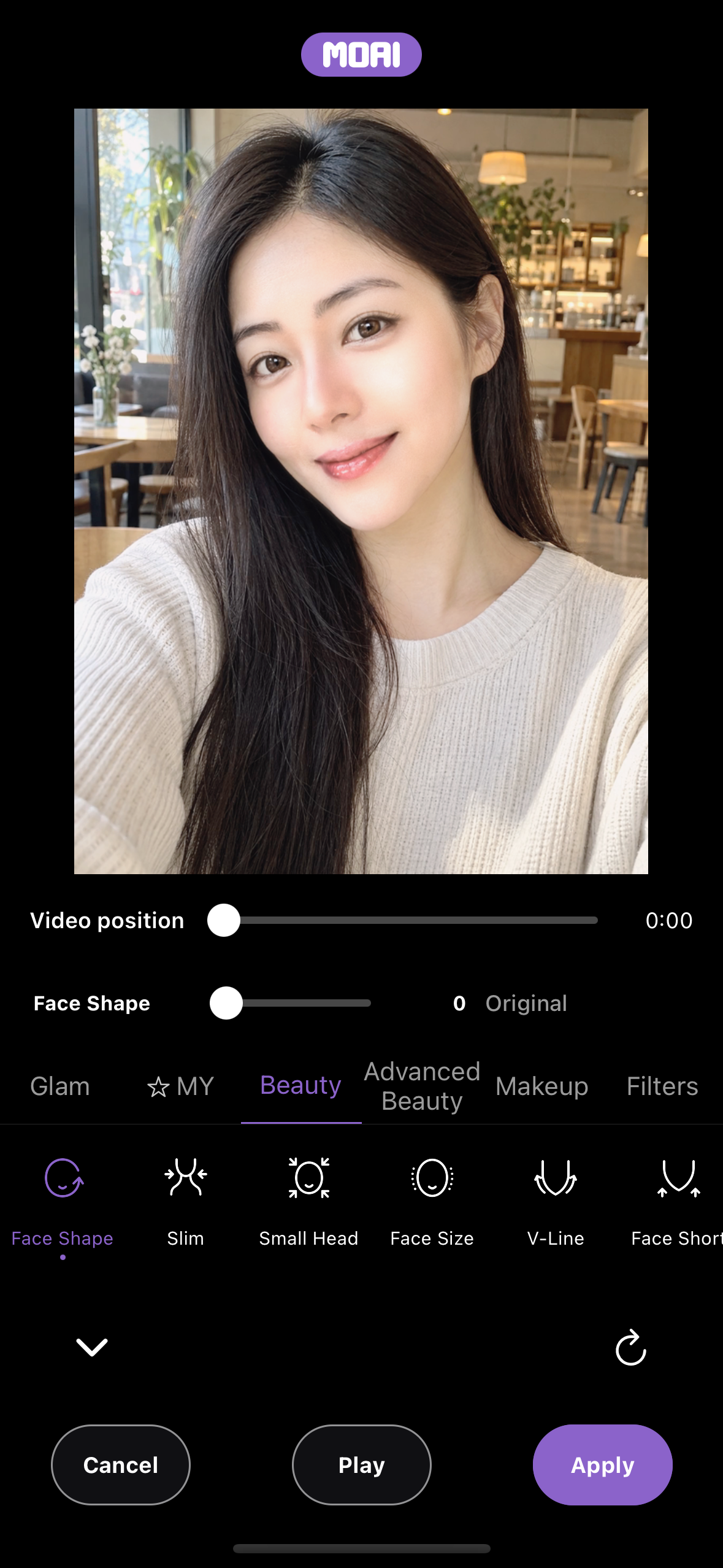
Video beauty editor on the Beauty tab, showing a Video position slider, the Face Shape slider and Cancel, Play and Apply buttons.
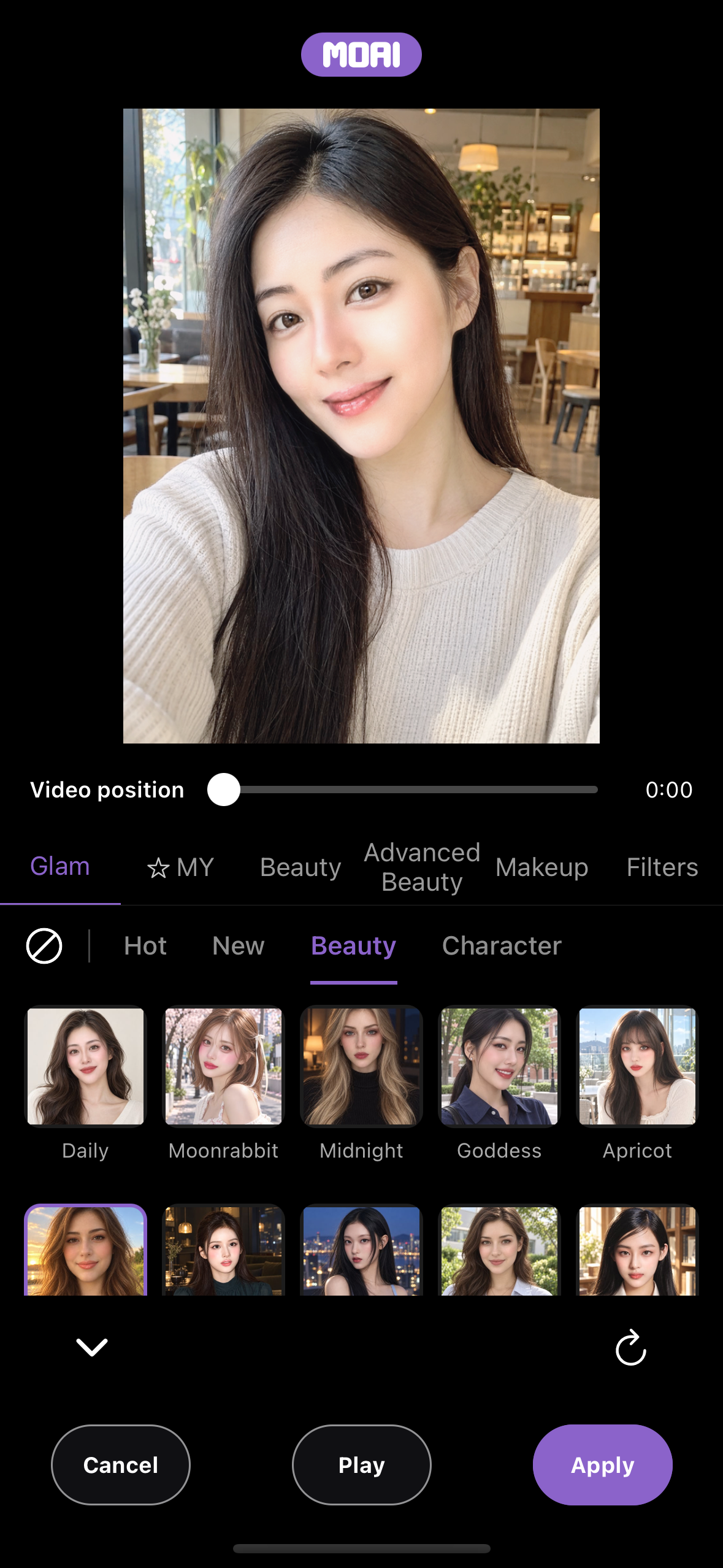
Video beauty editor on the Glam tab, showing a Video position slider, 20 looks in the Beauty category with Sunset selected, and Cancel, Play and Apply buttons.
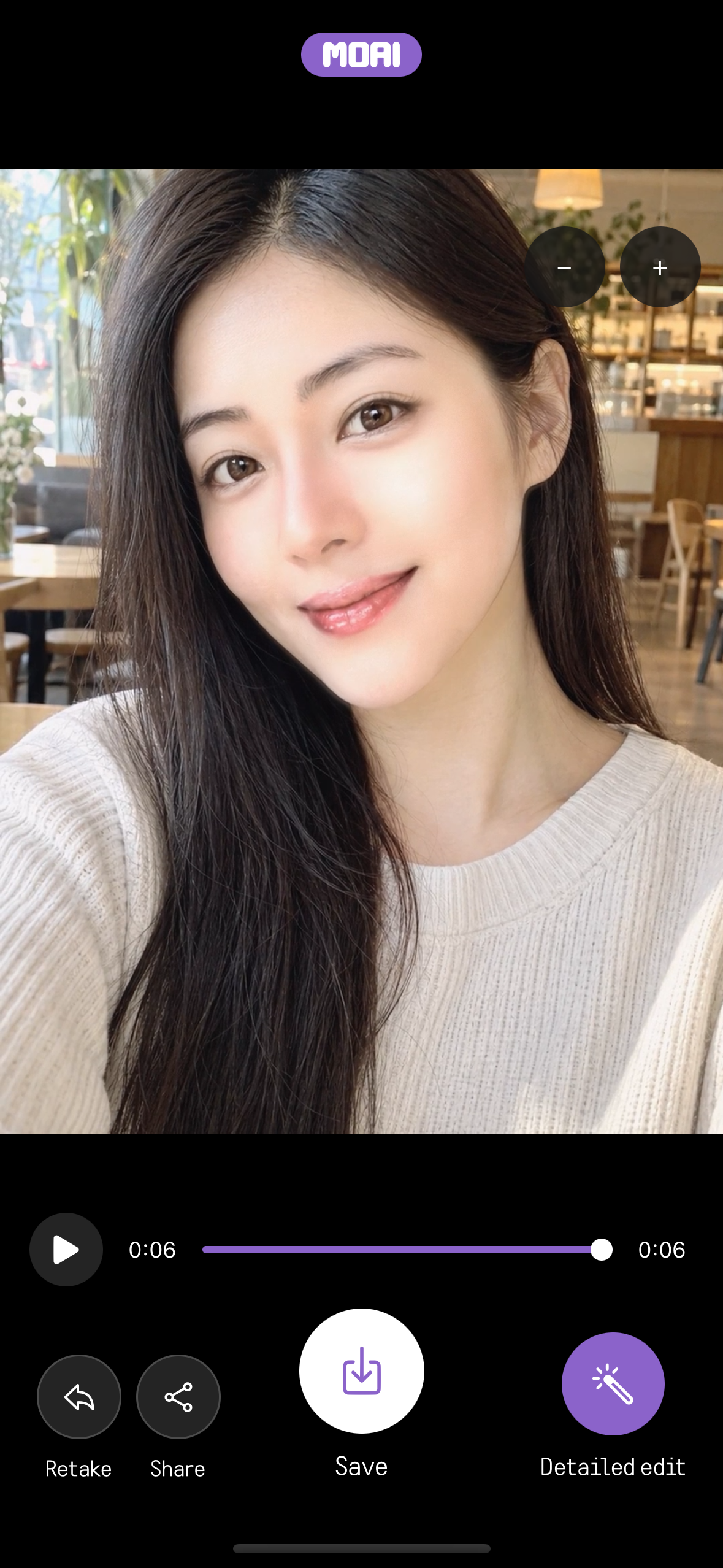
Video result screen with a playback bar at the end of the clip and Retake, Share, Save and Detailed edit buttons.
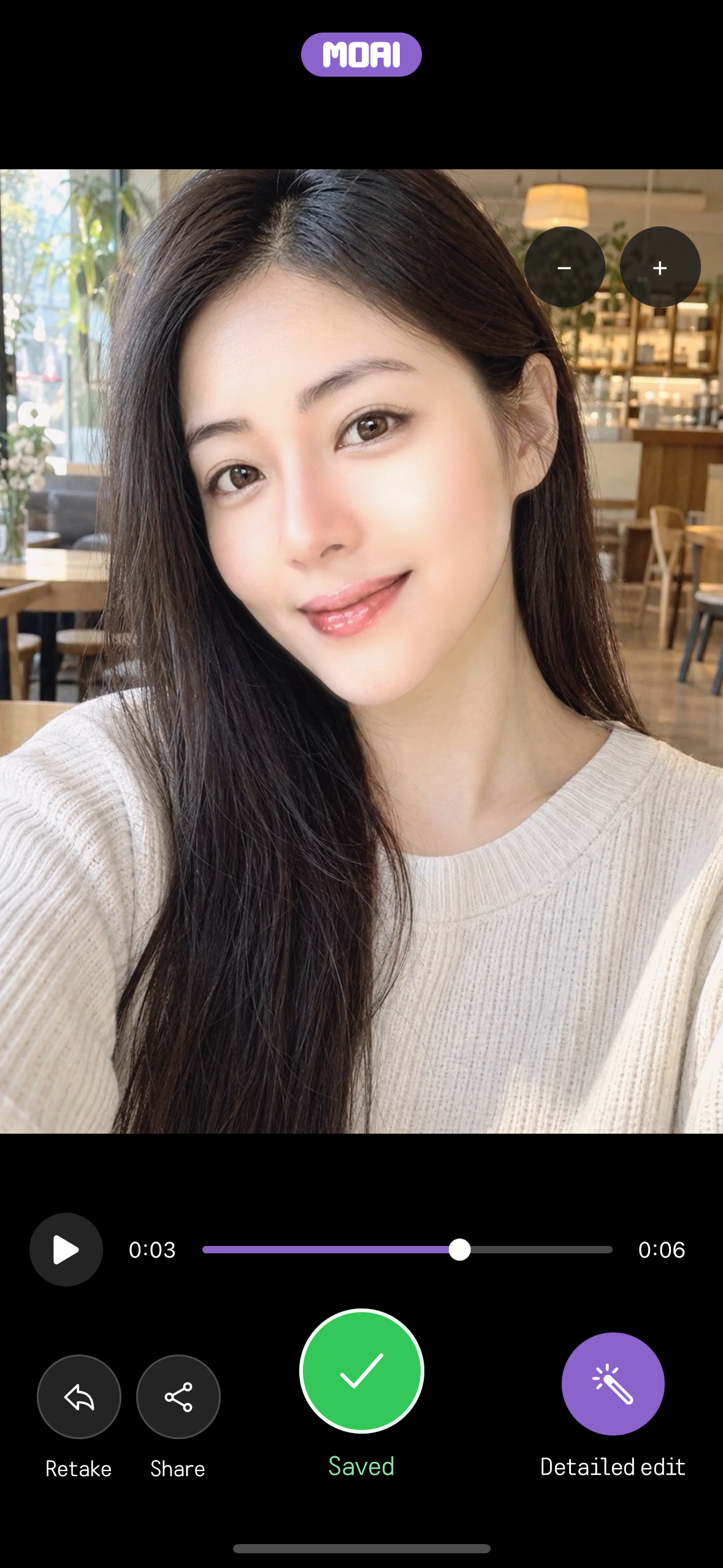
Video result screen after saving, where the Save button shows a green Saved check mark.
Translate · Conversation
Follow a conversation with the original words and their translation.
Live conversation translation setup: choosing the partner language and switching between real-time and turn-based modes. Setup screen only; no conversation is started. Sample content shown.
Translate · Text
Choose the languages, enter your text and copy the translation.
Enter a sentence to translate. Read the Korean translation and pronunciation.
Textbook Learning
Choose a textbook and a unit. Work through vocabulary, dialogues, grammar and exercises, and follow your progress.
Scrolling the three-language textbook levels and opening Level 1 to browse its units.
Scrolling a textbook dialogue with each line in Korean, Japanese and Spanish.
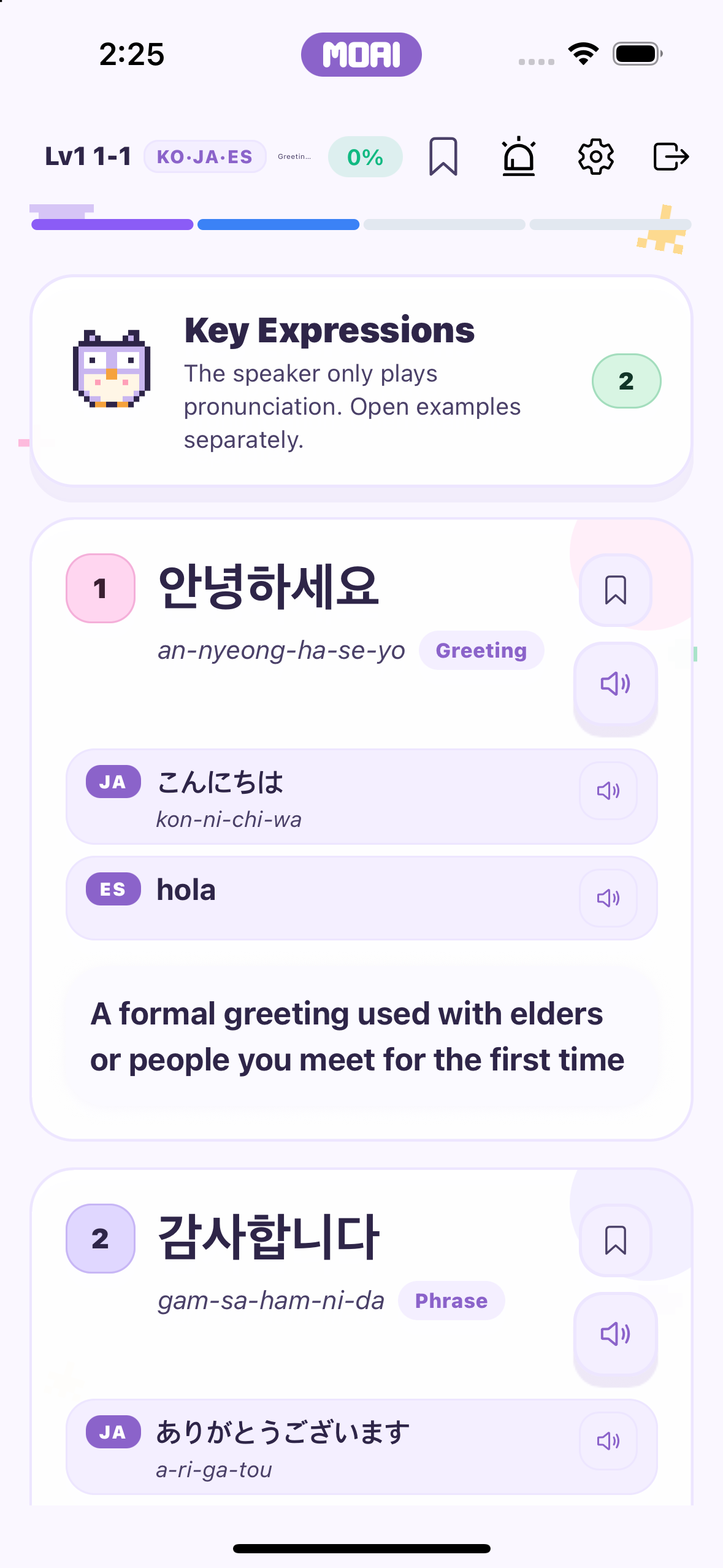
A textbook Key Expressions card shows a Korean phrase with its Japanese and Spanish versions and an English explanation.
Vocabulary Quiz
Bookmark words and practise with vocabulary quizzes.
Choosing the correct meaning in a Word to Meaning vocabulary quiz and seeing it marked correct. Sample content shown.
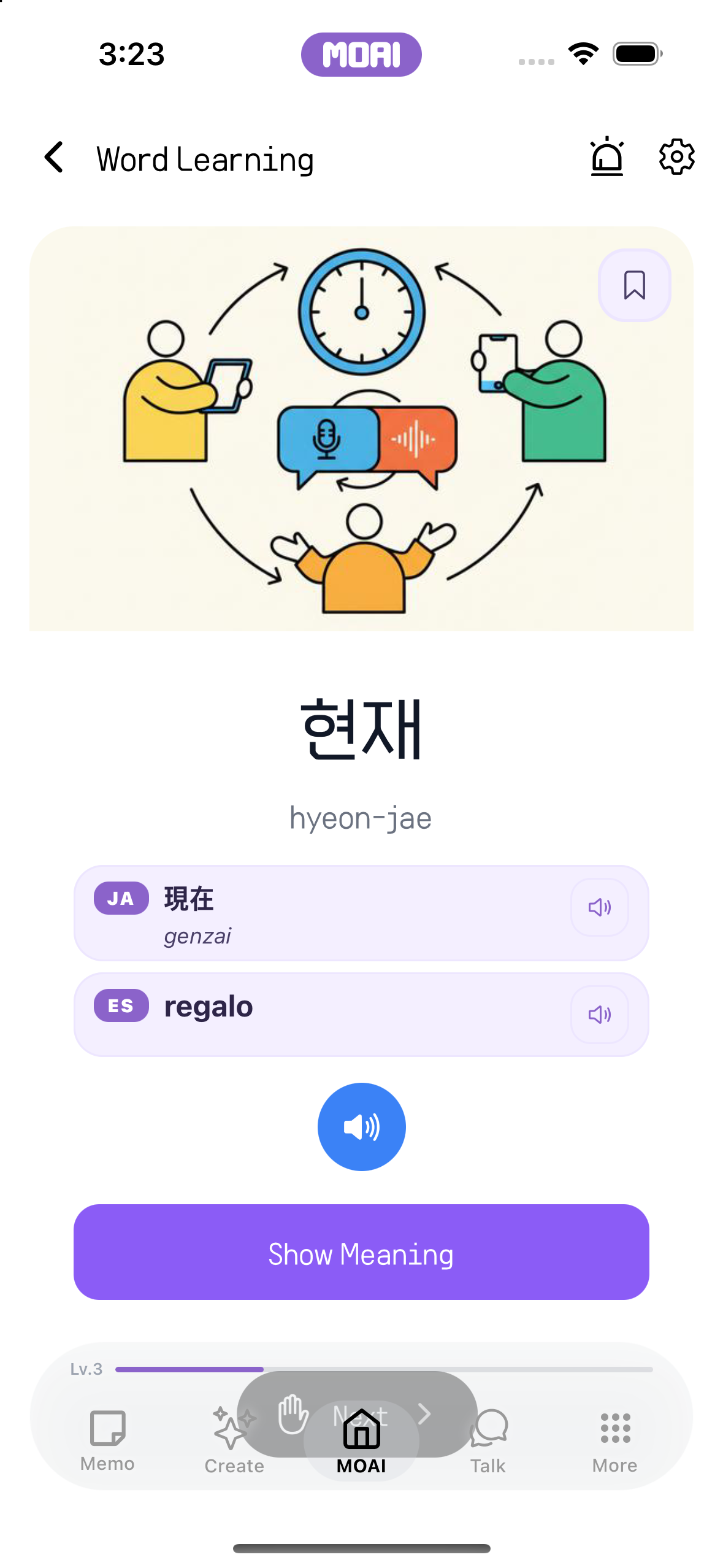
Word Learning card showing a Korean word with its Japanese and Spanish equivalents, romanization and audio buttons. Sample content shown.
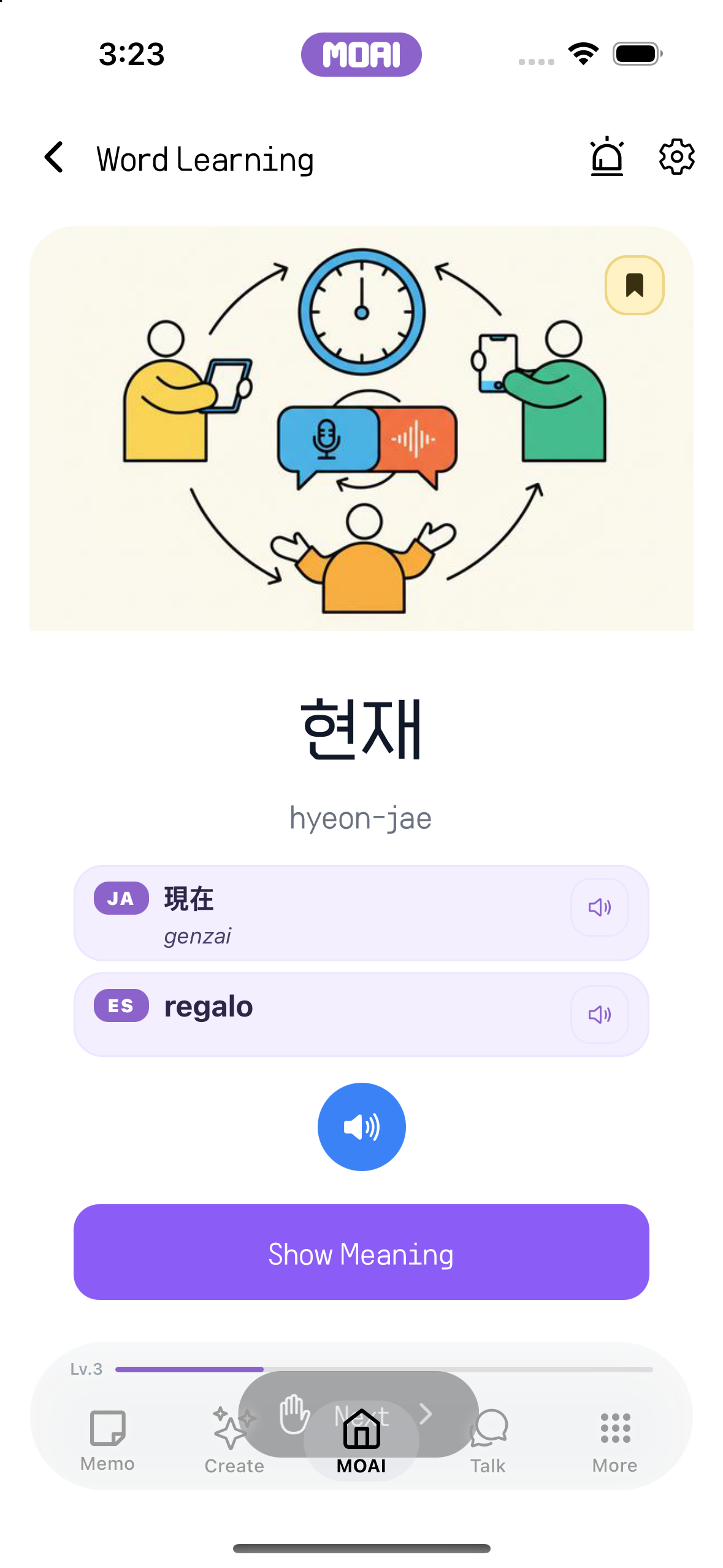
Word Learning card with the bookmark button filled after saving the word for later review. Sample content shown.
Basic Characters of 31 Languages
Study 31 languages. Learn each language's basic characters with the sound of every letter: Hangul consonants and vowels, hiragana and katakana, Cyrillic, Arabic script and more.
Korean, Japanese and Spanish character sets in turn: Korean consonant/vowel grid, Japanese kana grid and the Spanish alphabet.
Word Learning
Connect a word with an image and listen to its pronunciation.
Compare Korean, Japanese, and Spanish. Reveal the English meaning and scroll to read it. Swipe between illustrated word cards.
Everyone's Numbers
Practise recognising and using numbers in the language you are learning.
Keep three learning languages selected and choose a primary language. Explore Japanese numbers in Grid View. Switch to Number Table and scroll through number groups.
Story Reading
Read a story and explore the vocabulary along the way.
Scrolling a Japanese story where each scene is shown with Korean and Spanish versions and an English translation.
Typing Practice
Practise typing and review your result after each session.
Choosing Spanish, Japanese or Korean in the typing practice language list, then typing a Korean sentence with the key guide.
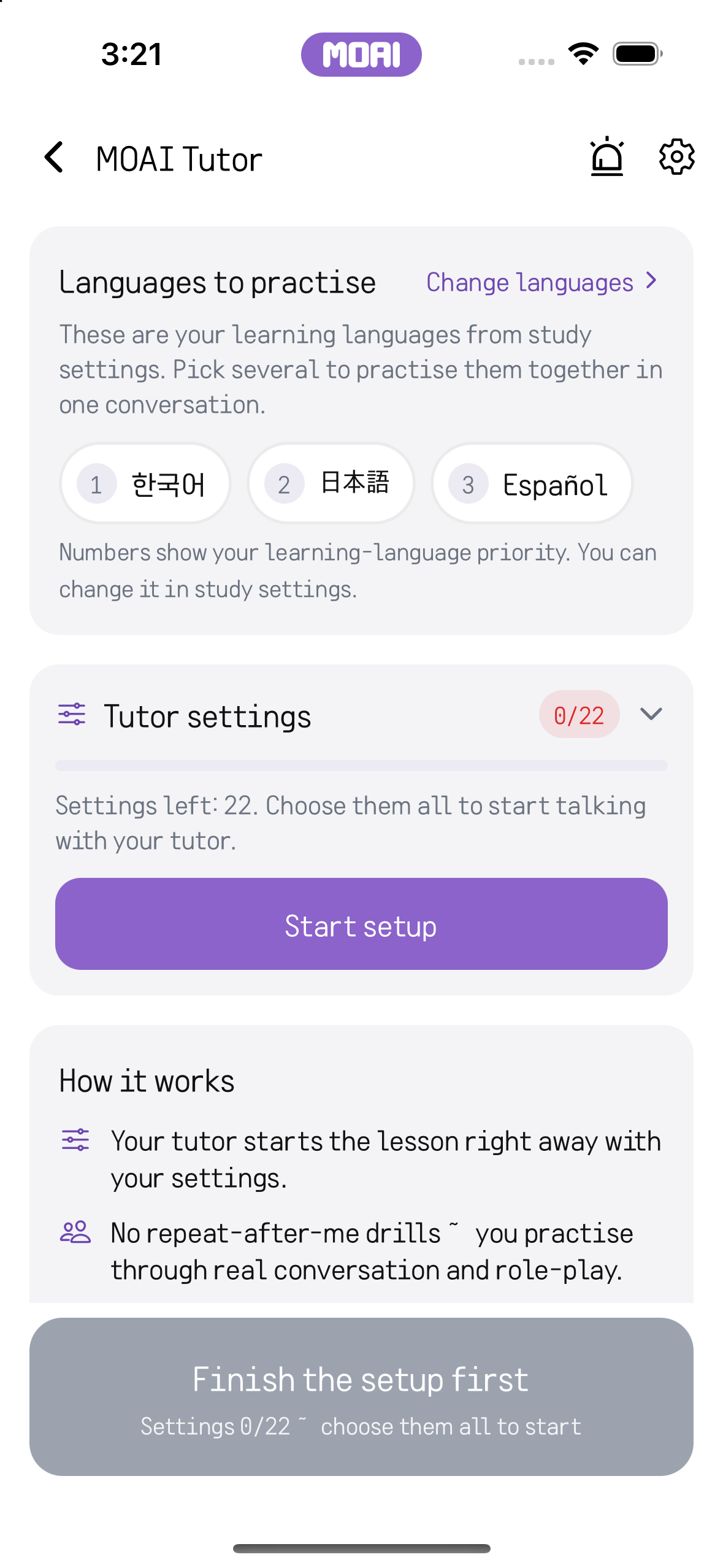
MOAI Tutor
Practise a conversation through the real-time voice study experience.
MOAI Tutor setup screen showing the learning languages and the tutor settings checklist before a live conversation.
Everyone's Music
Browse new tracks, search for music and open a track to listen.
Search for music by title. Explore matching tracks, artists and albums.
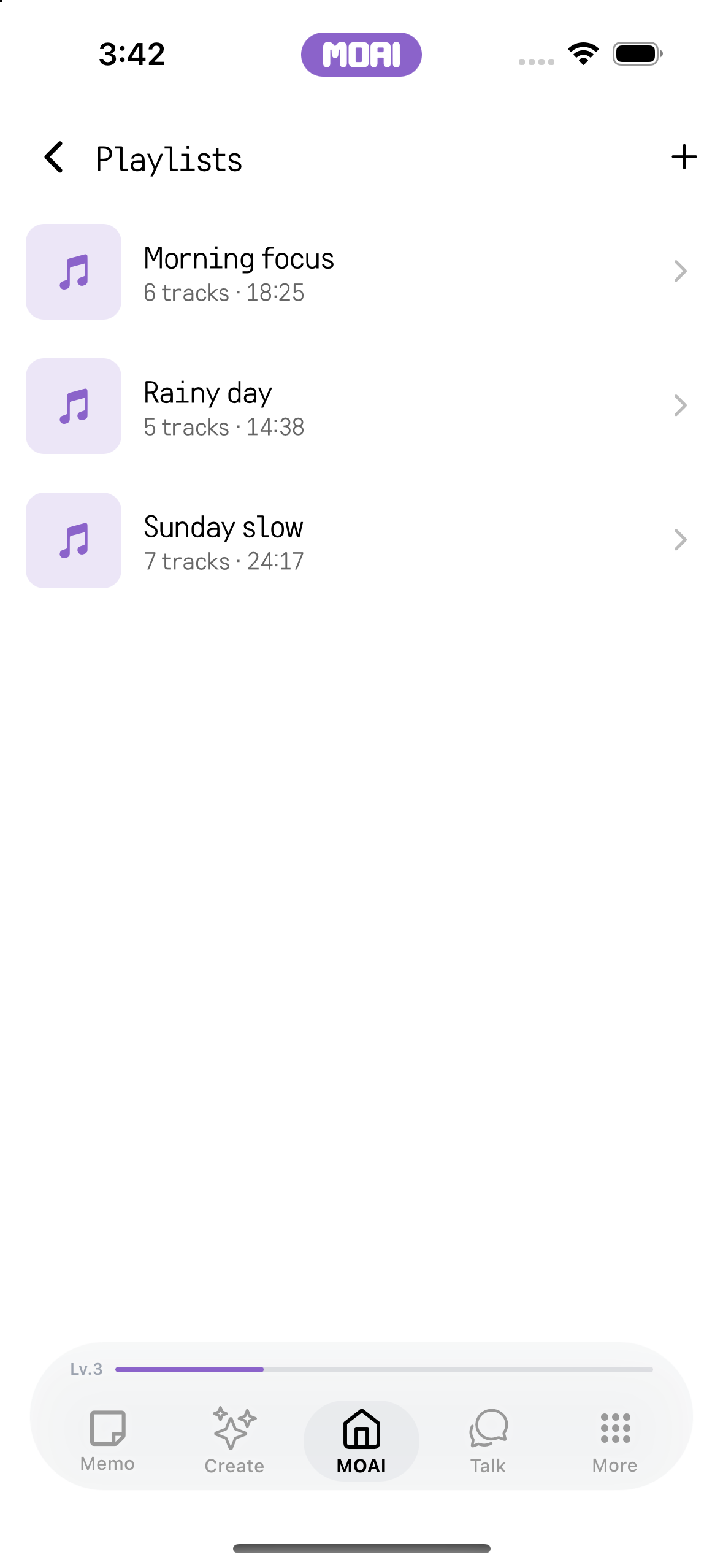
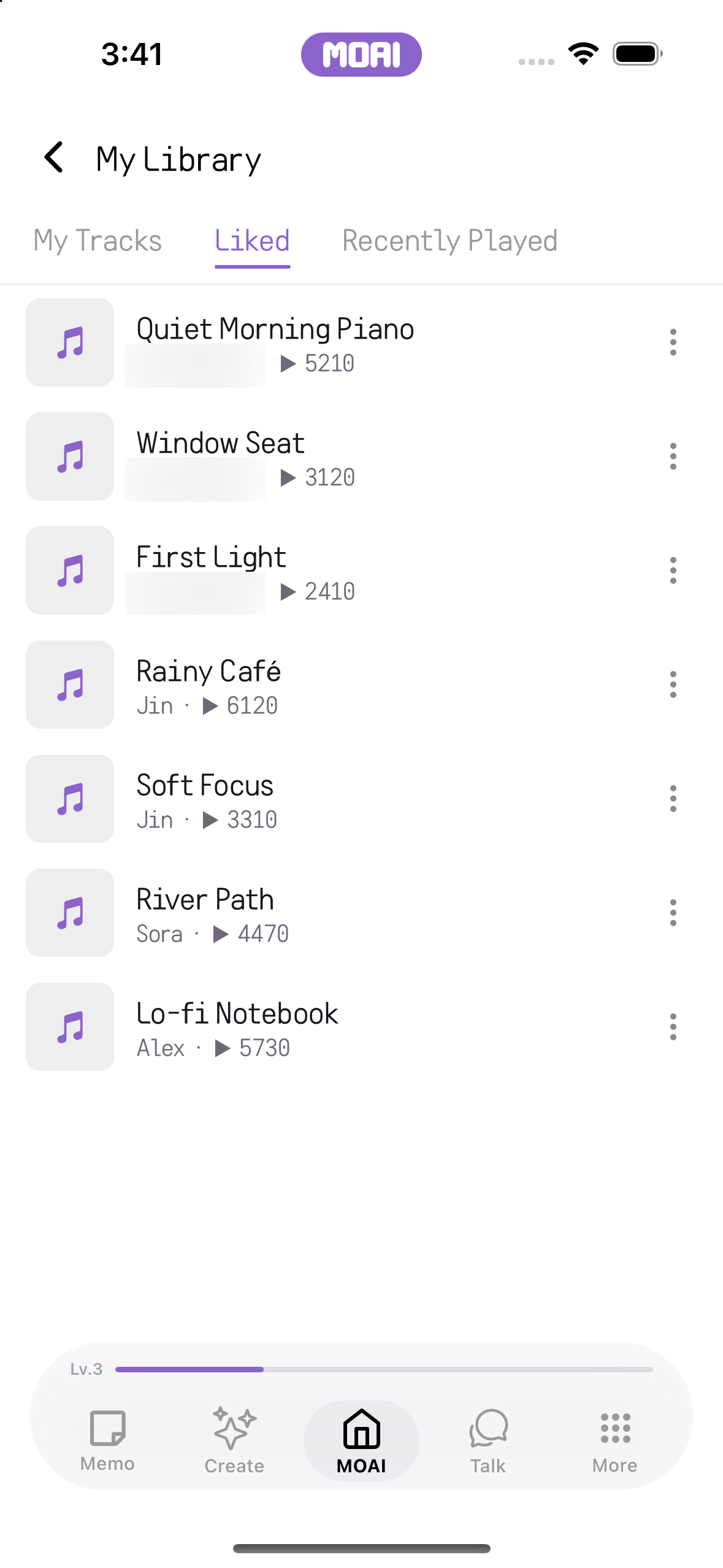
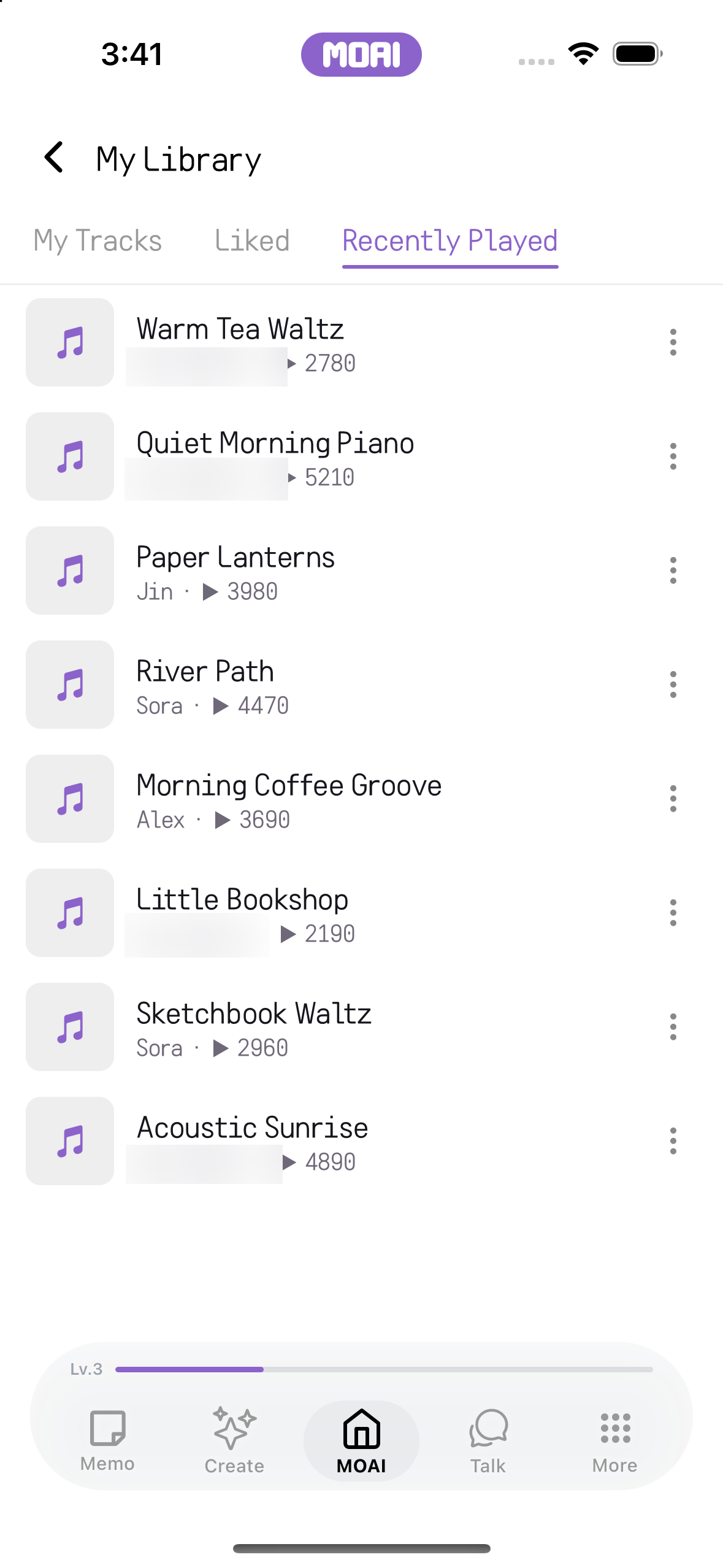
My Library
Play music, make a playlist and return to favourites and listening history.
Playlists screen listing three playlists with track counts and durations. Sample content shown.
My Library Liked tab listing tracks the listener has liked. Sample content shown.
My Library Recently Played tab listing recently played tracks. Sample content shown.
Everyone's Fortune
Choose a reading, enter the requested details and explore the result.
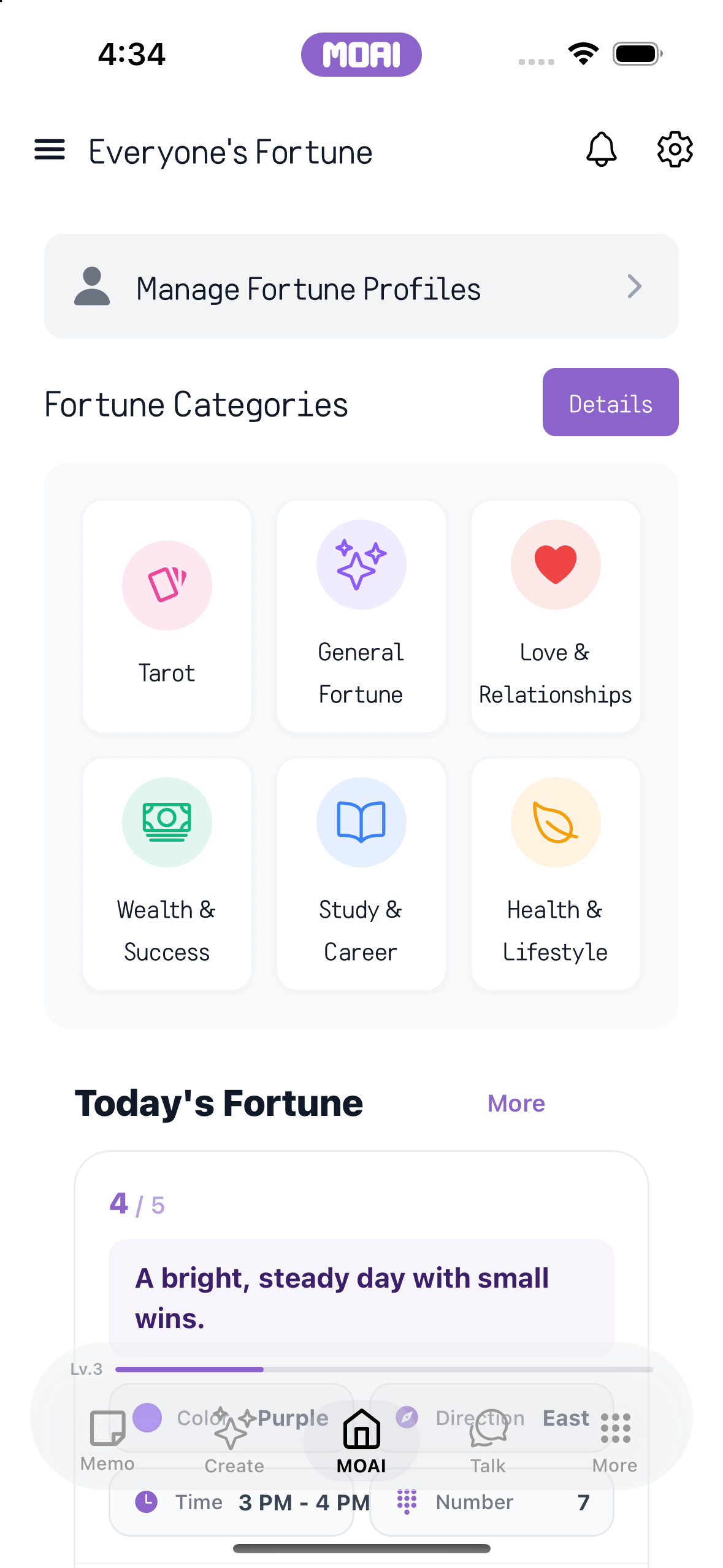
Opening General Fortune, choosing Today's Fortune, and running the analysis to reach a sample fortune result. Sample result shown. For fun only.
Fortune home with profile management, six fortune categories, and a sample daily fortune card. Sample result shown.
Everyone's Love
Explore the relationship tools, provide the requested information and review the result.
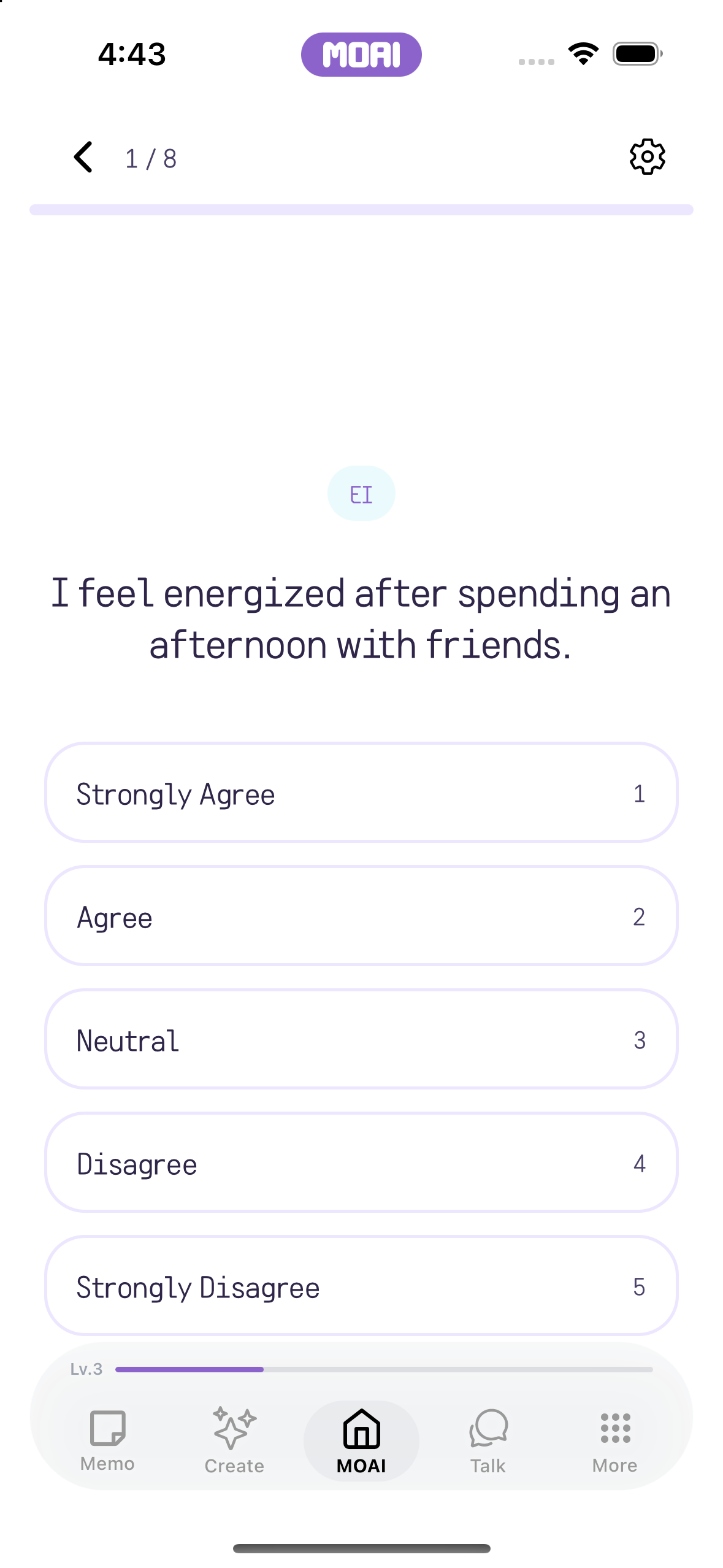
Answering the MBTI love test questions one by one and reaching a sample INFP result. Sample result shown. For fun only.
An MBTI love personality test question with five answer choices and progress shown as 1 of 8. Sample content shown.
Talk
Keep the conversation going.
Messages, calls, channels and shared stories bring people together.
Chats
Send messages and attachments, react, edit and translate within a conversation.
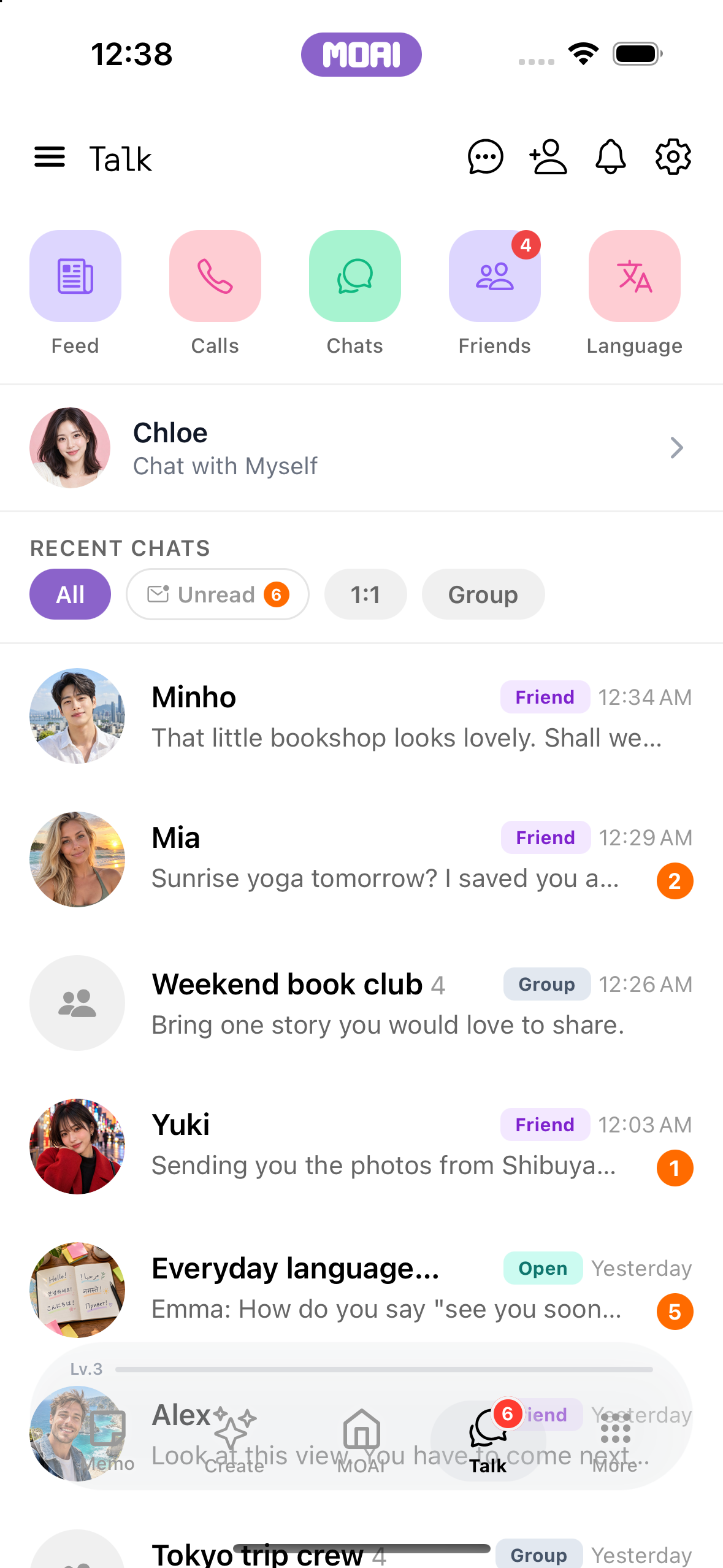
Scrolling back and forward through a one-to-one chat conversation. Sample content shown.
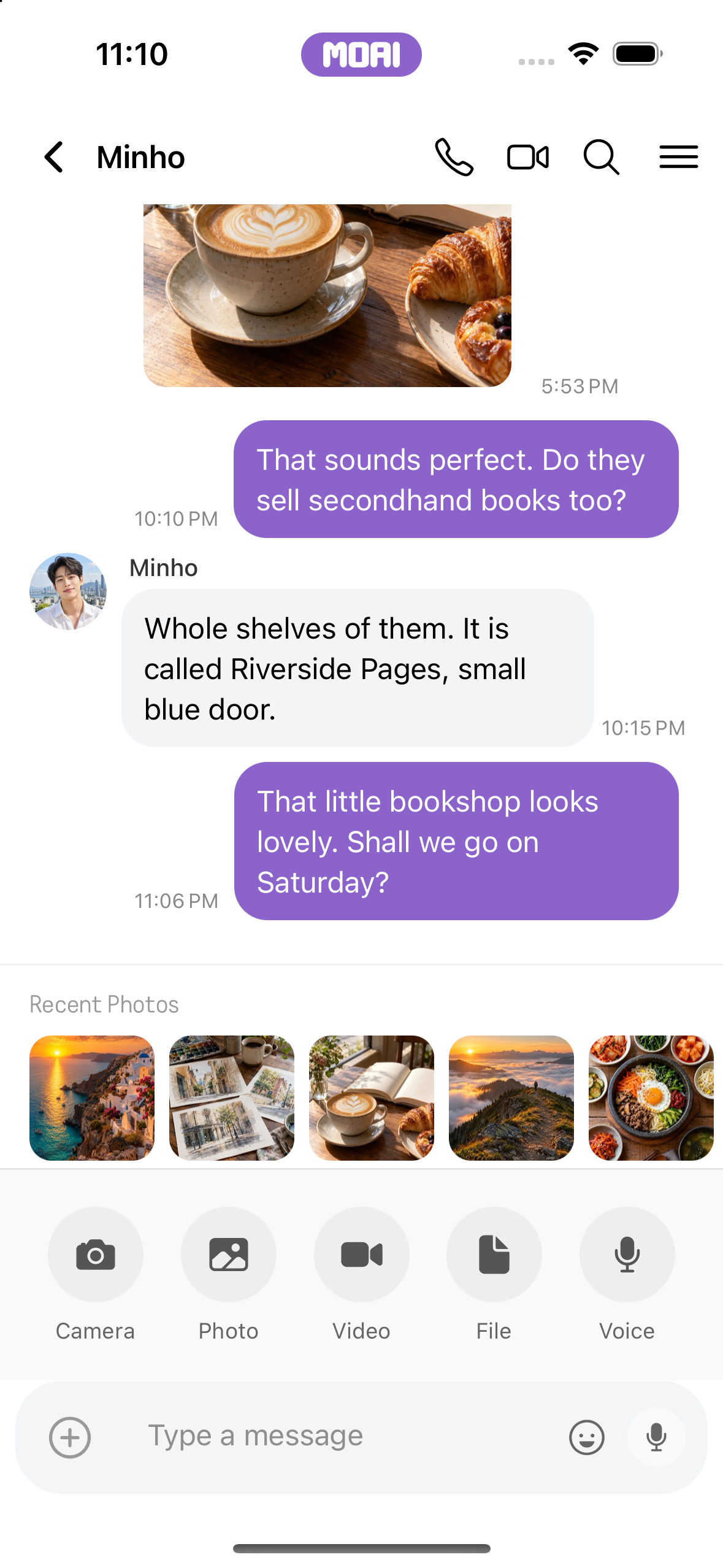
The chat attachment tray with recent photos and Camera, Photo, Video, File and Voice options. Sample content shown.
Group chat
Create a group, invite people and manage its participants.
Switching to the Group chat tab and selecting friends to start a group. Sample content shown.
Opening a group chat menu and its participants list. Sample content shown.
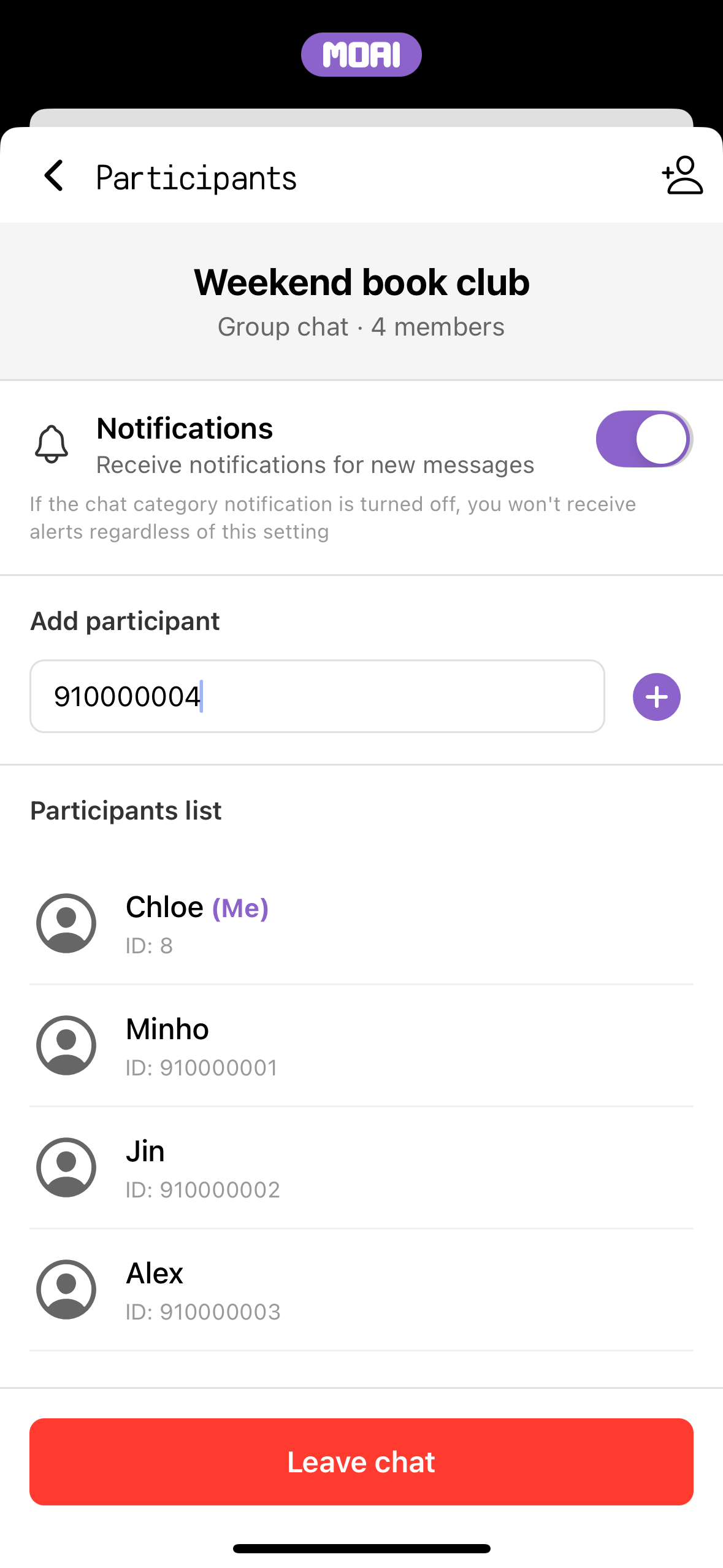
The Add participant field of a group chat with a user ID typed in and a plus button to invite them. Sample content shown.
Friends
Add friends, open profiles and organise your connections into folders.
Switching between the Nickname, Email and My QR tabs on the Follow screen. Sample content shown.
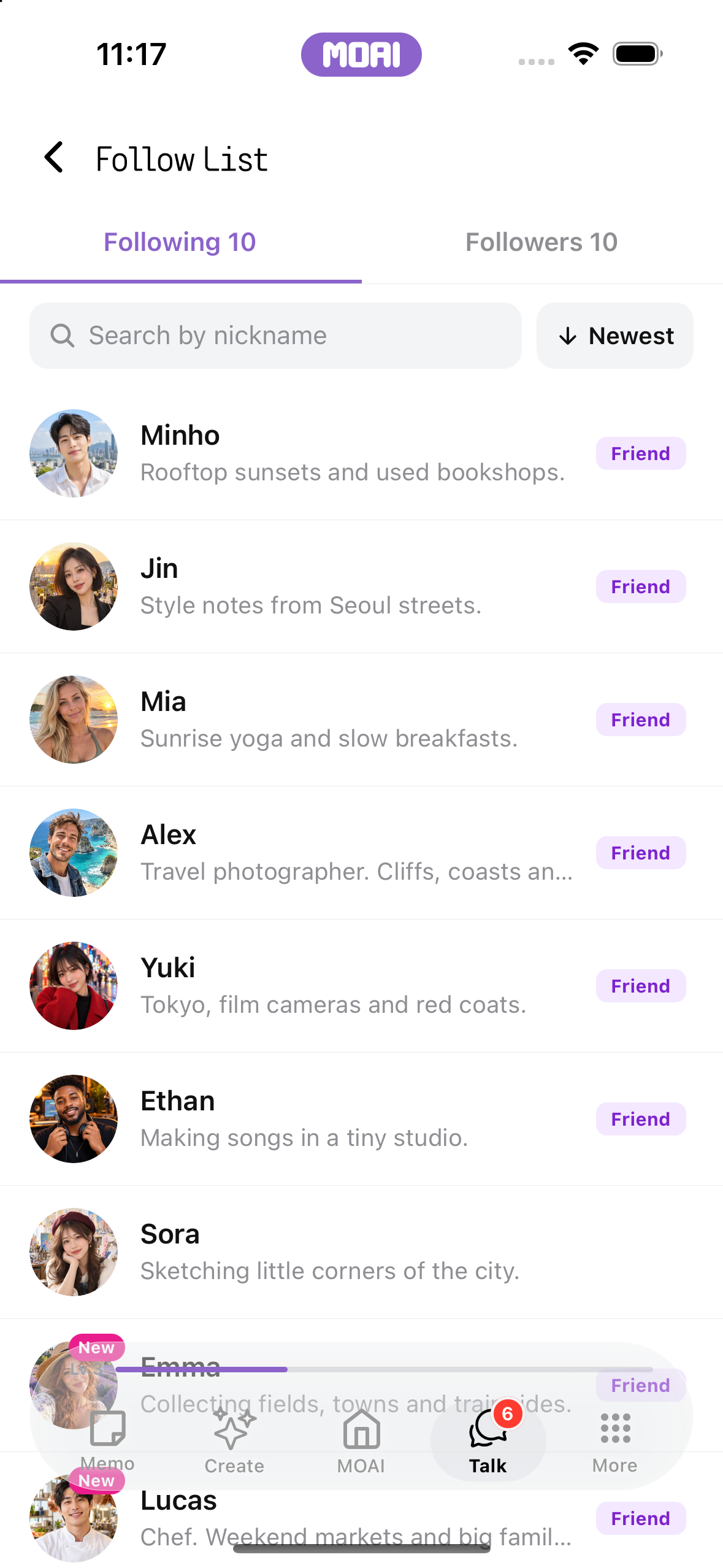
The follow list of sample friends with profile photos, bios and Friend badges. Sample content shown.
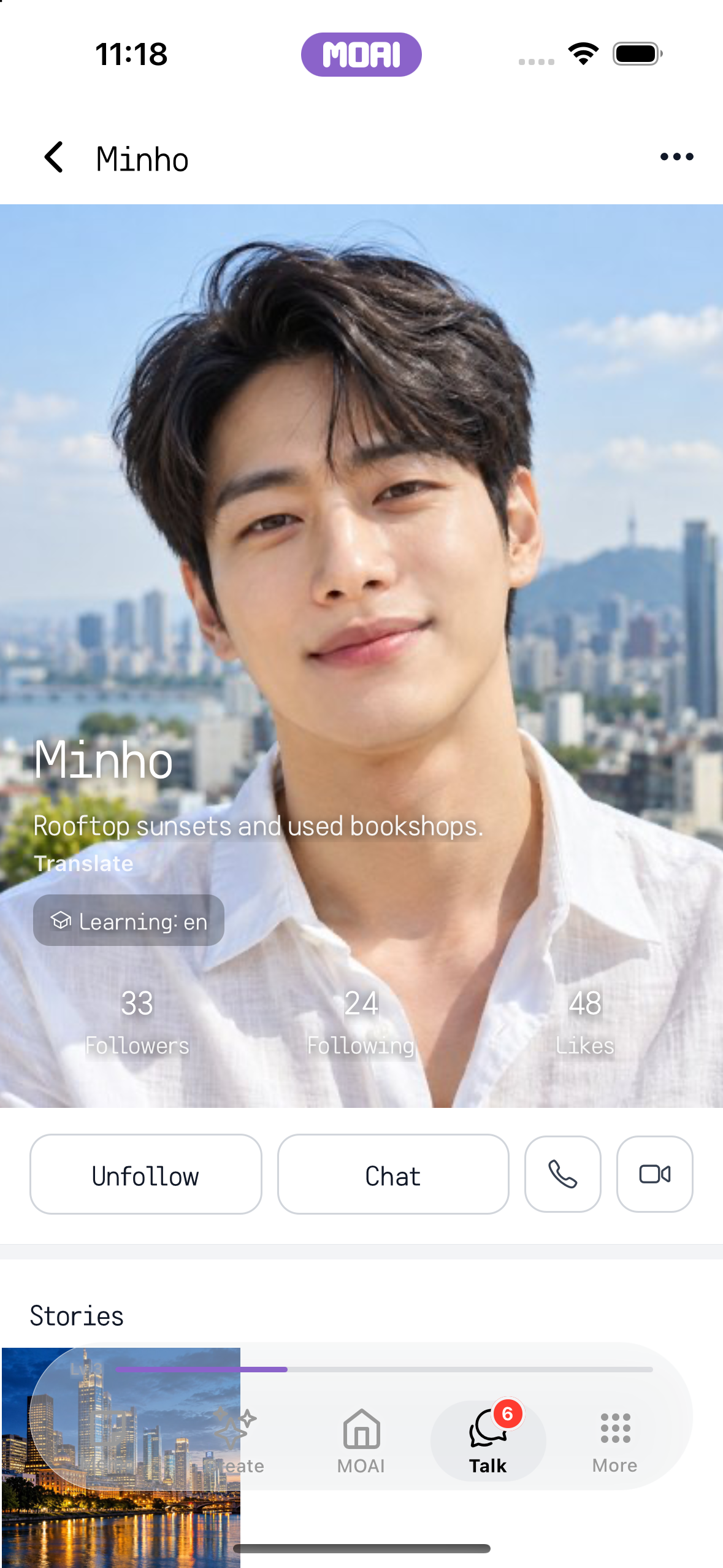
A friend's profile with photo, bio, follower counts, and Chat and call buttons. Sample content shown.
Calls
Start a voice or video call, use translation and return to your call history.
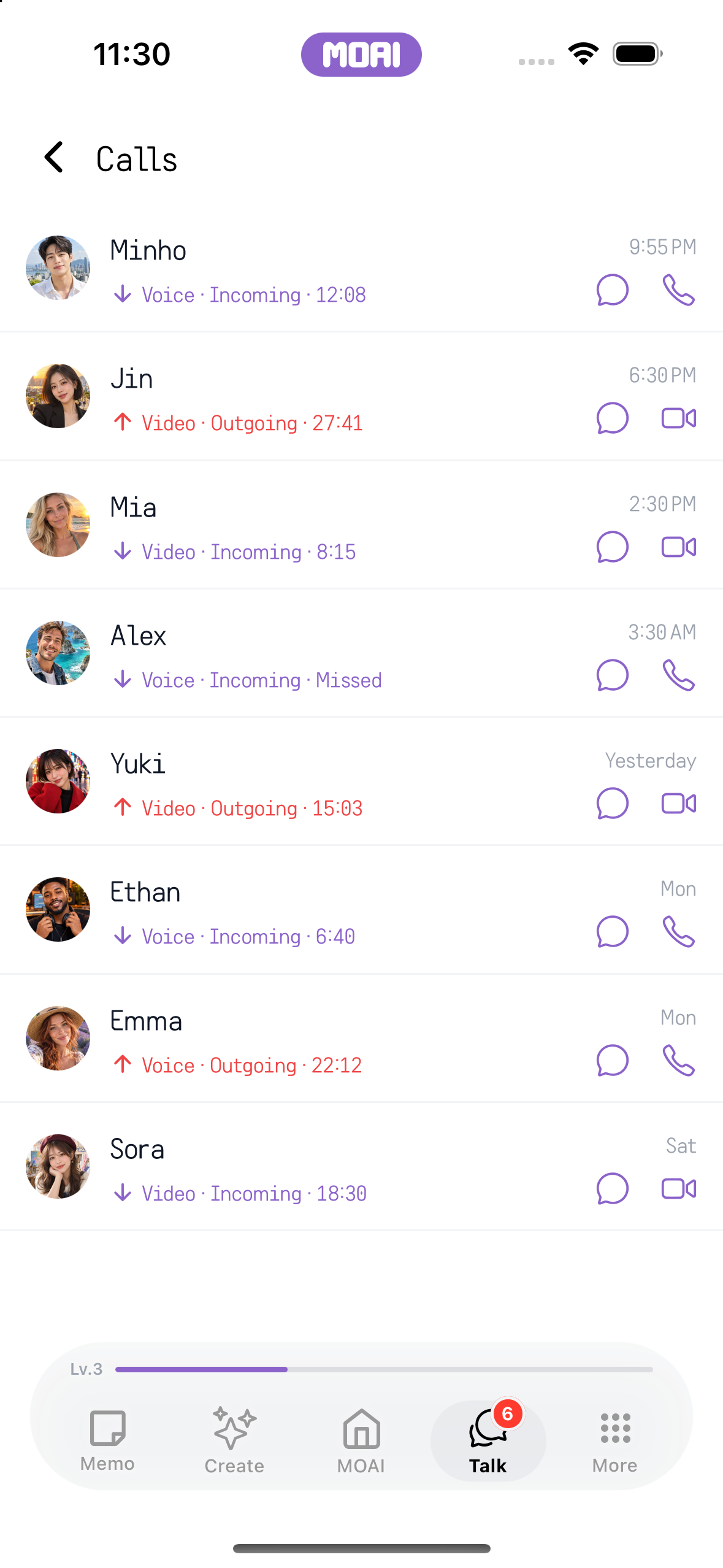
The call history list with sample voice and video calls, durations and missed calls. Sample content shown.
Open Chats
Discover a channel, join its conversation or create a channel of your own.
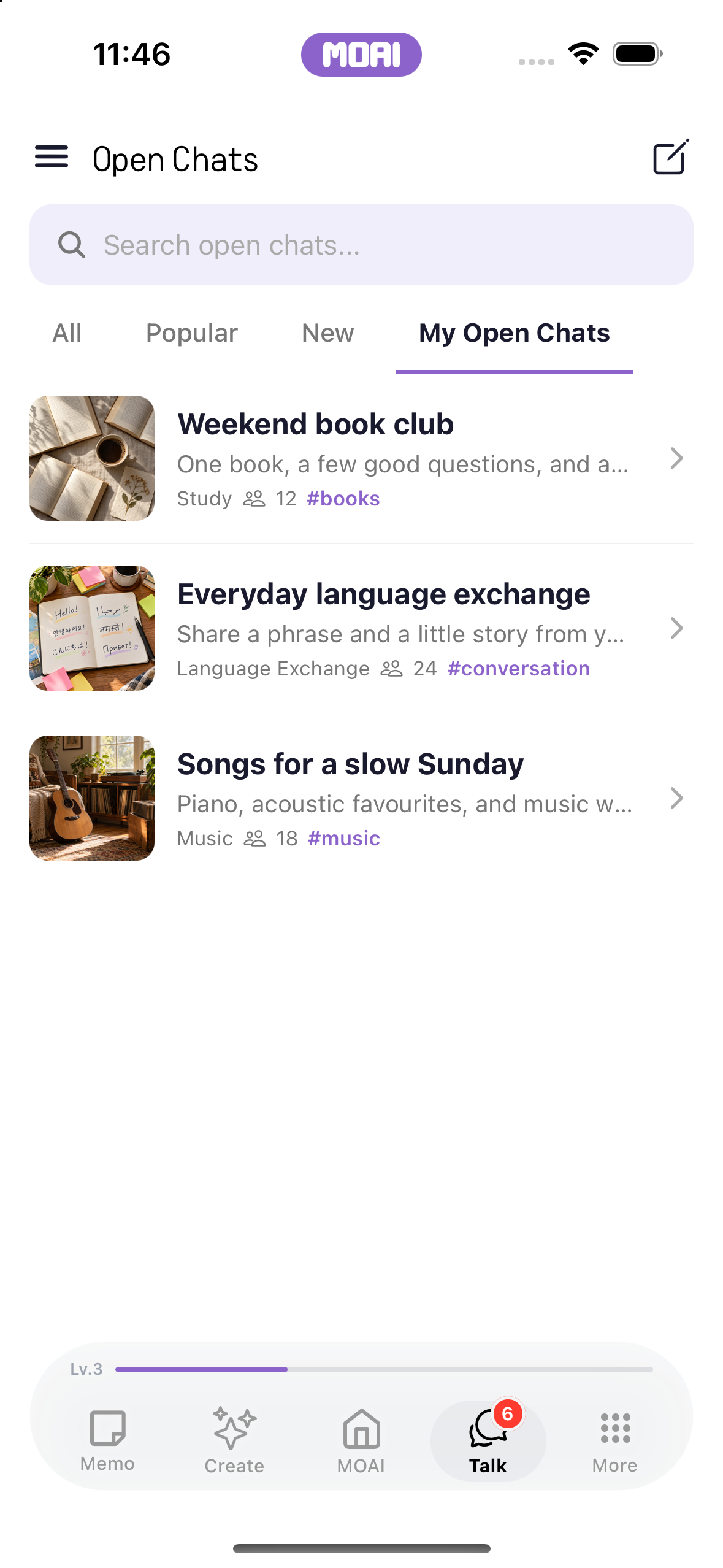
Explore Open Chats. Sample communities shown. Switch to My Open Chats. Sample membership shown. Return to all communities.
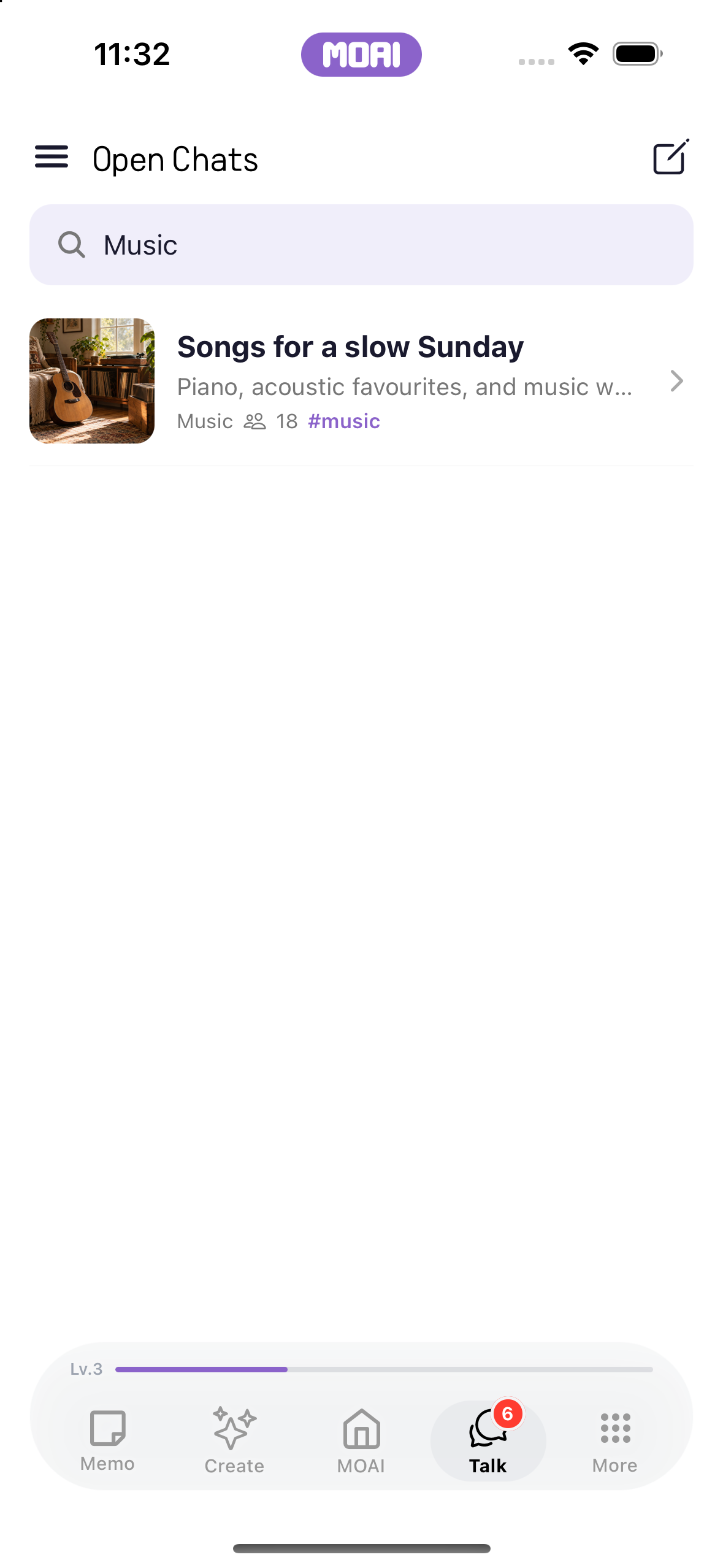
Find a community with search. Sample music community shown.
Find your communities in My Open Chats. Sample content shown.
Random Chat
Start a matching session and connect with someone new.
The Random Chat setup screen: switching between video and text modes, choosing a partner gender and scrolling to the language and age-group filters. Matching is not started. Sample content shown.
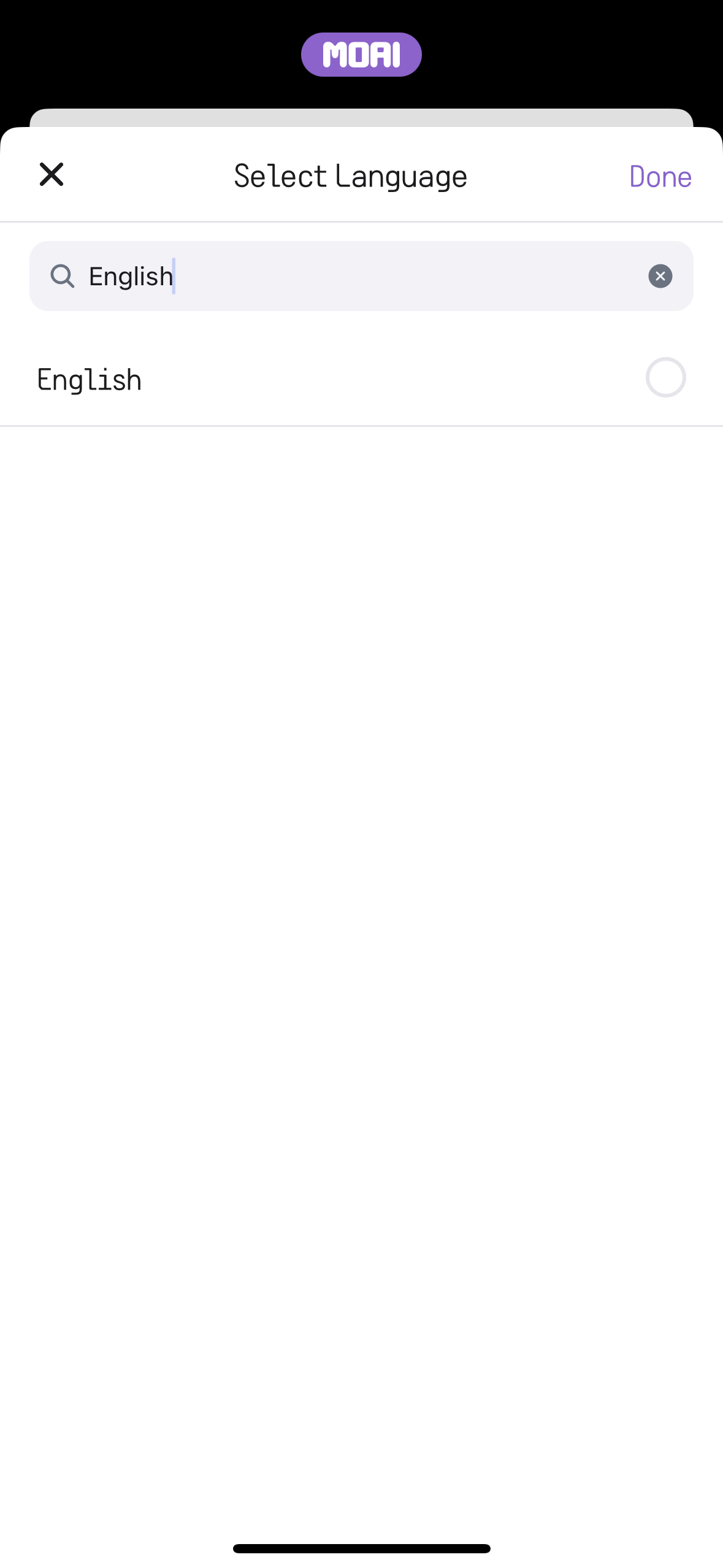
Search for a language in Random Chat preferences. English search results shown.
Language Exchange
Set your profile and preferences, find a match and practise through conversation.
Scrolling through the Language Exchange profile page. Sample content shown.
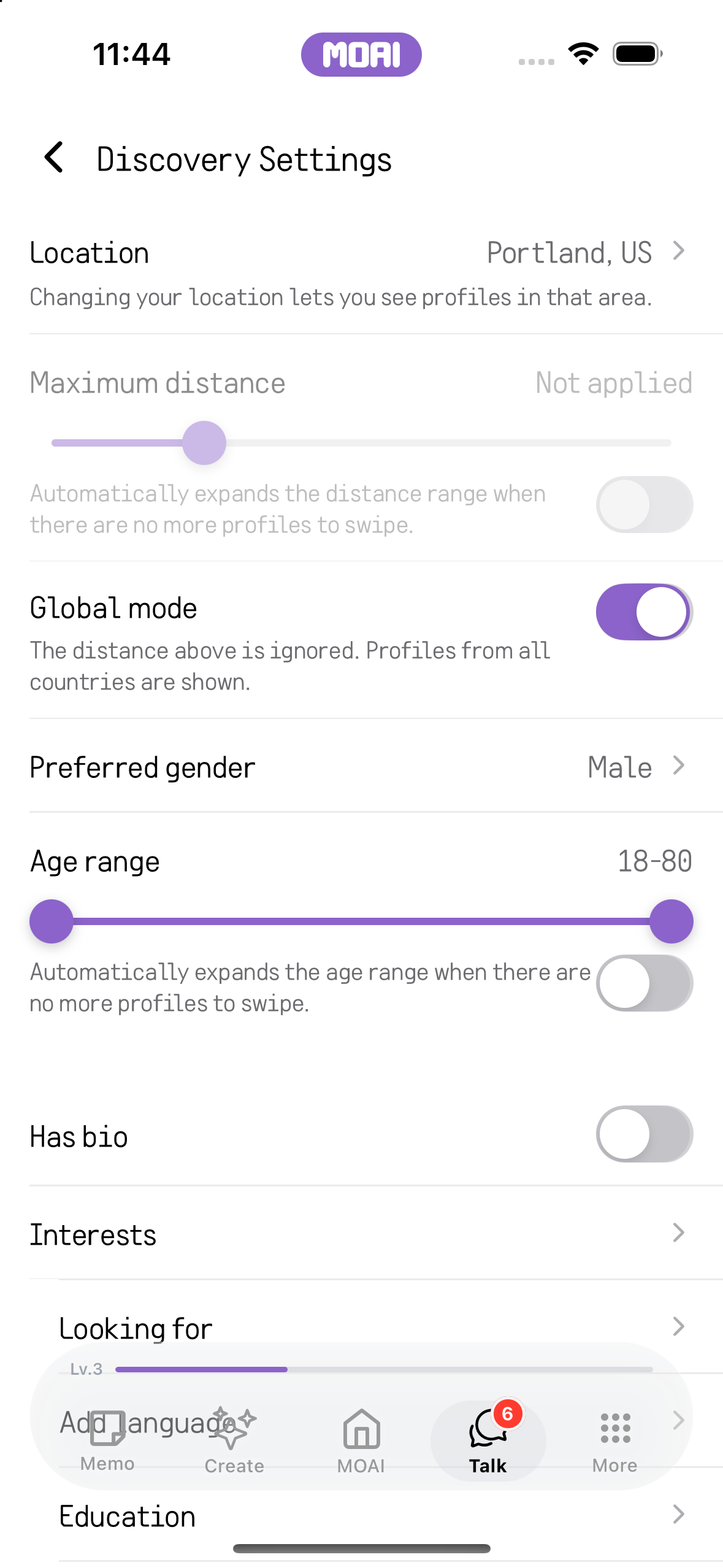
Language Exchange discovery settings with location, global mode, preferred gender and age range. Sample content shown.
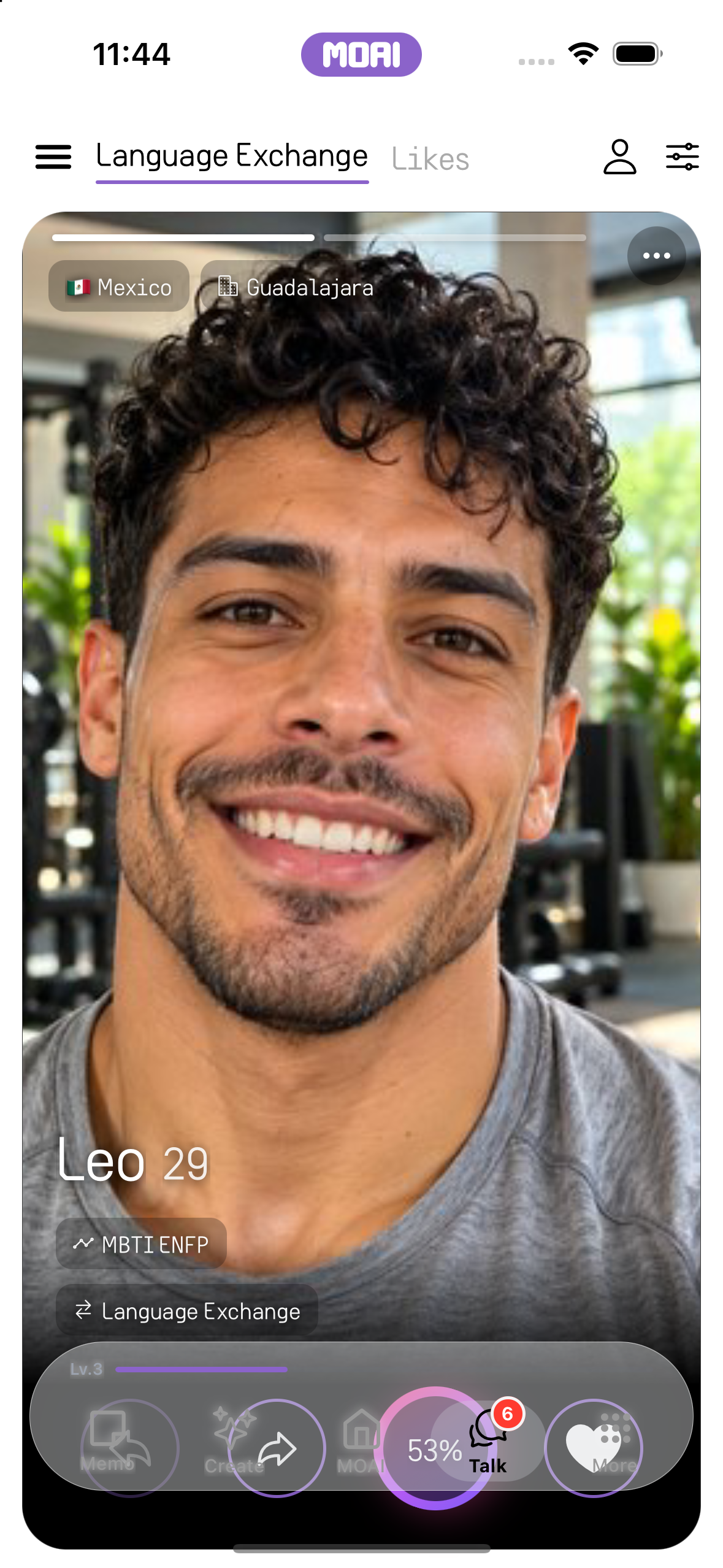
A Language Exchange profile card of a sample person with country, city and MBTI, and pass, share and like buttons. Sample content shown.
Custom Agents
Explore agents, create a custom agent and start a conversation.
The Custom Agents list with Book Buddy and Phrase Coach, then the Create Agent form where a tone and a style are chosen. Nothing is saved. Sample content shown.
Feed
Explore stories, blog posts and places in the feed.
Scrolling through the Story feed of short sample posts. Sample content shown.
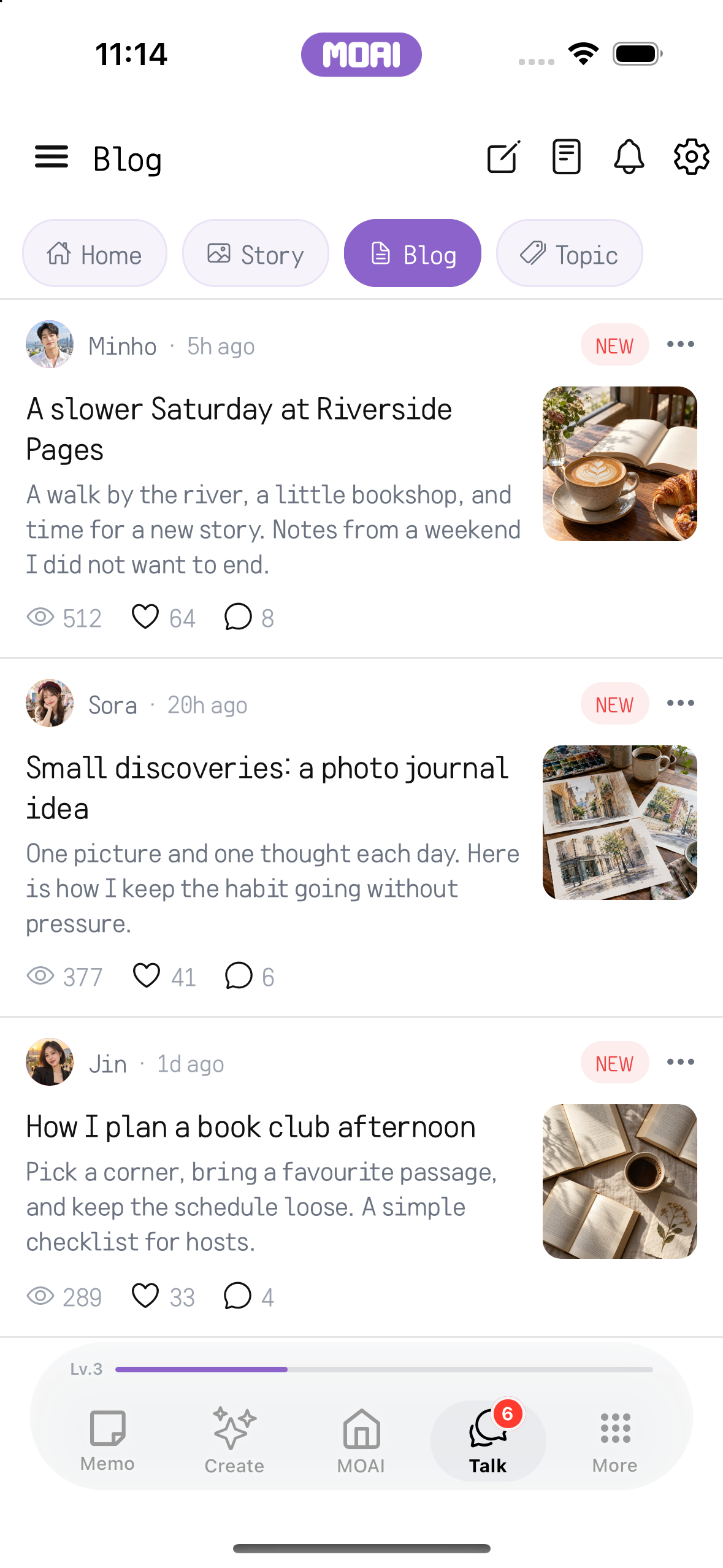
The Blog feed listing sample blog posts with cover photos, views, likes and comments. Sample content shown.
New Post
Compose a post, add media and return to your published activity.
Writing a short English post in the New Story composer and opening the album picker to browse photos. Nothing is uploaded or published. Sample content shown.
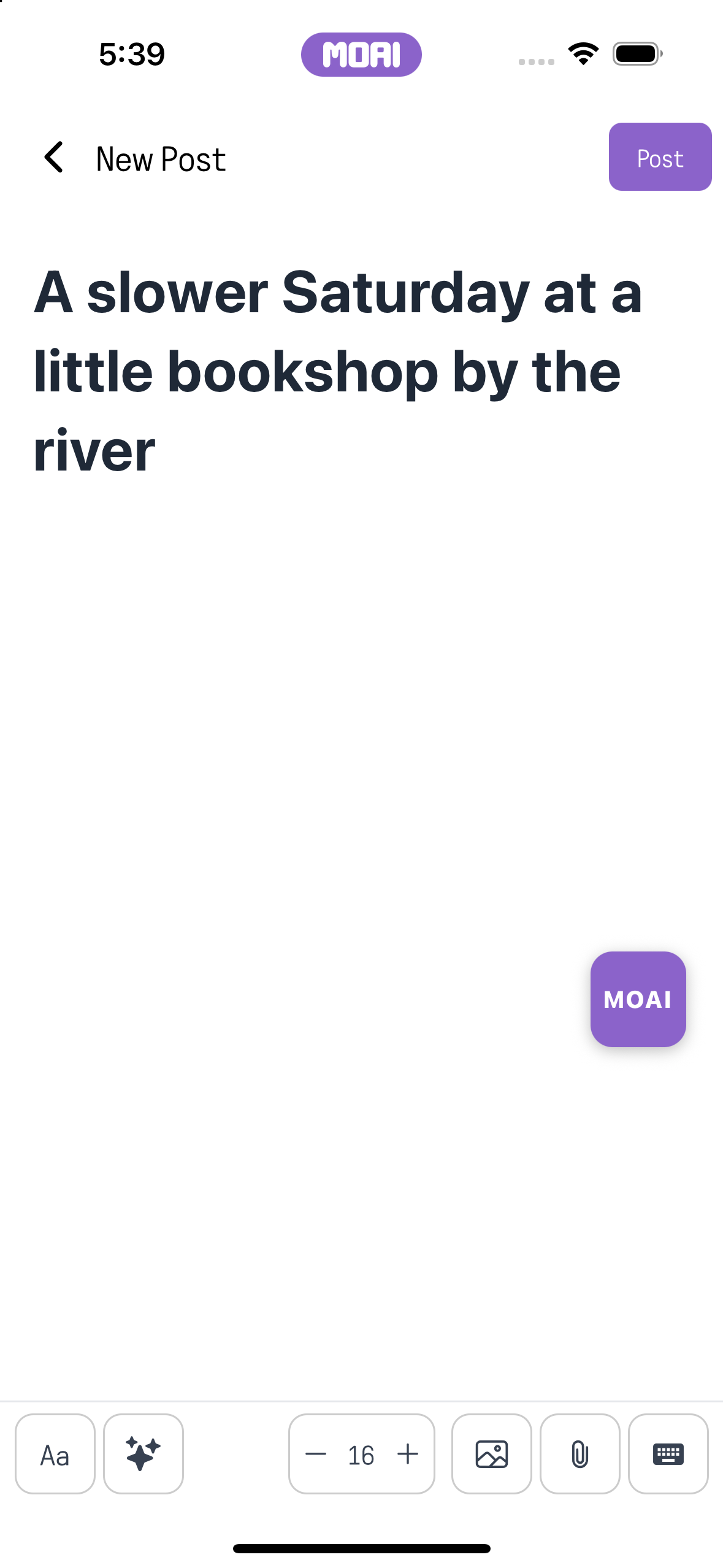
The new blog post editor with a sample title typed and formatting tools; nothing is published. Sample content shown.
Comments
Comment, like or translate a post, and report content when needed.
Opening a sample Topic post from the feed and reading its replies with the comment box below. Sample content shown.
Tablet
Draw, edit videos, search notes and chat on a larger screen.
Memo
Find a note with search and filters for different kinds of content.
Searching memos and resizing the list pane beside the note pane on iPad. Sample content shown.
Moai Pencil
Choose a brush, draw on the canvas and save your work in the gallery.
Drawing a mountain sketch in Moai Pencil on iPad, then undoing and redoing strokes.
Video Studio
Generate a video or work on a clip with AI editing, the studio and the video editor.
Editing video on iPad: play a clip, split it, add a black-and-white effect, adjust its brightness and play it back. Sample content shown.
Clip editing on iPad: trim a clip on the timeline, lower its volume, add an audio fade-in, change the speed and crop, switch the output ratio, set a fade-to-black transition and play it back. Sample content shown.
Adding subtitles on iPad: add a subtitle, enter the text, make it large and yellow, drag it on the preview, set its end time, add a second subtitle at the top in purple, then play both back. Sample content shown.
Covering part of a video on iPad: add an area, switch between Mosaic and Blur, set the strength, drag it over the prices, resize it and play it back. Sample content shown.
Using a MOAI Pencil drawing in a video on iPad: draw in Pencil beside the editor, import the canvas in Drawing and play it back over the video. Sample content shown.
Exporting on iPad: choose 720p or 1080p, start the on-device export, watch the progress and finish with the subtitles, drawing and blur built into the video. Sample content shown.
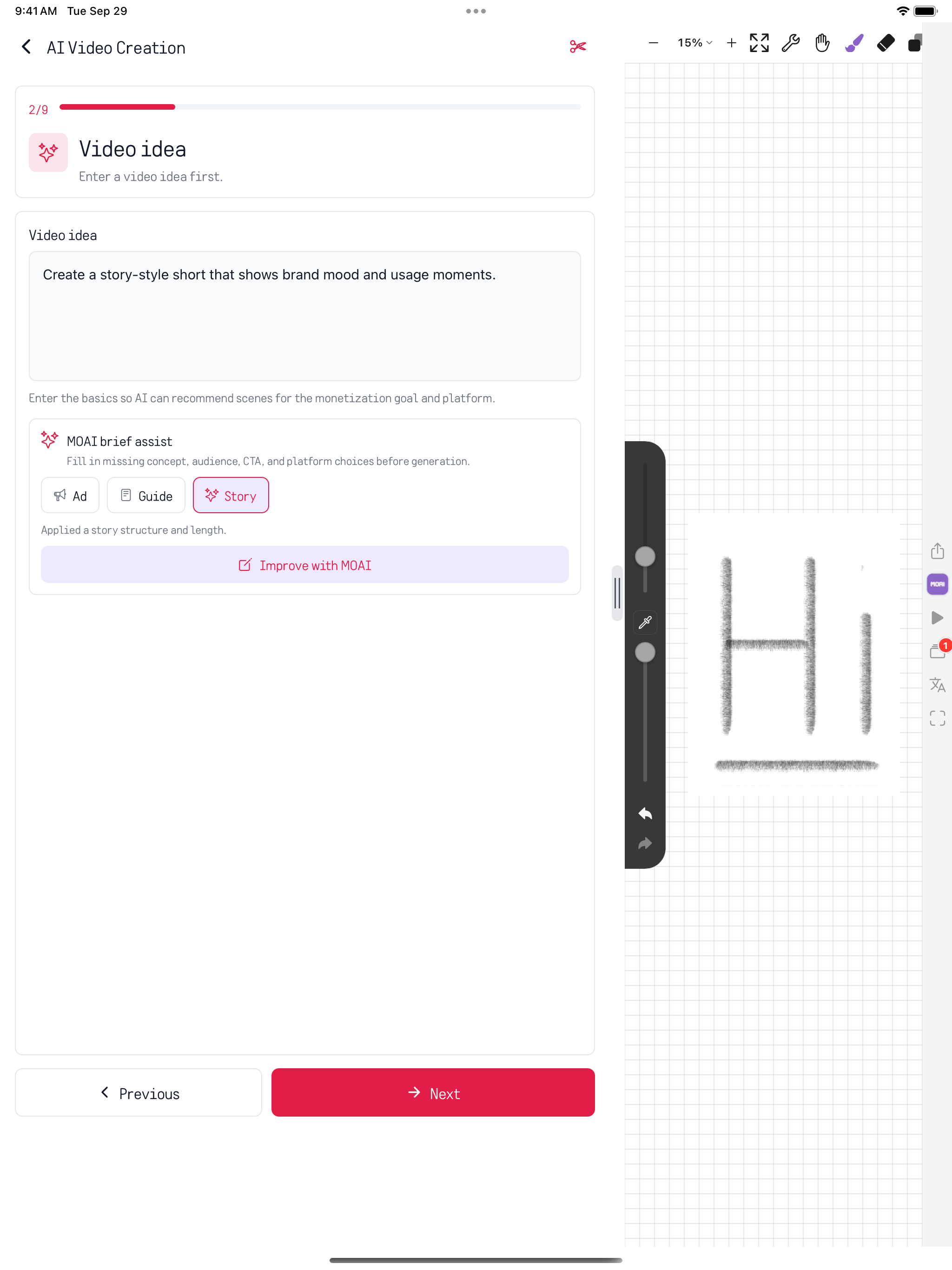
AI Video Creation on iPad, step 2 of 9: a video idea filled in with the MOAI brief assist Story preset, before choosing images, platforms, length and ratio. Sample content shown.
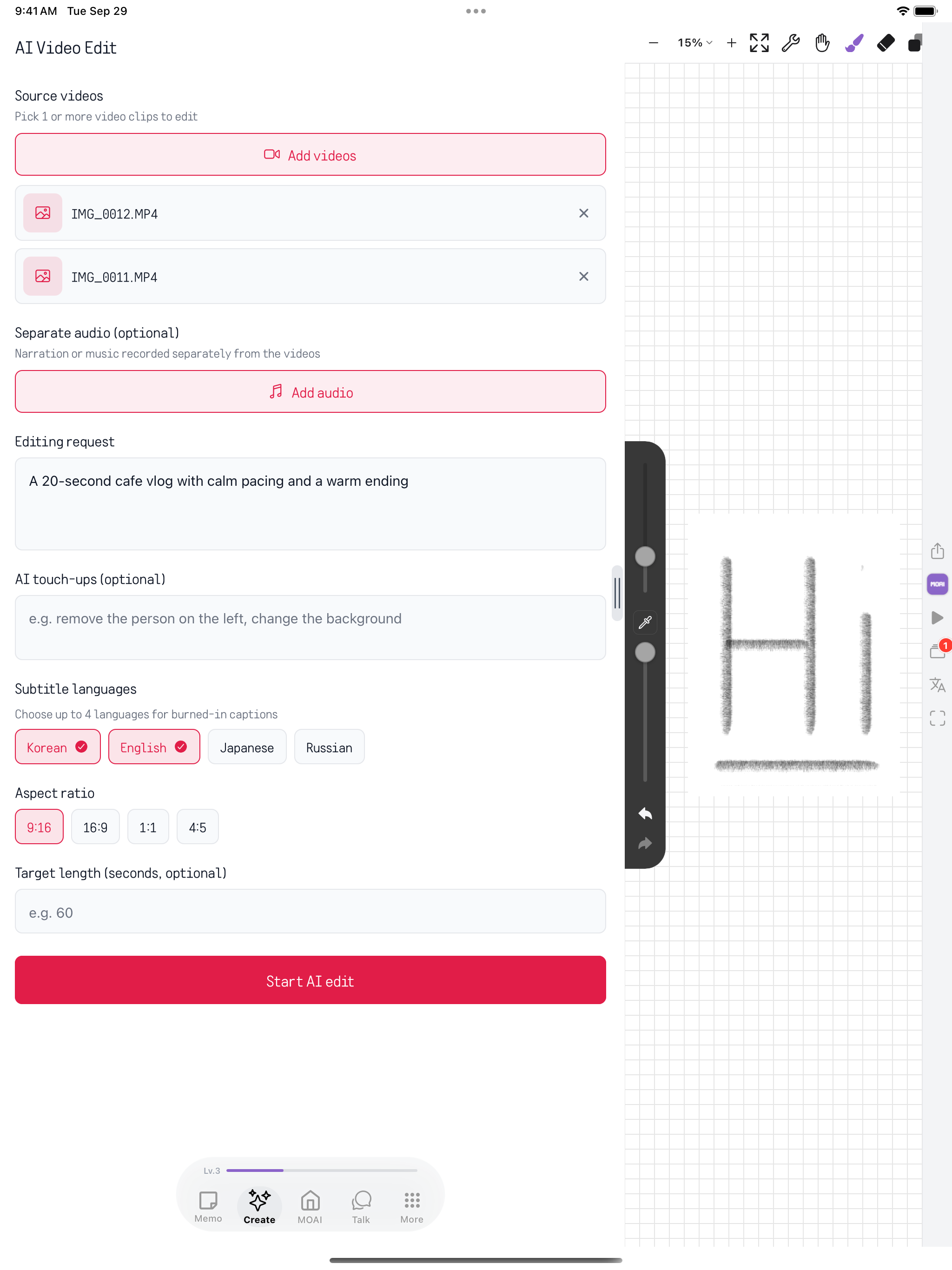
AI Video Edit on iPad: two source clips, an editing request, optional audio and touch-ups, Korean and English subtitle languages, aspect ratio and target length. Sample content shown.
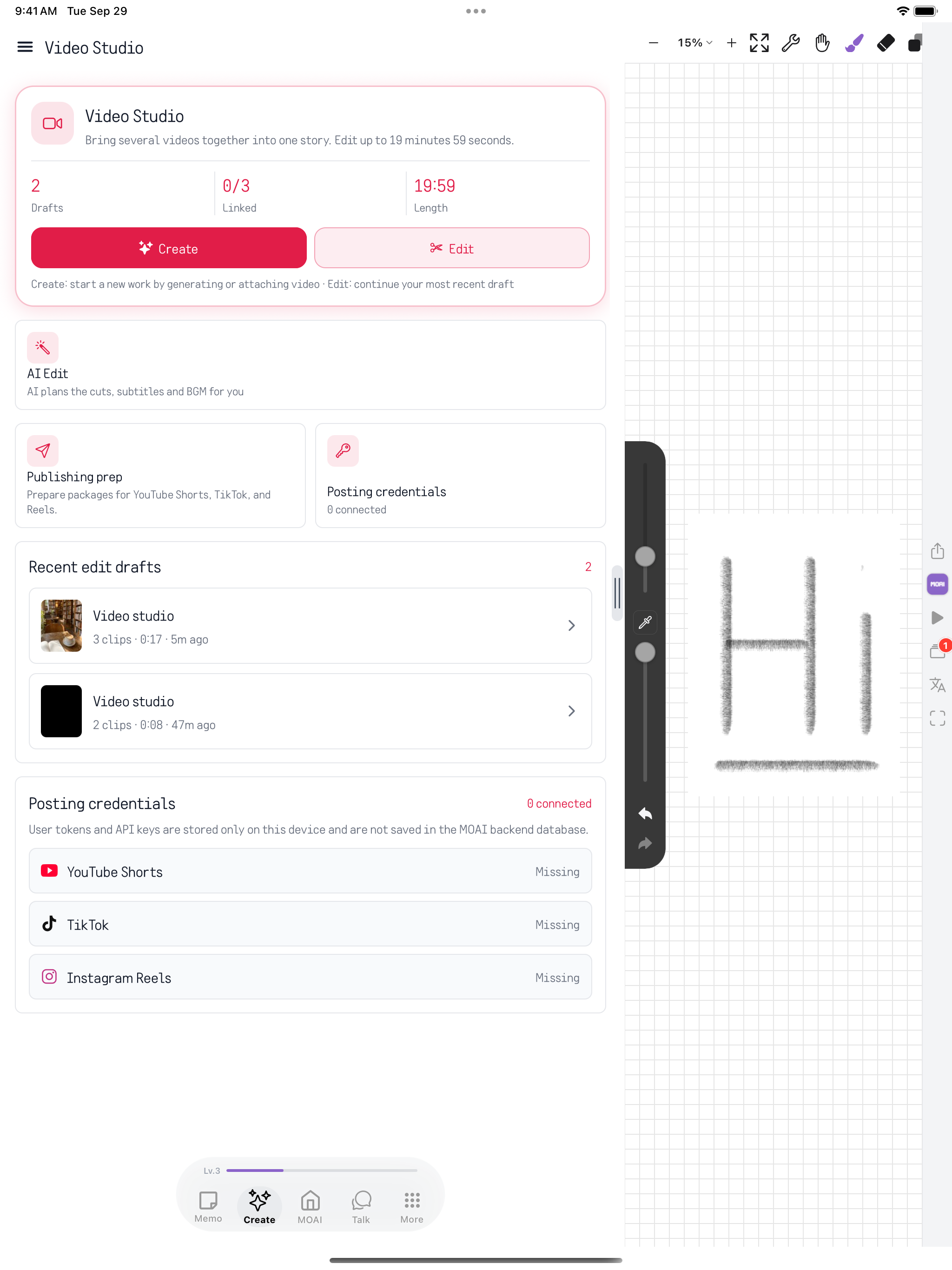
Video Studio home on iPad: Create and Edit buttons, AI Edit, publishing prep, posting credentials and recent edit drafts, next to MOAI Pencil. Sample content shown.
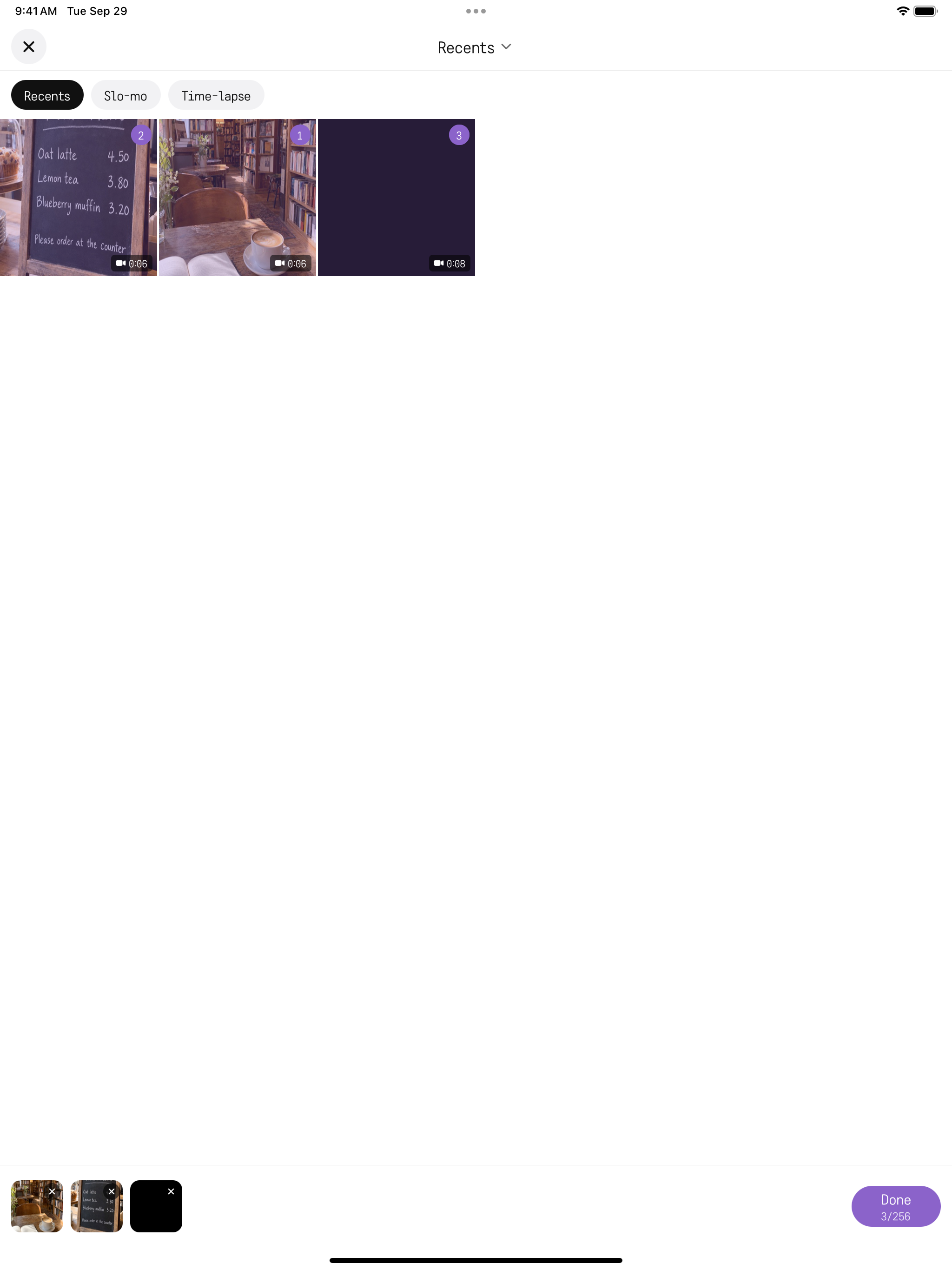
Adding videos on iPad: the album picker with three clips selected in order, ready to add to a new edit. Sample content shown.
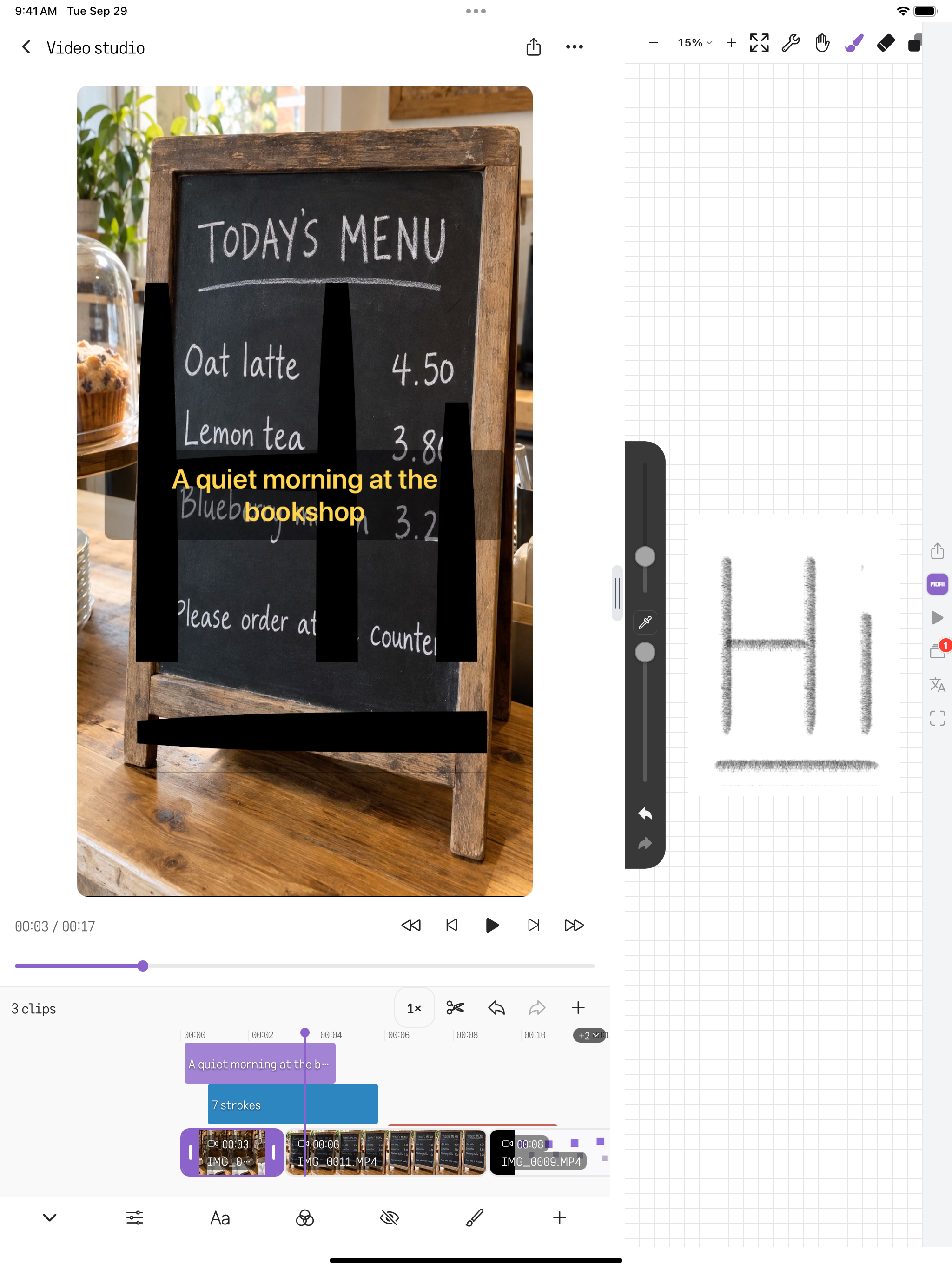
The Video Studio timeline on iPad with three clips, trim handles, split, undo and redo, and separate lanes for subtitles, a Pencil drawing and a privacy area. Sample content shown.
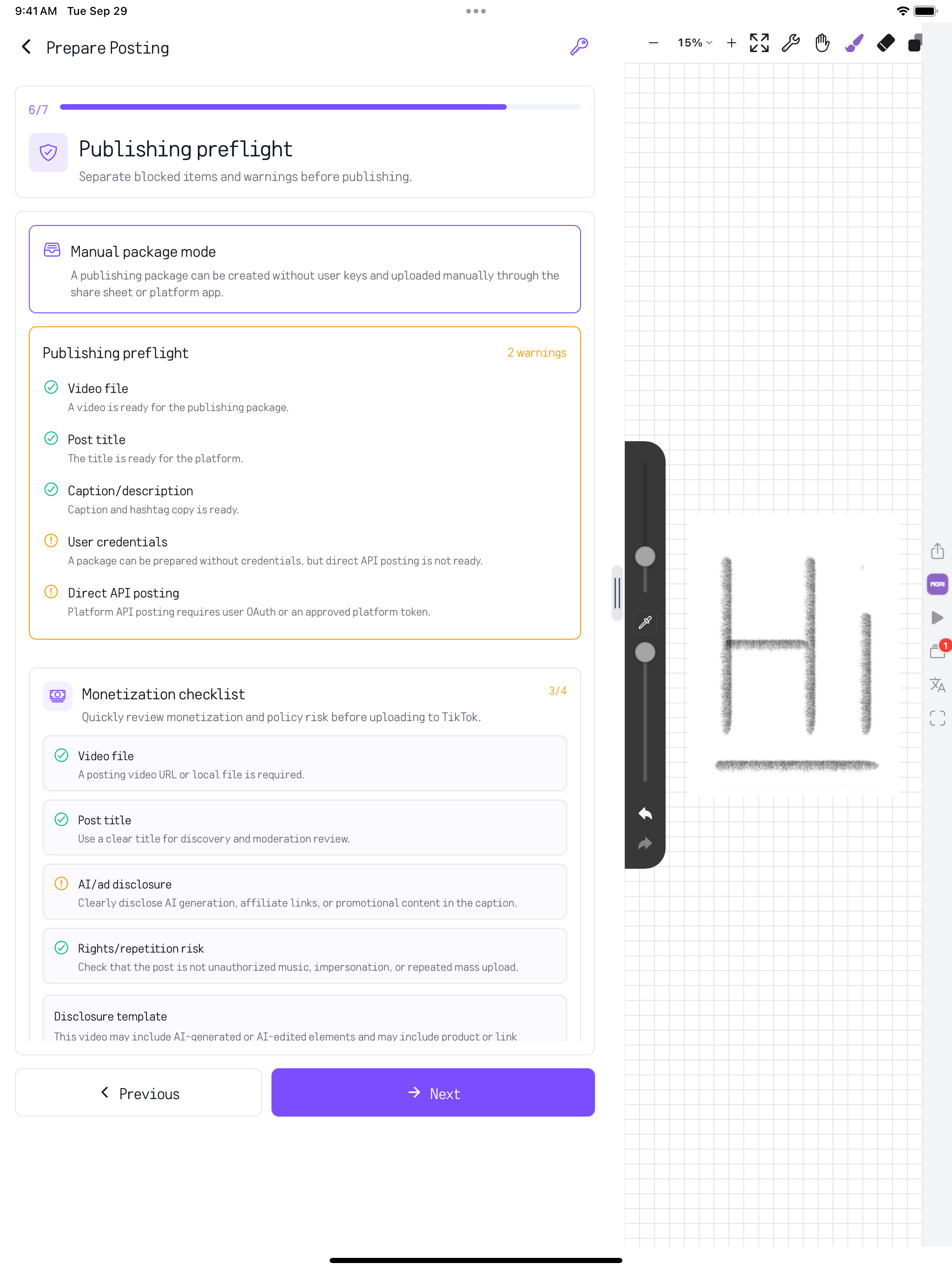
Prepare Posting on iPad, step 6 of 7: the publishing preflight for TikTok with ready and warning items and the monetization checklist. Sample content shown.
Chats
Send messages and attachments, react, edit and translate within a conversation.
Switching between sample conversations on iPad: tapping a chat in the list on the left opens it on the right. Sample content shown.
PC
Write notes, study words and play music on your computer.
New Memo
Write and edit a note, add images and attach the material you want to keep with it.
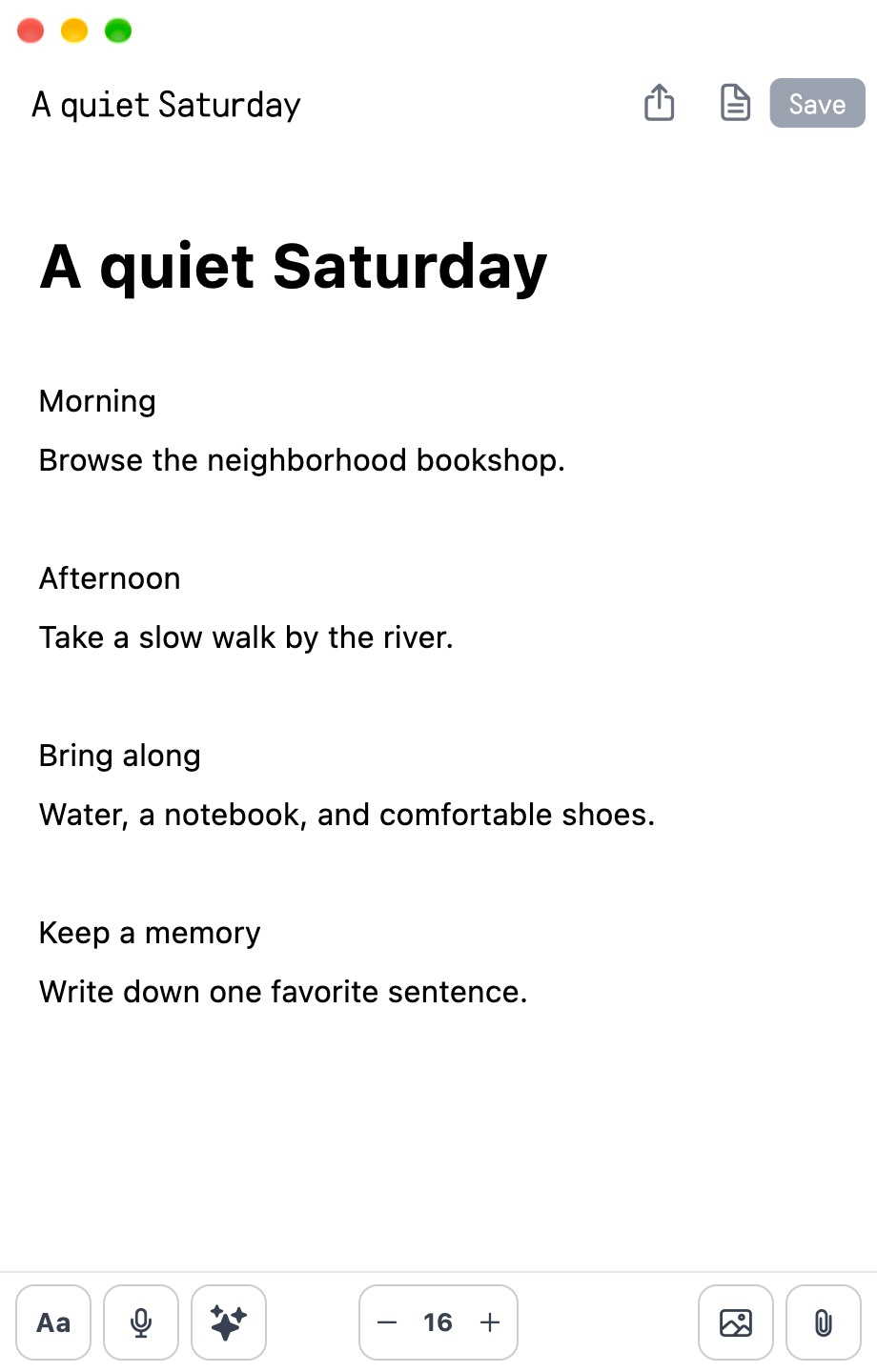
Editing a memo on Mac: tick off to-do items, select a sentence, make it bold from the Aa formatting bar and save. Sample content shown.
A saved weekend plan reopened in the desktop memo editor
Vocabulary Quiz
Bookmark words and practise with vocabulary quizzes.
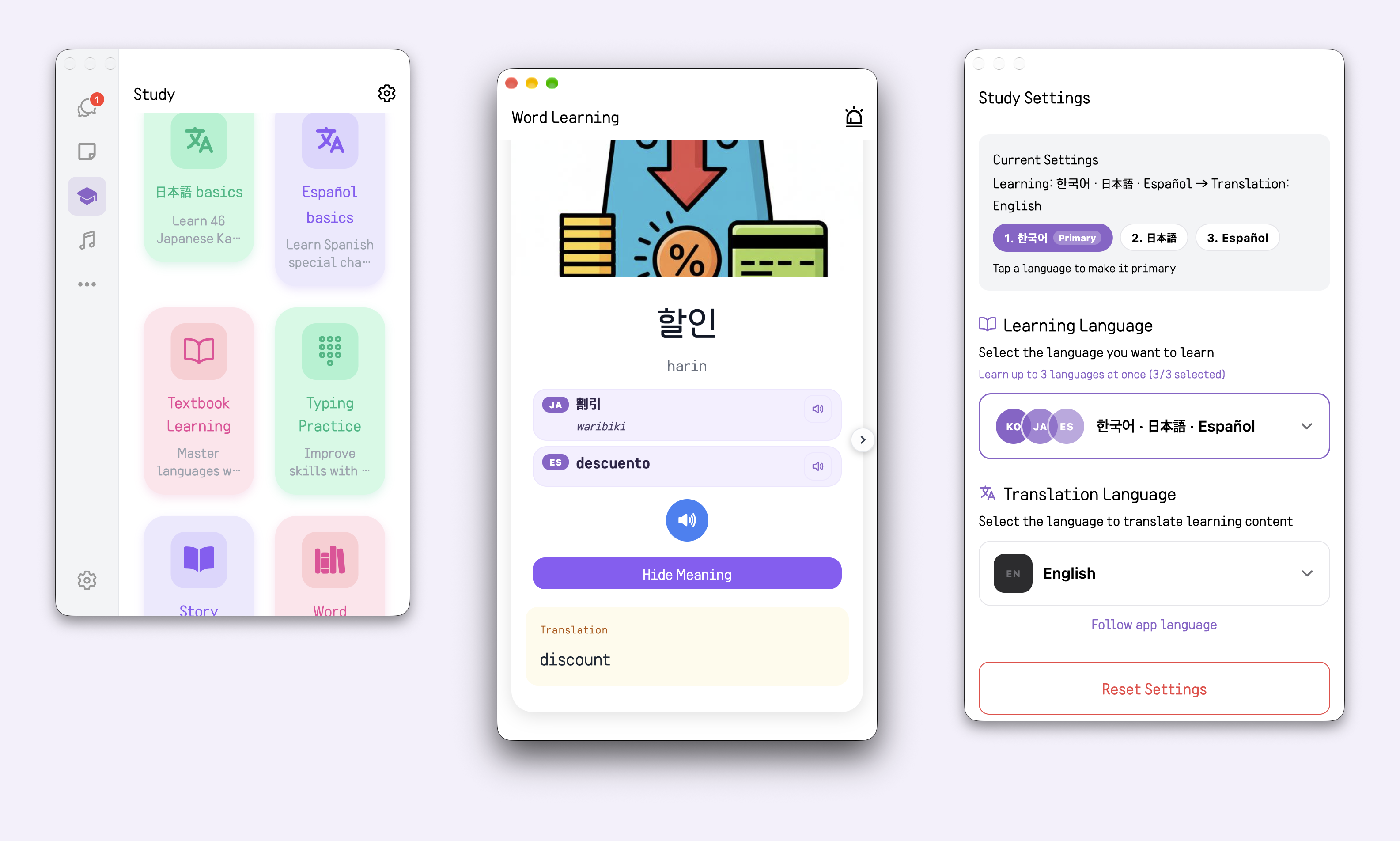
On Mac, Word Learning opens in its own window next to the main app and Study Settings, showing one word in Korean, Japanese and Spanish with its English meaning.
My Library
Play music, make a playlist and return to favourites and listening history.
Playing music on Mac: start a track, switch between the cover and lyrics, jump ahead, turn on repeat, like it and skip to the next track.
MOAI, in your language.
See the app in any of its 30 languages.
Memo English
Create Studio English
Talk English
MOAI home English
Getting started English
Questions about MOAI
What is Everyone’s AI - MOAI?
Everyone’s AI - MOAI is an all-in-one AI app for iPhone, iPad, Android, Mac and Windows. You can write and organize notes with AI, record and transcribe voice memos and meetings, translate text and live conversations, study languages, create music, images and videos, and chat and call with friends — in 30 languages.
What can I do with MOAI?
From a quick note to a meeting, a calendar entry or a drawing. Keep the details together. Music Studio, Beat Maker, Image Studio, Video Studio and Keywords. Start from one idea and turn it into music, images and video. MOAI Lens, Beauty Camera, a real-time conversation translator, Study, Music, Fortune and Love, all in one place. Messages, calls, channels and shared stories bring people together.
Where can I download MOAI?
Choose your platform on the download page to open its official app store.
The MOAI app and this page are available in 30 languages, including English, Korean, Japanese, Spanish, French, German, Russian, Arabic, Hindi, Thai and Vietnamese. Study languages are chosen separately from the app language.